The Smart Home Setup Podcast
134 episodes — Page 2 of 3
Best UPS Systems for Smart Home Hubs: Zigbee, Z-Wave & Matter Device Protection
Autonomous Yard & Landscaping Tech: The Complete Smart Home Guide
Smart Home Technology for Seniors: Complete Guide to Safe, Easy Automation
Hidden Smart Home Devices: Complete Guide to Discreet Home Automation in 2026
Understanding Smart Irrigation Zones and Scheduling Logic
How to Connect Robotic Yard Equipment to Your Smart Home Hub
Smart Yard Automation Setup Checklist: Everything You Need
How to Automate Your Lawn Care with Smart Home Integration
Best Smart Irrigation Controllers with Weather Integration
Robotic Mower vs Traditional Lawn Care: Which Is Better?
What Is Autonomous Landscaping Technology and How Does It Work?
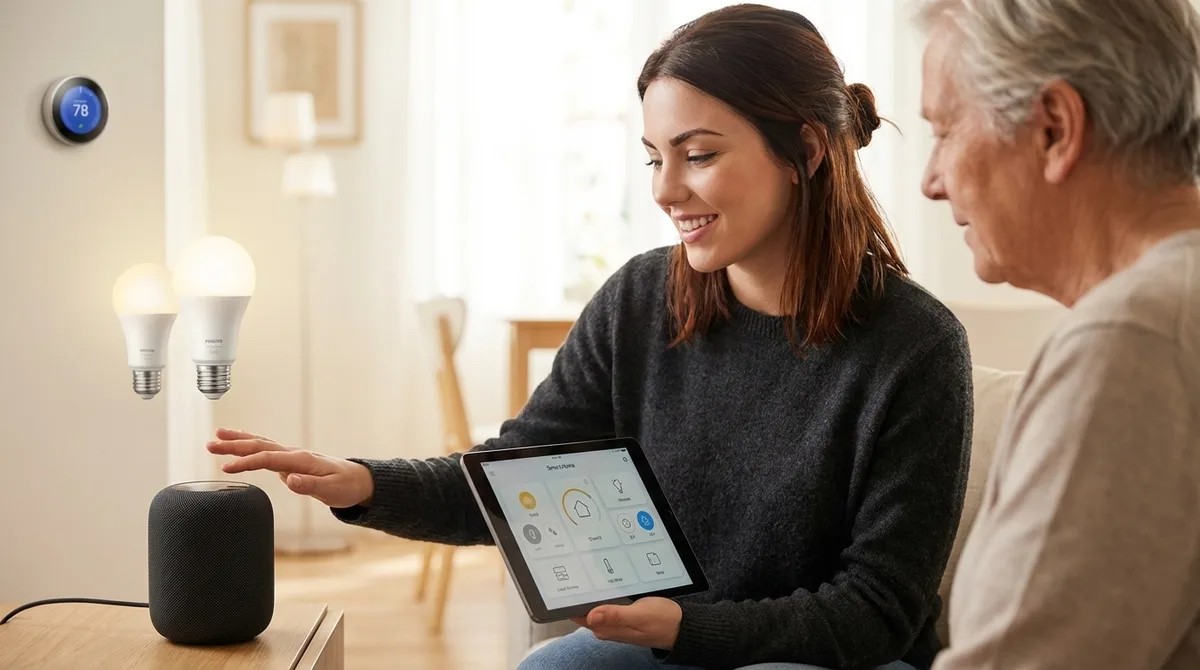
How to Choose Senior-Friendly Smart Home Devices: Accessibility Features That Matter
After rebuilding her mother's smart home setup three times, Chelsea Miller finally cracked the code—and it wasn't about finding the latest gadgets. This episode breaks down how to select smart home devices that actually work for elderly users, cutting through marketing hype to focus on the accessibility features that prevent frustration and reduce caregiver headaches. If you're setting up a smart home for an aging parent or loved one and want to avoid the common pitfalls, this guide walks you through protocol selection, physical control requirements, and the honest assessments you need to make before spending a dime. Protocol selection matters more than product selection—Wi-Fi devices enable remote caregiver access but fail when internet drops, while Zigbee and Z-Wave maintain local automations with significantly faster response times (80-150ms versus 400-800ms for cloud-based commands). Physical buttons and tactile controls prevent the majority of frustration calls; touchscreens require fine motor control and visual acuity that many seniors lack, especially those with arthritis or tremors. Matter 1.4 certification doesn't guarantee seamless cross-platform compatibility in 2026—real-world testing revealed that some certified devices still require firmware updates or won't work with certain voice assistants despite marketing claims. Smart switches with actual paddles (like Lutron Caseta) outperform app-controlled smart bulbs for elderly users because they work even when routers crash and don't require navigating phone menus. Create emergency panic button routines using Zigbee wireless switches placed in key locations; configure double-tap triggers to turn on all lights, notify caregivers, and unlock doors while minimizing false activations from accidental bumps. Budget seven to fourteen days for testing devices before committing to an ecosystem—return windows are your safety net when products don't perform as expected in real-world conditions. Read the full article: https://mysmarthomesetup.com/how-to-choose-senior-friendly-smart-home-devices
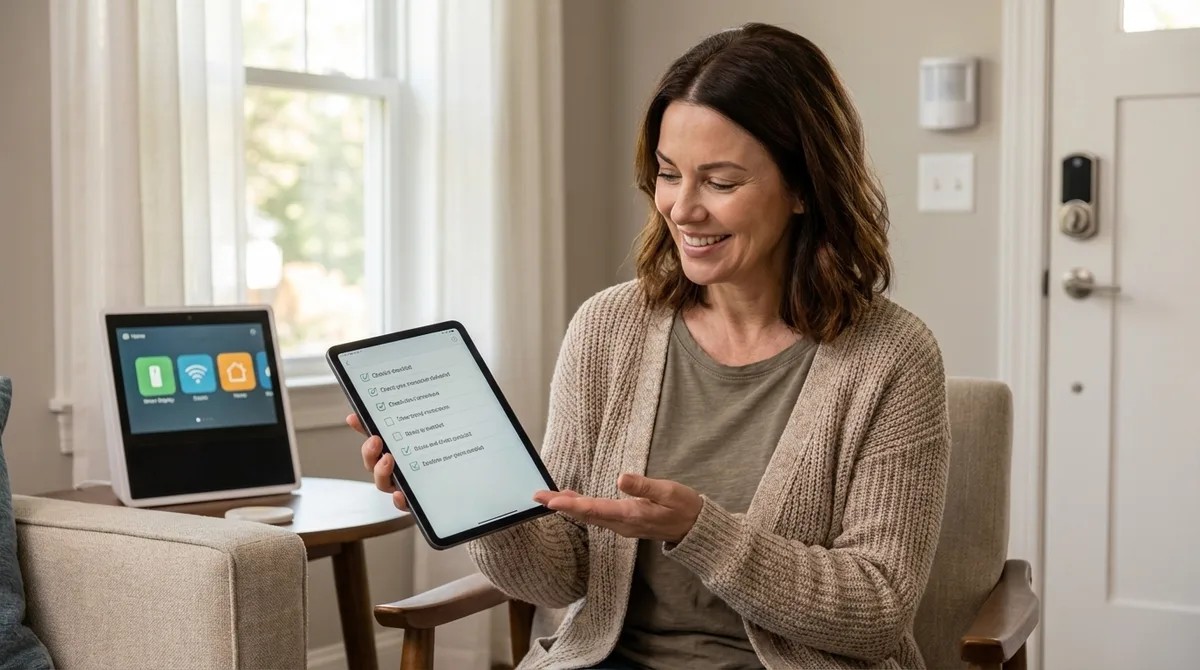
Essential Smart Home Devices Checklist for Elderly Safety and Independence
Most smart home devices marketed for elderly safety come with a hidden cost: constant data collection that turns your loved one's daily routines into corporate surveillance fodder. In this episode, Chelsea Miller breaks down a privacy-first approach to building a senior safety system that actually works—without cloud subscriptions, without behavioral data uploads, and without failing the moment your internet goes down. If you're helping aging parents stay independent at home, this checklist shows you exactly which devices to trust and which ones to avoid. Zigbee and Z-Wave motion sensors respond in under 50 milliseconds locally, while Wi-Fi alternatives almost always require cloud connectivity—making them unreliable and privacy-invasive for elderly monitoring. Popular cloud-connected senior platforms like CarePredict and GrandCare transmit activity data every 30 to 90 seconds, including bathroom visit duration and movement timestamps to third-party analytics services. A two-second fade-in transition on motion-activated lights prevents the startling disorientation that can cause falls—and Zigbee bulbs achieve this with 100-200ms latency compared to 1-3 second delays from cloud-dependent Wi-Fi bulbs. Elderly adults have reduced thermoregulation, making environmental sensors critical: bedroom temperatures below 65°F or above 78°F can be dangerous even when they feel comfortable to younger people. Bed occupancy sensors running on local hubs can detect nighttime wandering and trigger gentle bathroom lighting automatically—without uploading sleep data that could be cross-referenced with health insurance eligibility. Cloud-based medical alert buttons often charge $30-40 monthly just to call 911, while a simple Zigbee panic button through Home Assistant triggers local automations in around 50 milliseconds with no subscription required. Read the full article: https://mysmarthomesetup.com/essential-smart-home-devices-checklist-for-elderly-safety-and-independence
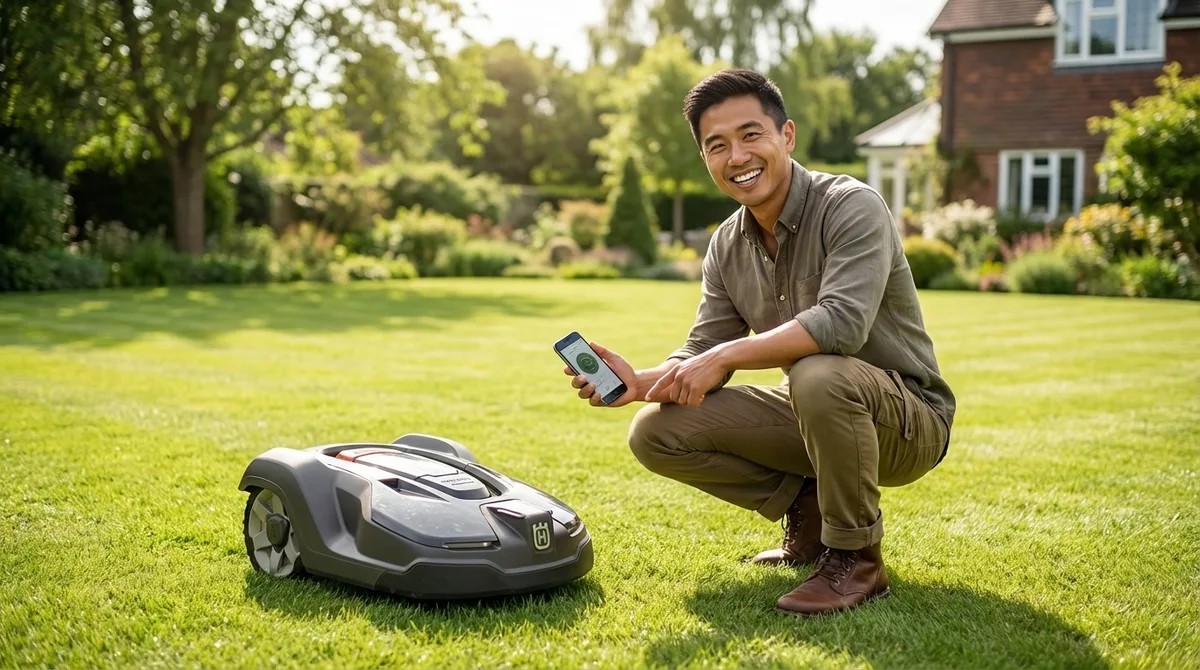
Best Smart Robotic Lawn Mowers for Large Yards
If you're tired of spending your weekends pushing a mower across a sprawling lawn, robotic mowers might seem like the perfect solution—but most models fall apart on large properties due to Wi-Fi dead zones and connectivity issues. In this episode, smart home installer Marcus Chen breaks down what actually works for yards over half an acre, from RTK GPS navigation to cellular connectivity options. Whether you're dealing with complex terrain, tree cover, or trying to integrate your mower with existing smart home systems, this episode cuts through the marketing specs to reveal what really matters for reliable large-yard coverage. Standard Wi-Fi robotic mowers typically lose connection past 150-200 feet outdoors, and that range drops significantly when trees leaf out in summer—meaning a mower that worked in spring may fail by June. For properties over half an acre, prioritize models with built-in cellular connectivity (LTE/4G), RTK GPS navigation, or plan for strategically placed outdoor-rated mesh Wi-Fi extenders. Manufacturer acreage ratings assume flat, obstacle-free lawns—expect real-world coverage to drop 20-30% due to slopes, tree roots, flower beds, and irregular shapes. Robotic mowers don't use Zigbee, Z-Wave, Thread, or Matter protocols as of 2026; all smart home integration runs through cloud-to-cloud connections, meaning you'll experience 2-5 second latency and full dependency on internet servers. Perimeter wire installation for large yards can require 500-1,000+ feet of wire and 4-8 hours of labor, while RTK GPS eliminates wiring but struggles under heavy tree cover. Vision-based AI boundary systems are emerging but unreliable on properties with ambiguous edges—wire-based systems offer the most predictable failure mode when things go wrong. Read the full article: https://mysmarthomesetup.com/best-smart-robotic-lawn-mowers-for-large-yards

What Is Matter Protocol and Why It Matters for Senior Smart Homes
Imagine a smart home where every device—regardless of brand—works together seamlessly, controlled by any family member's phone or voice assistant without juggling multiple apps. In this episode, Keiko Tanaka explains how Matter protocol makes this possible and why it's a game-changer for seniors aging in place. She breaks down the technical architecture in plain language and reveals what to look for when choosing devices that will actually support independence rather than create frustration. Matter is a universal communication standard released in late 2022 (now at version 1.4) that lets smart devices from Apple, Google, Amazon, Samsung, and hundreds of other manufacturers work together without platform barriers—meaning adult children with iPhones can help manage a parent's Google-based home without compatibility headaches. The protocol runs over Thread (a low-power mesh network) and Wi-Fi, with Thread offering faster response times of 200–500 milliseconds compared to Wi-Fi's 300 milliseconds to 2 seconds—a significant difference for safety-critical applications like fall detection and door locks. Thread's self-healing mesh network routes around failed devices automatically and works through thick walls that would block Wi-Fi, requiring just one border router and three to five powered devices to establish reliable coverage throughout a home. Matter devices must declare fallback behavior during setup, determining what happens if network connection drops—smart locks should maintain their last state rather than defaulting to unlocked, and motion-activated nightlights should continue working locally without hub connectivity. Not all Matter devices handle network failures equally well; testing what happens when you unplug the hub mid-routine is essential for senior households, since devices that freeze or become unresponsive may require manual power cycling that's difficult for someone with limited mobility. Unlike older standards like Zigbee or Z-Wave that locked users into specific ecosystems with dedicated hubs, Matter creates a shared vocabulary that lets technology adapt to the person rather than forcing the reverse—preserving dignity and independence for aging residents. Read the full article: https://mysmarthomesetup.com/what-is-matter-protocol-and-why-it-matters-for-senior-smart-homes
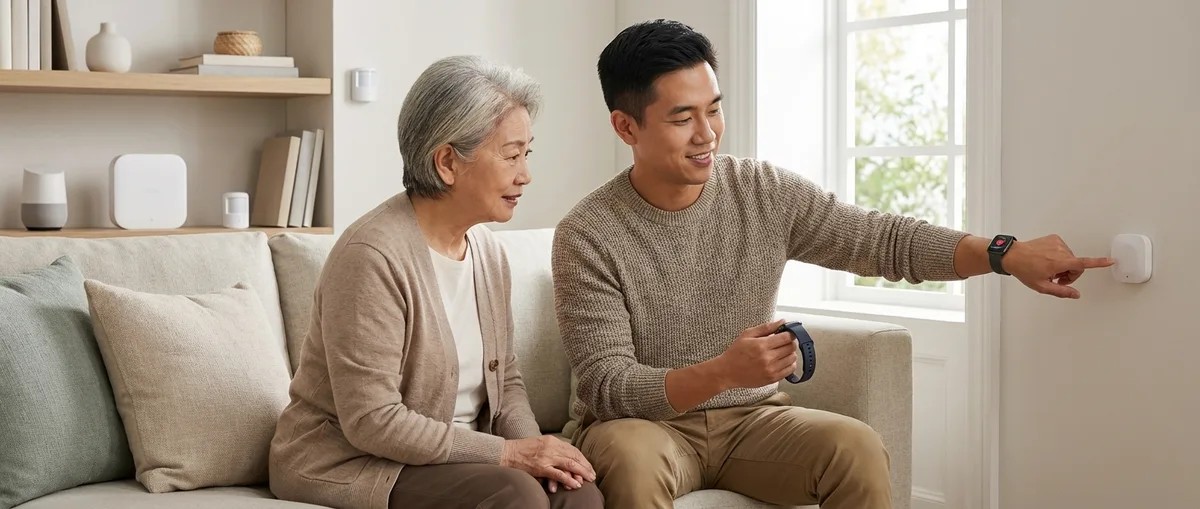
7 Best Fall Detection Smart Home Systems for Aging in Place
When a senior falls at home and can't reach a phone or press a button, every second counts. This episode dives into smart home systems that detect falls automatically and trigger immediate responses—no wearable button presses required. Whether you're setting up a safety net for an aging parent or planning your own future, Marcus Chen breaks down seven systems he's personally installed, comparing everything from response times to privacy considerations and the critical question of what happens when your internet goes down. The Apple Watch Series 10 paired with a HomeKit hub offers the most reliable wearable fall detection tested, with a false positive rate under two percent—but the system only works if the watch is actually worn and charged, making bedside charging routines essential. Vayyar Care uses radar-based detection instead of cameras, making it the top recommendation for bathrooms where falls are most common but privacy matters most—it tracks body position in 3D without producing any images. Response times vary dramatically between systems: wearable-based detection triggers in 10–15 seconds, while radar sensors like Vayyar take 3–8 seconds but require cloud processing that creates internet dependency. Thread-enabled devices respond in 200–400 milliseconds after automation fires, meaning lights can turn on almost instantly when a fall is detected—fast enough to help disoriented seniors and guide emergency responders. Cloud dependency is a critical vulnerability in sensor-based systems—one installation failed during a storm-related internet outage, so areas with unreliable connectivity may need systems with local processing fallbacks. The Apple Watch cellular model is worth the upgrade if seniors tend to leave their phones in another room, since the watch loses notification capability when more than thirty feet from the iPhone without Wi-Fi. Read the full article: https://mysmarthomesetup.com/7-best-fall-detection-smart-home-systems-for-aging-in-place
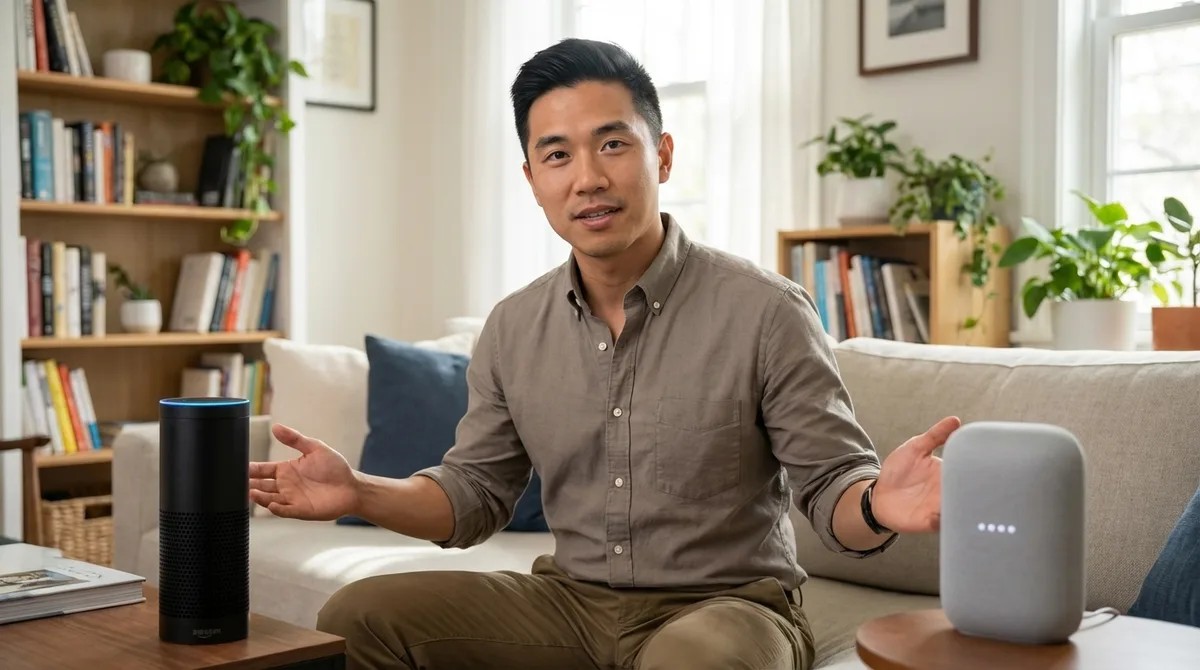
Amazon Alexa vs Google Home for Senior Citizens: Which Is Easier to Use?
Choosing a smart speaker for an aging parent isn't about flashy features—it's about what happens when things go wrong. In this episode, Marcus Chen draws on hundreds of installations for seniors to compare Amazon Alexa and Google Home through the lens of real-world usability challenges. You'll discover which platform better understands softer voices and accented speech, how each handles emergency situations, and the critical fallback behaviors that most tech reviews completely ignore. If you're setting up smart home technology for someone over 65, this comparison covers what actually matters. Google Home achieves 89% voice recognition accuracy with seniors compared to Alexa's 82%, handling softer voices, regional accents, and medication-affected speech patterns significantly better in field testing across 60+ installations. Amazon's Emergency Assist subscription ($6/month) connects to live agents within 8–12 seconds and integrates directly with Life Alert-compatible devices, while Google's Emergency SOS requires an Android phone nearby and offers limited medical alert integration. Behind-the-ear hearing aids with Bluetooth enabled cause 15–20% accuracy drops on both platforms—the fix is positioning speakers 4–6 feet away and disabling Bluetooth during voice interactions. Alexa supports over 140,000 devices with built-in Zigbee and Thread protocols, making it the better choice if your parent needs specialized medical monitoring equipment or existing smart home devices. Google's setup process requires only 8 steps compared to Alexa's 12 steps, and medication reminders accept natural language like "remind me to take my pills every morning at 8" rather than requiring rigid command structures. Response latency matters more than you'd think—seniors notice delays above 300 milliseconds as sluggish and often repeat commands, causing confusion. Google's local processing delivers 150–220ms response times versus Alexa's 180–280ms. Read the full article: https://mysmarthomesetup.com/amazon-alexa-vs-google-home-for-senior-citizens
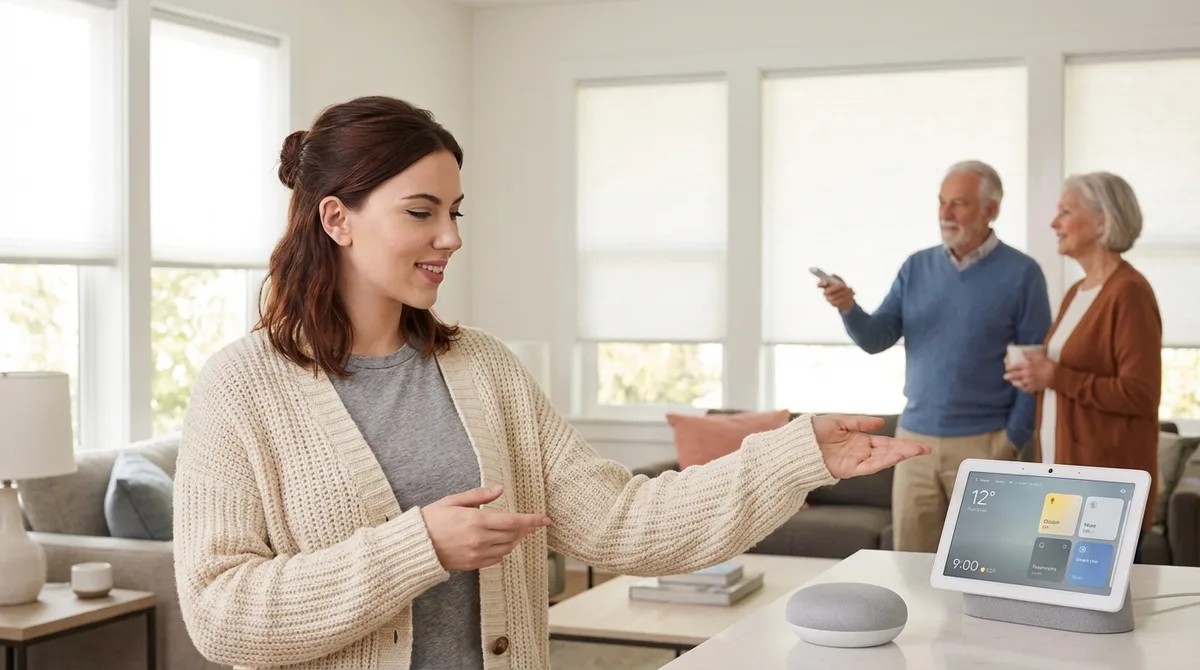
Best Voice-Activated Smart Home Devices for Seniors in 2026
When the Wi-Fi goes out, most smart home setups leave elderly users stranded—or worse, in the dark with no way to call for help. This episode tackles the critical question of which voice-activated devices actually work reliably for seniors, drawing from hands-on experience setting up systems for parents in their seventies. Chelsea Miller breaks down everything from local voice processing to backup controls, helping you build a smart home that won't fail when it matters most. Cloud-dependent voice assistants like Alexa and Google add 200–500 milliseconds of latency per command and fail completely during internet outages—local processing with Home Assistant's Assist responds in under 150 milliseconds and works offline. Zigbee and Thread protocols with a local hub are the most reliable foundation for a senior's smart home, while Wi-Fi devices saturate networks and depend entirely on router uptime. Custom wake words matter more than you'd think—shorter, sharper words like "Home" or "House" are easier for seniors with speech difficulties to pronounce clearly than phrases like "Hey Google." Voice control should enhance physical backups, not replace them—Zigbee button remotes near beds, hardwired smart switches, and motion-triggered automations ensure lights still work when voice recognition fails. Amazon and Google retain voice recordings indefinitely unless manually deleted, making local storage and subscription-free devices essential for protecting seniors who may share sensitive health information verbally. The best devices score 7 out of 10 or higher on a Cloud-Free Viability Score, meaning they'll still turn on lights even if you unplug the router entirely. Read the full article: https://mysmarthomesetup.com/best-voice-activated-smart-home-devices-for-seniors-in-2026
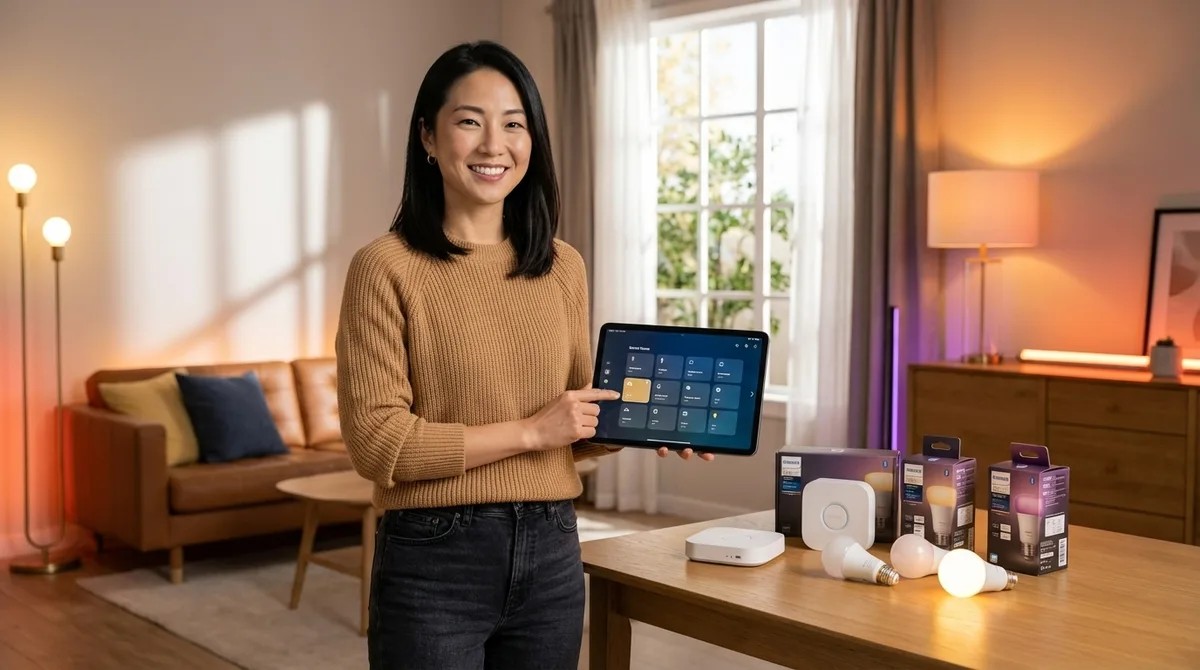
How to Choose Smart Lighting: Protocol, Ecosystem Lock-In & Budget Guide
Ever wonder why some smart lighting setups feel magical while others become frustrating gadgets you eventually abandon? Host Keiko Tanaka, drawing from a decade of designing spaces where technology disappears into architecture, breaks down the critical decisions that separate effortless automation from expensive mistakes. This episode guides you through protocol selection, ecosystem lock-in traps, and realistic budget planning—everything you need to build lighting that responds to your daily rhythms without demanding constant attention. Zigbee and Thread mesh networks offer 50–100 millisecond response times and continue working during internet outages, making them ideal for truly invisible automation that doesn't depend on cloud connectivity. Wi-Fi bulbs eliminate hub requirements but flood your network—every bulb competes for bandwidth, which becomes problematic as you scale up your smart home. The Philips Hue ecosystem demonstrates a common lock-in pattern: while you can add third-party Zigbee bulbs, premium features like entertainment sync and gradient lighting remain exclusive to Hue products. Apple HomeKit's strict hardware-level security certification limits device selection but guarantees local processing—expect to pay 30–50% more for HomeKit-certified bulbs compared to non-certified alternatives. Matter promises cross-platform compatibility across Alexa, Google Home, HomeKit, and SmartThings, but adoption remains incomplete in 2026—many popular bulbs still lack Matter certification or have unreliable firmware updates. Before buying anything, map your existing devices and their supported platforms, then write out desired automations in if-then logic to reveal hidden protocol requirements that vague plans won't expose. Read the full article: https://mysmarthomesetup.com/how-to-choose-smart-lighting
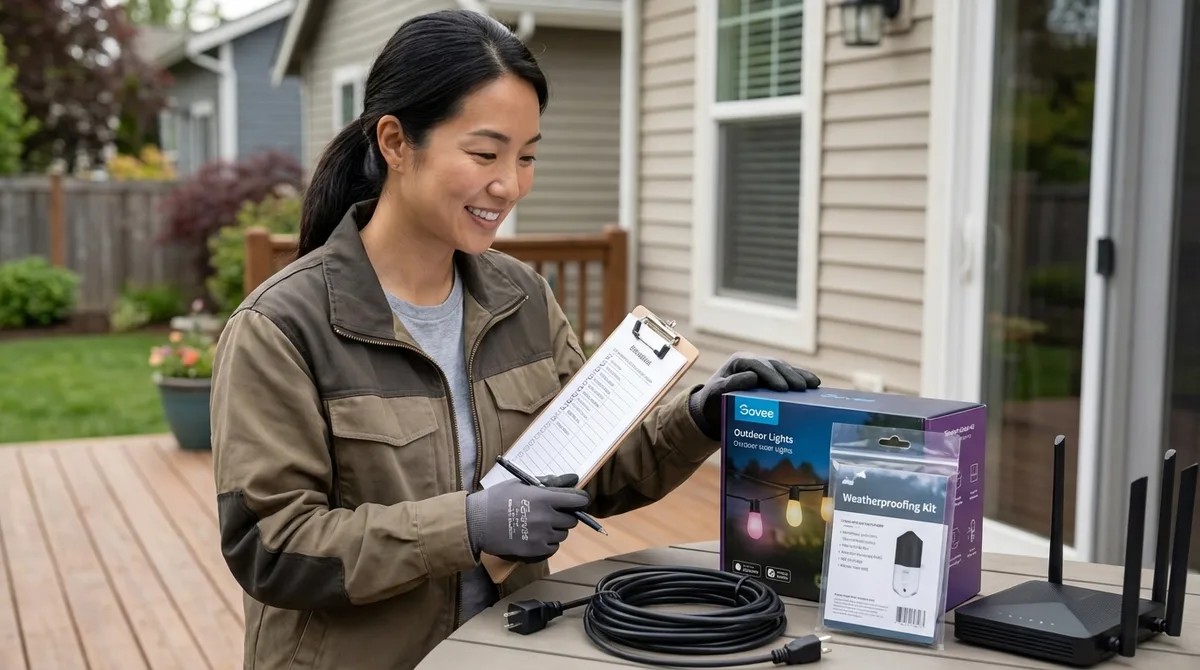
Govee Outdoor Lights Installation Checklist: Wi-Fi Range, Weatherproofing & Power
Most outdoor smart light installations fail before the first bulb ever turns on—not because of faulty products, but because of poor planning around Wi-Fi coverage, weather protection, and power requirements. In this episode, Keiko Tanaka draws on extensive Govee troubleshooting experience to walk you through the essential pre-installation checklist that separates stunning ambient lighting from sagging, flickering disappointments. Whether you're planning a pergola transformation or tracing your roofline, this guide covers the invisible architecture that determines long-term success with Wi-Fi-dependent lighting systems. Govee lights operate exclusively on 2.4 GHz Wi-Fi with no mesh network fallback, so you must map outdoor signal strength at the exact controller mounting location—anything below -70 dBm will cause intermittent dropouts, especially during temperature swings that affect radio frequency propagation. Physical obstructions like brick walls, metal siding, and dense foliage attenuate Wi-Fi signal far more than interior drywall; a clear line-of-sight reading of -50 dBm can plummet to an unreliable -85 dBm through a stone chimney. The IP65 weather rating assumes proper installation—applying dielectric grease to connection terminals before mating them prevents the microscopic gaps where corrosion-causing condensation accumulates, typically starting at the high-voltage controller-to-string junction. Controller orientation matters more than the rating suggests: mounting enclosures facing skyward allows water to pool on surfaces despite intact gaskets, leading to circuit board moisture infiltration within months. Standard plastic cable clips become brittle after 18–24 months of sun exposure and snap during windstorms; UV-stabilized black nylon ties rated for outdoor telecom use provide far more durable mounting. Calculate total wattage before daisy-chaining multiple strands—a 48-bulb string draws 24–38 watts at full white output, and you need to account for 20 percent overhead for power supply efficiency losses plus verify GFCI outlet availability within 10 feet of your starting point. Read the full article: https://mysmarthomesetup.com/govee-outdoor-lights-installation-checklist
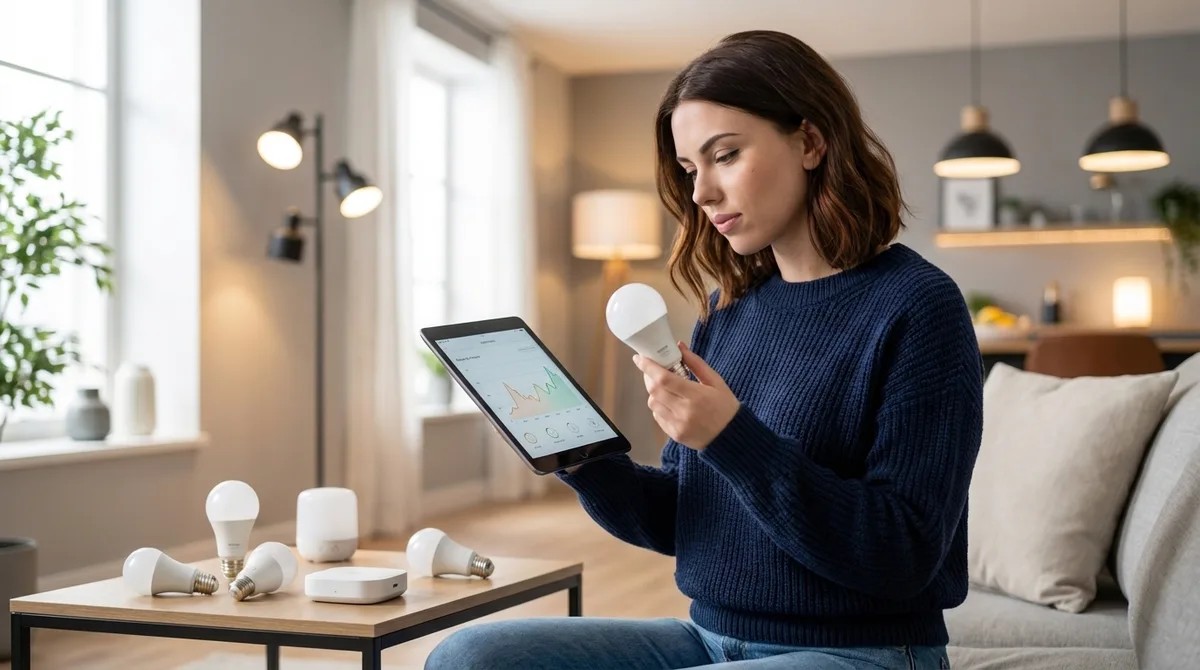
Smart Bulb Response Times Explained: Latency, Reliability & Mesh Networks
Ever flipped a smart light switch and stood there wondering if your house actually heard you? That frustrating delay between command and action is latency, and it's the hidden factor that separates smart homes that feel magical from ones that feel broken. In this episode, Chelsea Miller breaks down exactly where those delays come from after spending a year testing dozens of smart bulbs across Zigbee, Z-Wave, Thread, Matter, and Wi-Fi protocols. Whether you're troubleshooting a sluggish setup or designing a new system from scratch, you'll learn how to measure, diagnose, and eliminate the lag that makes automation feel like a downgrade. A properly configured local smart bulb setup responds in 50–200 milliseconds, while cloud-dependent systems can take over 2,500 milliseconds—that's the difference between instant and noticeably broken. Latency is a chain, not a single number: your command travels through protocol stacks, network hops, processing steps, and finally bulb execution, with each link adding precious milliseconds. Local control via Home Assistant and Zigbee delivers consistent 72–102 millisecond response times, while the same bulb routed through cloud services like Alexa fluctuates wildly between 340 and 2,340 milliseconds depending on internet conditions and server load. Mesh networks add hops that increase latency by 15–40 milliseconds each, but the tradeoff is worth it: in testing, a two-hop Zigbee route improved reliability from 60% to 99.8% over 500 commands while only adding 45 milliseconds. Protocol choice matters enormously—Thread recalculates failed routes in 100–300 milliseconds, Zigbee takes 200–500 milliseconds, and Z-Wave lags behind at 600–1,200 milliseconds due to its different routing algorithm. Most Wi-Fi smart bulbs require cloud authentication for every single command, meaning when your internet goes down, the fallback behavior is simply nothing—your lights won't respond at all. Read the full article: https://mysmarthomesetup.com/smart-bulb-response-times-explained

How to Create Smart Lighting Automations with If/Then Logic and Scenes
The best smart home lighting is the kind you forget exists—lights that respond to your presence, the time of day, and your activities without you ever reaching for a switch or issuing a voice command. In this episode, Keiko Tanaka breaks down how to build invisible lighting automations using if/then logic and scenes that make your home feel atmospheric rather than technological. Whether you're working with Home Assistant, SmartThings, or another hub, you'll learn how to create layered conditions, choose the right protocols for sub-second response times, and design lighting zones that shift with the rhythm of your day. Every smart lighting automation follows the same if/then structure, but sophistication comes from stacking multiple conditions—like motion detection plus time of day plus ambient light levels—to create context-aware responses that feel intuitive. Protocol choice dramatically affects automation performance: Zigbee and Z-Wave deliver 50–150 millisecond latency, while Wi-Fi bulbs can introduce 300–800 millisecond delays due to cloud routing, breaking the seamless illusion of invisible automation. Before writing any automation rules, walk through your home at different times of day to observe how natural light shifts and when you instinctively reach for switches—this mapping process reveals the emotional temperature each space needs. Scenes stored locally on your hub execute almost instantaneously (under 100 milliseconds for a full room transition), while cloud-dependent scenes can take one to three seconds, creating perceptible lag that disrupts immersion. Each zone in your home may need multiple distinct modes—a kitchen alone might require bright task lighting for morning prep, ambient warmth for dinner, and a low nightlight path for late-night water runs. Prioritize hubs that support local processing with no cloud dependency, and consider that most hubs and sensors can be concealed in cabinetry or recessed into architecture so the only visible tech disappears into your home's design. Read the full article: https://mysmarthomesetup.com/how-to-create-smart-lighting-automations-with-if-then-logic-and-scenes
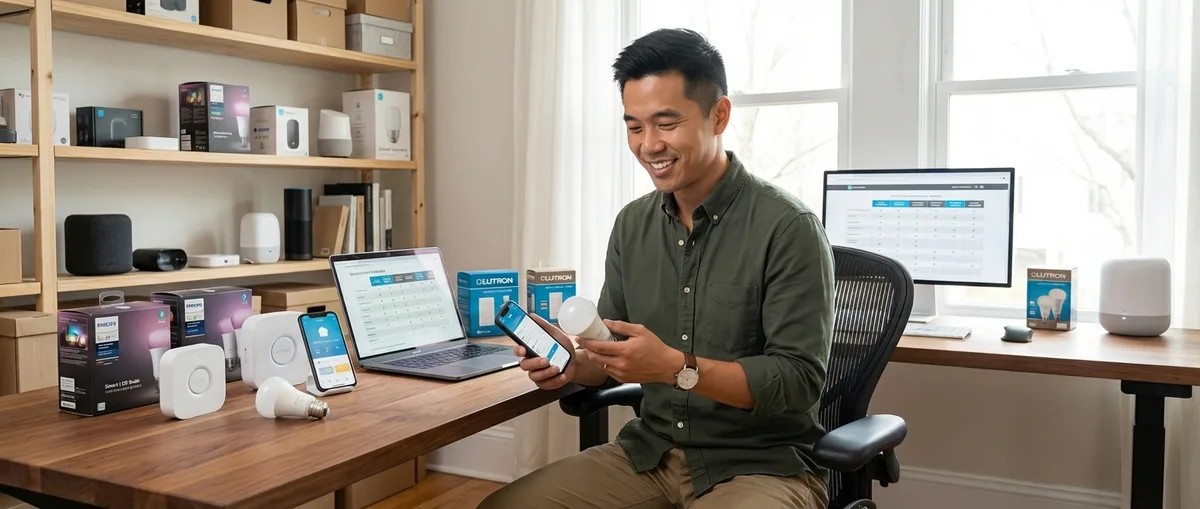
Smart Lighting Compatibility Checklist: Hub, Protocol & Device Requirements
You've just unboxed your new smart bulbs, screwed them in, opened the app—and nothing happens. Compatibility problems derail more smart lighting installations than any other factor, yet most people don't know what to check before they buy. This episode walks you through every compatibility requirement you need to verify, from protocol matching and hub requirements to electrical constraints and automation platforms. Whether you're building a smart lighting system from scratch or expanding an existing setup, you'll learn exactly what works together and what doesn't before spending a dollar. Protocol mismatches cause roughly 60% of smart lighting setup failures—Zigbee bulbs need Zigbee hubs, Z-Wave needs Z-Wave controllers, and mixing them without checking compatibility is the most common mistake new users make. Z-Wave has regional frequency differences that most buyers overlook: bulbs purchased in Europe operate on 868.42 MHz and won't work with North American controllers running at 908.42 MHz. Wi-Fi bulbs seem simpler since they skip the hub, but each one occupies a DHCP address on your network—home routers often struggle when device counts exceed 40 to 50, leading to dropouts and latency spikes of 100 to 300 milliseconds. Matter-certified lighting offers true multi-ecosystem compatibility across Apple Home, Google Home, Amazon Alexa, and SmartThings, but Thread-based Matter devices require a Thread Border Router like HomePod mini, Nest Hub Max, or Echo 4th gen. Marketing claims and actual technical support often diverge at the hub level—Amazon Echo Show 2nd gen has Zigbee, but the original Show does not, despite both being sold as smart home hubs. Bluetooth-only smart bulbs cannot participate in home automation and should be skipped unless you only want basic phone control with no scheduling or voice assistant integration. Read the full article: https://mysmarthomesetup.com/smart-lighting-compatibility-checklist
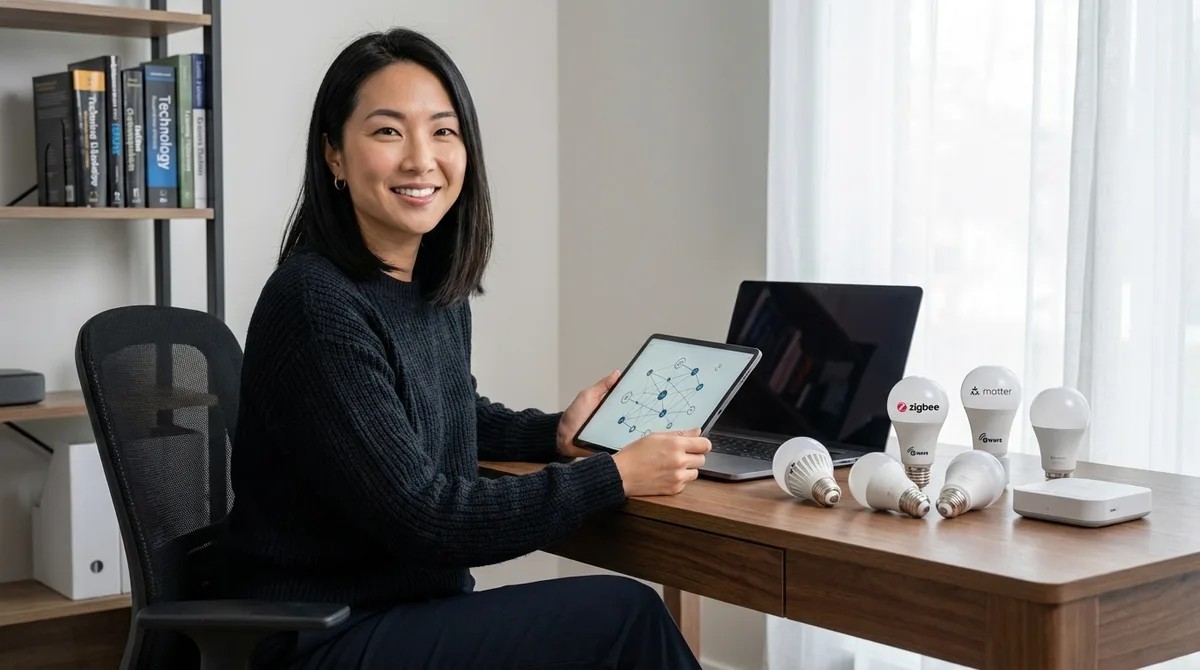
Smart Light Bulb Protocols Explained: Zigbee vs Z-Wave vs Matter vs Wi-Fi
Ever notice how some smart homes respond instantly while others stutter and lag? The culprit isn't usually the bulb itself—it's the invisible communication protocol running behind the scenes. In this episode, Keiko Tanaka breaks down the four major smart light bulb protocols dominating the market in 2026: Zigbee, Z-Wave, Matter, and Wi-Fi. Whether you're planning a whole-home lighting system or just trying to figure out why your current setup feels unreliable, this episode explains the technical foundations that determine whether your smart lighting feels like magic or frustration. Smart light protocols are the "languages" your devices speak—a Zigbee bulb literally cannot communicate with a Z-Wave hub, no matter how advanced either device is, because they operate on fundamentally different systems. Zigbee runs on the crowded 2.4 GHz band alongside Wi-Fi and Bluetooth, which can cause interference, while Z-Wave uses a dedicated sub-gigahertz frequency (908.42 MHz in North America) that passes through walls more reliably. Both Zigbee and Z-Wave create mesh networks where each powered device extends range and provides backup pathways, but Z-Wave caps out at 232 devices per controller while Zigbee theoretically supports thousands. When your internet goes down, Zigbee and Z-Wave automations keep running locally—but if your hub fails, the entire network collapses and bulbs freeze in their last-commanded state. Matter aims to solve the compatibility mess by acting as a translation layer that sits atop existing protocols like Thread and Wi-Fi, potentially letting devices from different ecosystems finally work together. Wi-Fi bulbs connect directly to your router without needing a hub, which sounds convenient but often leads to network congestion and higher power consumption in larger installations. Read the full article: https://mysmarthomesetup.com/smart-light-bulb-protocols-explained
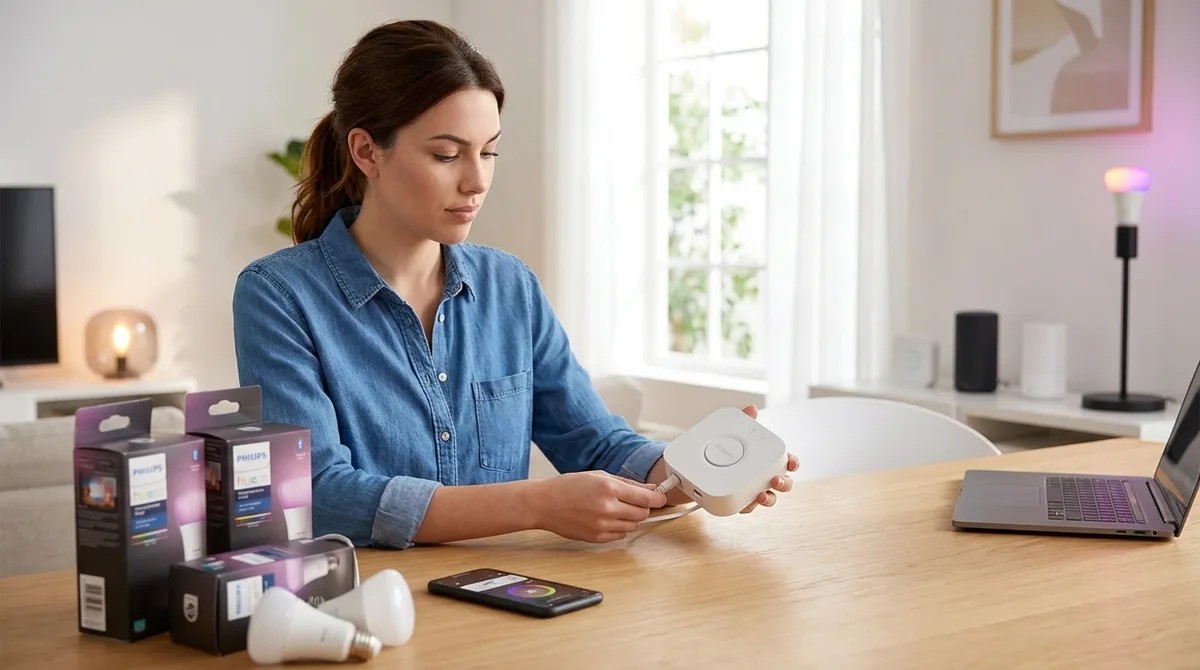
How to Set Up Philips Hue Bridge with Zigbee Bulbs and Automation Rules
Ever wondered what your Philips Hue Bridge is actually sending to the cloud when you flip on a smart bulb? In this episode, Chelsea Miller breaks down the complete setup process from unboxing to building local automations—all while revealing exactly which data goes where after three days of packet-sniffing her own Bridge. Whether you're a beginner looking for a step-by-step walkthrough or someone who wants to minimize cloud dependencies, this 60-to-90-minute tutorial covers hardware requirements, protocol clarifications, and privacy configurations that keep your smart lighting responsive even when your internet goes down. The Hue Bridge phones home to Signify's servers within 90 seconds of connecting, reaching out to api.meethue.com and firmware.meethue.com—but you can block these connections after initial setup while keeping all local automations functional. Wired latency from bulb command to light change averaged just 47 milliseconds in testing, compared to 130–190 milliseconds for Wi-Fi bulbs on the same network—that's the difference between instant response and noticeable lag. You can skip creating a Philips Hue account entirely, but you'll lose remote access, automatic firmware updates, and third-party integrations; manual firmware updates require downloading files and using a deprecated browser interface. The Bridge supports up to 50 Zigbee devices and 12 accessories, operates as a Zigbee 3.0 coordinator on the 2.4 GHz band, and does not support Z-Wave, Thread, or Matter natively as of early 2026. Cloud-free viability scores a 7 out of 10: schedules, sunrise/sunset rules, and local app control work without internet, but voice assistants like Alexa and Google Assistant require cloud connectivity. If you create an account, use a burner email, disable "personalized experiences," and deny location permissions unless you specifically want geofencing automations. Read the full article: https://mysmarthomesetup.com/how-to-set-up-philips-hue-bridge-with-zigbee-bulbs-and-automation-rules
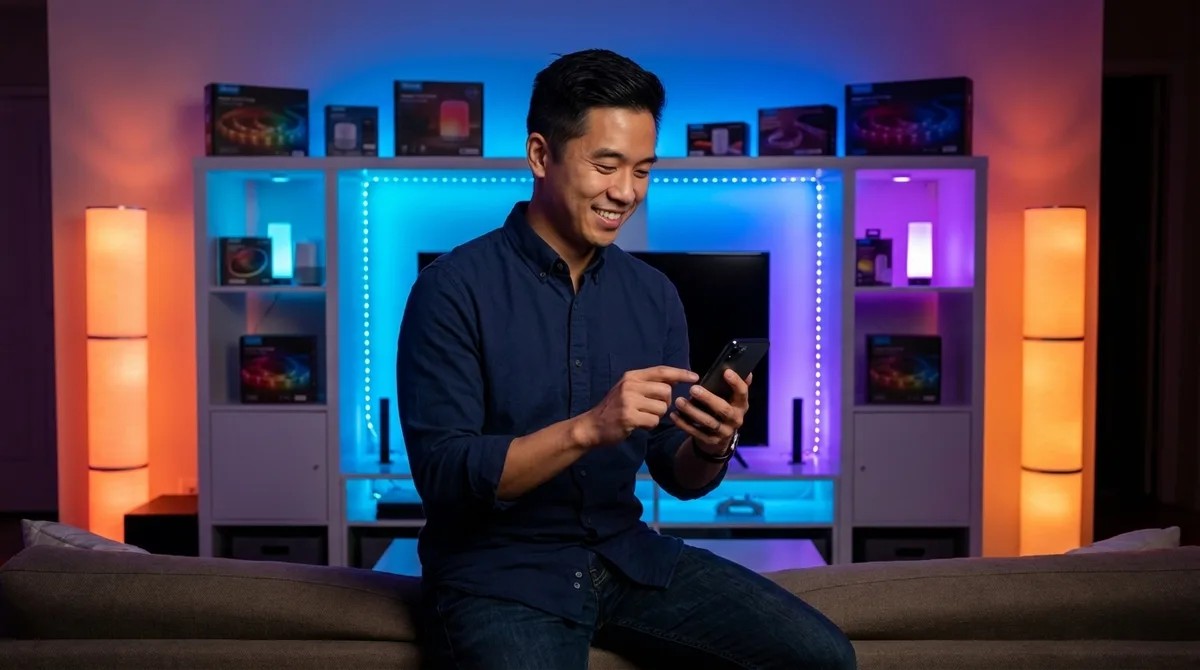
Best Govee Smart Lights: Top Wi-Fi RGB Strips, Bulbs & Outdoor Lighting
Looking for affordable smart lighting that won't lock you into an expensive hub ecosystem? This episode dives deep into Govee's Wi-Fi-based RGB lighting lineup, covering everything from immersive TV backlights to versatile LED strips. Host Marcus Chen draws on experience from over eighty installations to reveal which products deliver on their promises and which ones create unexpected headaches. Whether you're building out a home theater setup or adding accent lighting throughout your space, you'll learn the real-world trade-offs that most reviews skip over. All Govee lights connect via 2.4 GHz Wi-Fi only, which means no hub purchases but also no HomeKit, Matter, Thread, or Zigbee compatibility—they'll always operate as an isolated system separate from protocol-level smart home automations. The Govee Envisual TV Backlight T2's camera-based approach works with any content source without the HDMI handshake issues that plague sync boxes, but expect 50–80 milliseconds of latency that's noticeable during fast-paced gaming. Camera calibration on the T2 is highly sensitive to ambient light conditions, so windows or bright overhead lights will cause washed-out LED responses and require frequent recalibration. The adhesive backing on Govee strips tends to fail after six to eight months, especially on textured walls—plan on reinforcing with 3M Command strips for long-term installations. RGBIC strips display multiple colors simultaneously along their length, creating dynamic gradients that look dramatically better than standard single-color RGB strips for accent lighting applications. Before installing any Govee product, verify your Wi-Fi signal strength at the installation location—you need at least -70 dBm on the 2.4 GHz band, and mesh systems that aggressively push devices to 5 GHz will cause intermittent disconnections. Read the full article: https://mysmarthomesetup.com/best-govee-smart-lights
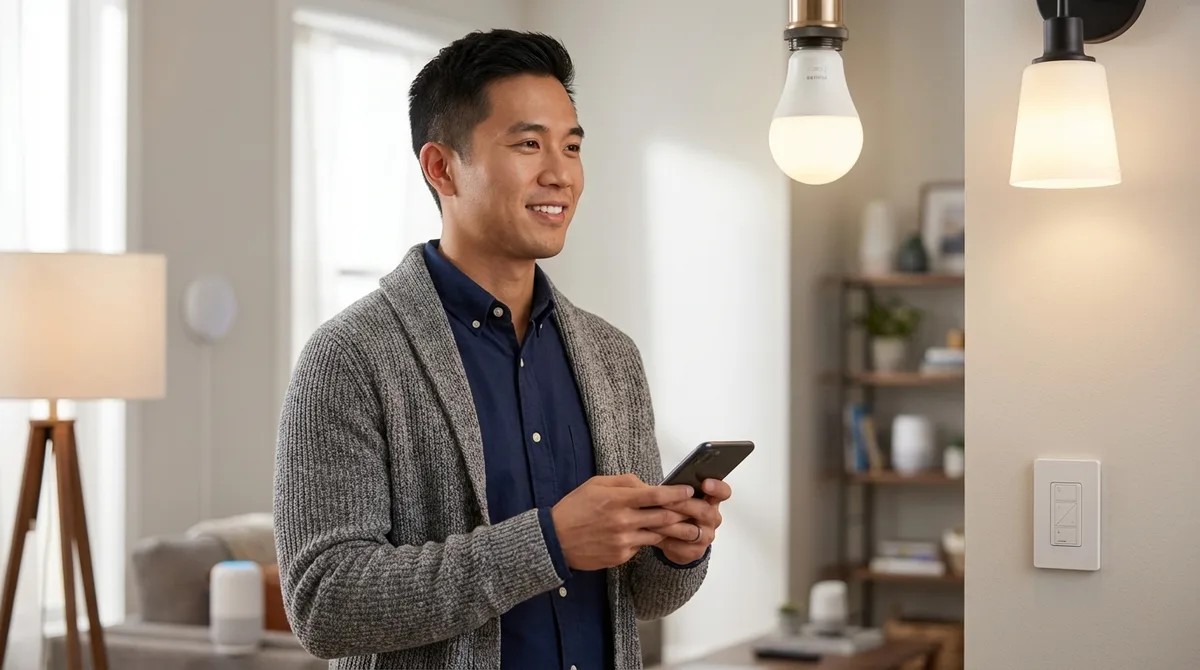
Lutron Caseta vs Philips Hue: Which Smart Lighting System Is Better?
Choosing between Lutron Caseta and Philips Hue can feel overwhelming when both systems promise to make your home smarter. This episode breaks down the real-world differences between these two popular smart lighting platforms, drawing on hundreds of actual installations. Whether you're a homeowner looking for reliable whole-home dimming or a renter wanting colorful accent lighting without electrical work, you'll learn exactly which system fits your specific situation and why the protocol differences matter more than most buyers realize. Lutron Caseta uses proprietary Clear Connect RF at 433 MHz, which operates on a frequency with minimal Wi-Fi and Zigbee interference, resulting in the most consistent dimming performance and fewer failed responses. Philips Hue runs on Zigbee 3.0 and now supports Matter via bridge firmware updates, allowing you to expose your lights to Matter controllers like Apple Home or Google Home without replacing your existing bulbs. Response latency differs significantly: Caseta delivers 150–250ms from switch to light with nearly instant physical switch response, while Hue runs 200–400ms from app or voice commands with physical switches adding another 100–150ms. Caseta installation requires replacing existing switches and typically needs a neutral wire, which most homes built after 1985 have—but older homes may require an electrician or the non-dimming PD-5WS switch as a workaround. Neither system communicates directly with the other; bridging Caseta switches to Hue bulbs requires a third-party hub like Home Assistant, and cloud-based routines through Alexa or Google introduce 1–2 seconds of latency. Fallback behavior is a critical difference: Caseta's physical switches always work even when the bridge or internet fails, while Hue bulbs stay in their last state during bridge failure and standard wall switches cut power entirely. Read the full article: https://mysmarthomesetup.com/lutron-caseta-vs-philips-hue
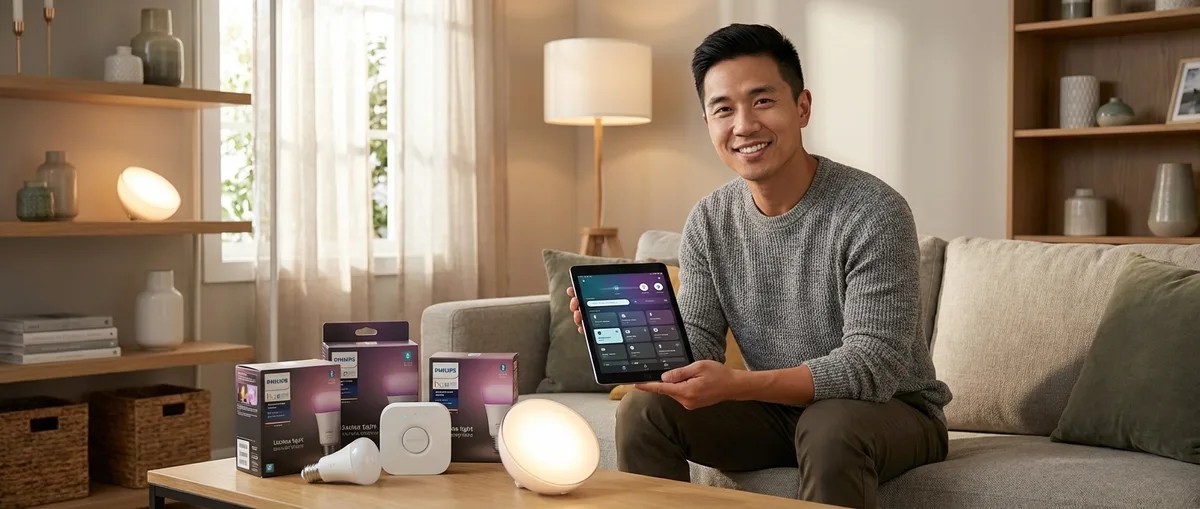
Best Philips Hue Smart Bulbs and Lights: Complete Zigbee Buying Guide
Still fumbling for light switches in the dark? This episode breaks down everything you need to know about Philips Hue smart bulbs before you buy. Marcus Chen draws on years of hands-on installation experience to explain why these Zigbee-based lights remain the gold standard in 2026, which hub setup actually makes sense for your home, and how to avoid the costly mistakes that frustrate first-time smart lighting buyers. Whether you're building out your first smart home or expanding an existing ecosystem, this guide answers the critical questions about protocols, bulb types, and real-world performance. The Philips Hue Bridge is still essential for full functionality in 2026—Bluetooth-only control sacrifices automations, remote access, and platform integrations that make smart lighting worthwhile. Most homeowners who buy expensive Color Ambiance bulbs end up setting them to warm white within a month, so unless you're planning gaming setups or seasonal displays, White Ambiance bulbs save you 40% without sacrificing daily usefulness. Each powered Hue bulb acts as a Zigbee repeater, meaning 10–12 bulbs in a typical home create enough mesh density to virtually eliminate dropout issues—but smart switches that cut power break this network. Response time runs 200–300 milliseconds from trigger to light change, which feels instant to most users but creates a noticeable difference if you're switching between dumb switches and smart bulbs. Matter support arrived via firmware update in late 2024, but this makes the Bridge a Matter bridge—the bulbs themselves remain Zigbee devices that require the hub. Brightness mistakes are common: showroom displays make 800-lumen bulbs look adequate, but kitchens and bathrooms typically need 1100+ lumens for proper task lighting. Read the full article: https://mysmarthomesetup.com/best-philips-hue-smart-bulbs-and-lights
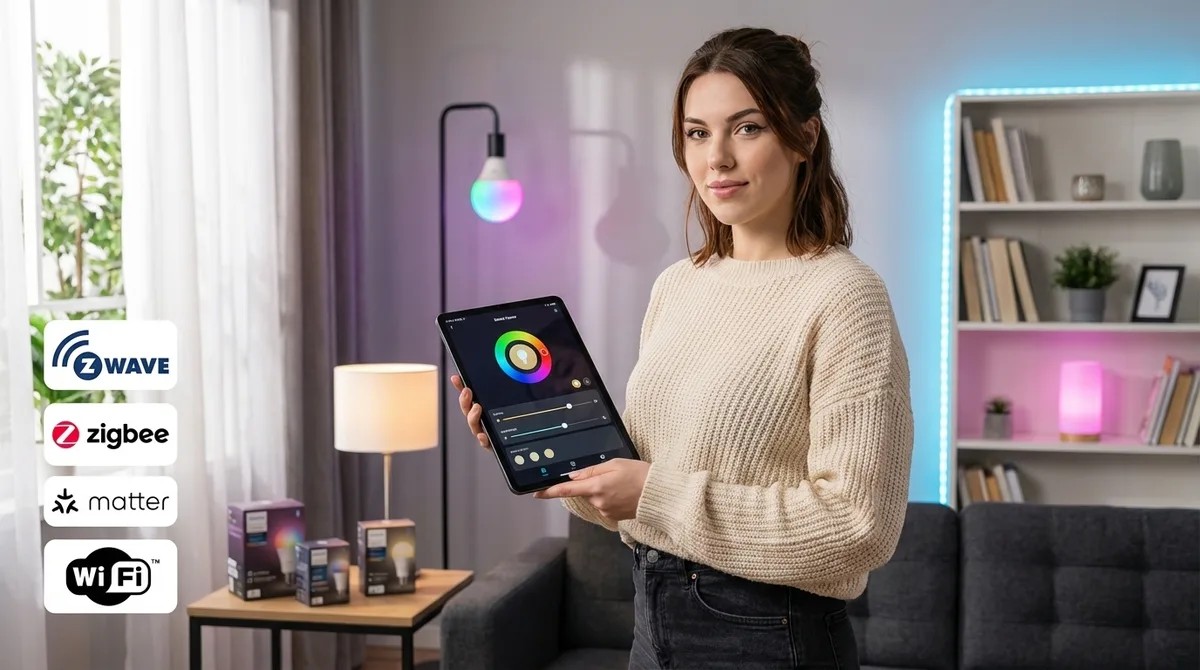
Smart Lighting for Home Automation: Complete Guide to Zigbee, Z-Wave, Matter & Wi-Fi Systems
Think your smart lights are just listening to your commands? They're also talking back—to corporate servers that log when you wake up, when you leave, and when you come home. In this episode, Chelsea Miller breaks down exactly how smart lighting protocols work at the technical level after discovering her own "smart" bulbs were phoning home every ninety seconds, even when switched off. Whether you're building a new system or auditing an existing one, this guide reveals which protocols keep your data local and which ones are quietly uploading your daily patterns to third-party analytics domains. Most commercial smart lighting from brands like Philips Hue, LIFX, and TP-Link defaults to cloud-first architecture, creating 200–800ms latency and detailed activity logs that companies monetize through data sales and targeted advertising. Zigbee and Z-Wave bulbs controlled through Home Assistant or Hubitat can operate entirely offline, with response times under 80 milliseconds and zero internet dependency. Zigbee runs on 2.4GHz channels that overlap with Wi-Fi, causing latency spikes during video calls—mapping your Wi-Fi channels and selecting Zigbee channel 15 or 25 eliminates most interference. Z-Wave operates at 900MHz with better wall penetration and no Wi-Fi interference, and Z-Wave Plus 800 series switches can achieve 40ms response times over three mesh hops. Matter's promise of cross-platform local control has a catch: Matter 1.0 required cloud commissioning, and while Matter 1.4 makes local-only commissioning mandatory, many existing devices won't receive the firmware updates needed to support it. Wi-Fi bulbs connect directly to your router without a hub, but this simplicity is exactly why they leak data so effectively—most manufacturers gate local control behind firmware that quietly enables cloud dependencies. Read the full article: https://mysmarthomesetup.com/smart-lighting-for-home-automation
Smart Device Fallback Behavior Checklist: What Happens When Wi-Fi or Hubs Fail
What happens to your smart home when the internet goes down? This episode tackles the uncomfortable reality that many "smart" devices become surprisingly dumb during Wi-Fi outages or hub failures. Keiko Tanaka breaks down exactly how every category of smart device behaves when connectivity disappears—from lights and thermostats to security cameras and sensors. Whether you're building a new smart home or troubleshooting an existing setup, understanding fallback behavior is essential for creating a home that works reliably, not just impressively. Zigbee and Thread bulbs paired with local hubs like Home Assistant or Hubitat keep working during internet outages, maintaining automations with 80–150 millisecond latency because they operate on local mesh networks independent of cloud services. Wi-Fi-only smart bulbs technically still work without internet if your local network stays up, but app response times can balloon from under 200 milliseconds to 2–5 seconds, disrupting the seamless experience that makes automation feel invisible. Most smart thermostats allow manual temperature adjustments during outages but lose cloud-dependent features like geofencing and occupancy-based scheduling—meaning your "eco mode when everyone leaves" automation silently fails. Cloud-dependent security cameras without local storage become completely non-functional during internet loss—no recording, no alerts, nothing—while cameras with microSD slots continue capturing footage you can access once connectivity returns. Matter 1.4 devices maintain local control even when cloud services go down, and multi-admin support means a bulb connected to both Google Home and Apple HomeKit responds to either ecosystem during outages. Battery-backup smart switches are rarer than you'd think—most Z-Wave and Zigbee switches reset to default states after power outages and require hub reconnection before automations resume. Read the full article: https://mysmarthomesetup.com/smart-device-fallback-behavior-checklist
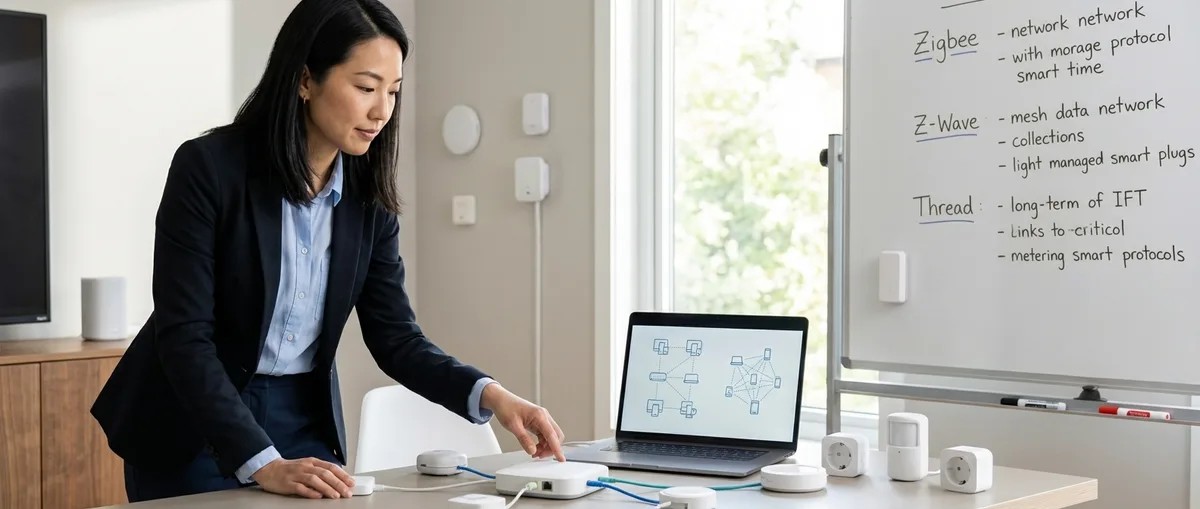
Device Mesh Network Reliability Explained: Zigbee vs Z-Wave vs Thread
You tap the button to turn off a lamp and nothing happens—then three seconds later it finally responds. That maddening delay is the difference between a smart home that truly works and one that constantly reminds you it exists. In this episode, Keiko Tanaka breaks down why mesh network reliability matters more than raw specs, comparing how Zigbee, Z-Wave, and Thread each handle the crucial job of getting signals from your finger to your devices. Whether you're planning a new installation or troubleshooting an existing setup, understanding these architectural differences will help you build a home that responds before you've finished reaching for the manual switch. Mesh network reliability comes down to three qualities: latency (response speed), uptime (connection consistency), and fault tolerance (recovery from failures)—and each protocol balances these differently. Zigbee shares the crowded 2.4 GHz band with Wi-Fi and microwaves but compensates with dynamic routing that adjusts paths every few seconds, supporting up to 30 hops and 65,000 devices per network. Z-Wave deliberately avoids Wi-Fi interference by operating on sub-gigahertz frequencies, which penetrate walls better and deliver lower latency (100–250ms), but networks are limited to 232 devices and only four hops—requiring more intentional device placement. Thread also uses 2.4 GHz but its IPv6-based architecture makes every device internet-addressable, prioritizes battery life for sensors, and integrates seamlessly with Matter 1.4 for cross-platform compatibility. The four-hop limit on Z-Wave isn't necessarily a disadvantage—it forces better network design and typically results in faster, more predictable response times than protocols allowing dozens of hops. Real-world latency varies significantly: Zigbee typically runs 180–400ms, Z-Wave 100–250ms, and Thread 150–350ms, with retry attempts adding additional delays when primary routes fail. Read the full article: https://mysmarthomesetup.com/device-mesh-network-reliability-explained
How to Compare Smart Device Automation Logic and Conditional Triggers
Ever notice how your smart home sometimes feels more demanding than helpful? Lights that blast on at full brightness when you're stumbling to the kitchen at 2 a.m., or automations that ignore the fact you just manually adjusted something five minutes ago. The difference between frustrating smart home reactions and truly invisible automation comes down to how well you've structured your conditional logic. This episode walks through a rigorous methodology for comparing automation platforms, examining trigger conditions, latency expectations, and the interoperability quirks that determine whether your routines feel seamless or stubbornly mechanical. Write out every automation as explicit if-then-else pseudocode before touching any app—this reveals exactly what your platform must support, from nested conditions to Boolean operators, and prevents discovering limitations after devices are already installed. Protocol choice directly impacts automation reliability: Zigbee and Z-Wave sensors typically report within 100–400 milliseconds locally, while cloud-dependent Wi-Fi devices can take one to three seconds or fail entirely when your connection drops. Not all platforms handle layered decision trees equally—some require splitting complex logic into multiple automations that can conflict with each other, while others support elegant grouped conditions with AND-OR operators. Create a comparison matrix tracking each device's protocol, whether automation runs locally or in the cloud, actual measured latency (not manufacturer claims), and trigger granularity to understand what your system can realistically handle. Matter 1.4 aims to standardize trigger behavior across ecosystems, but as of 2026, implementation quality still varies significantly between manufacturers—test your specific devices rather than assuming compatibility. The goal is automation that anticipates needs rather than demands attention: lights that adjust before you notice dusk, climate that responds to occupancy patterns instead of scheduled guesses, technology that genuinely disappears into the background of daily life. Read the full article: https://mysmarthomesetup.com/how-to-compare-smart-device-automation-logic-and-conditional-triggers
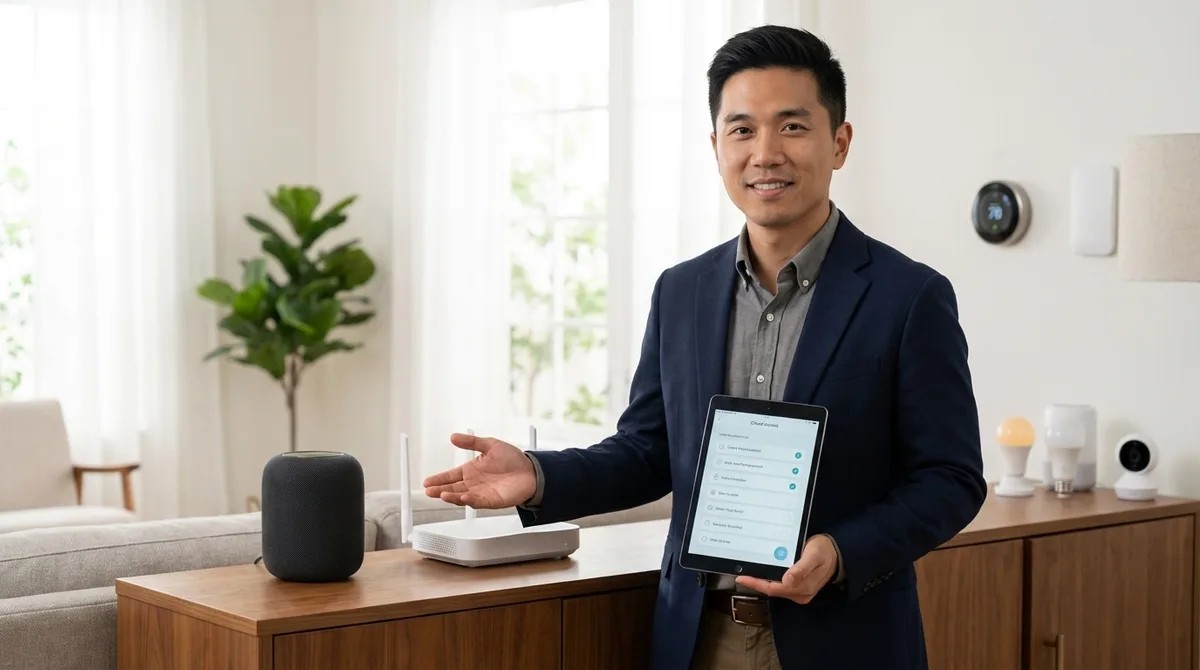
Smart Home Ecosystem Compatibility Checklist: Avoiding Device Conflicts
Ever brought home a shiny new smart device only to discover it's completely incompatible with your existing setup? That $200 smart lock becomes an expensive paperweight when you realize it speaks Z-Wave while your hub only understands Zigbee. This episode walks you through the essential compatibility checks you need to make before buying any smart home device—covering protocols, hub requirements, ecosystem lock-in, and those sneaky cloud dependencies that can leave your home unresponsive when the internet goes down. Always verify the exact protocol (Zigbee, Z-Wave, Thread, Matter, or Wi-Fi) on the product specifications page, not the marketing copy—manufacturers often bury this critical detail in footnotes, and it determines whether your new device will actually work with your hub. Not all hubs are universal: Amazon Echo Hub supports Zigbee and Matter but not Z-Wave, while Samsung SmartThings handles Zigbee, Z-Wave, and Matter—mismatching protocols means adding another $100+ hub to your setup. Some devices like Philips Hue and Lutron Caseta require proprietary bridges even when using open protocols, adding $50–80 in extra costs plus dependency on manufacturer cloud services that could shut down. Matter devices offer the most ecosystem flexibility if you want to switch platforms later, while proprietary protocol devices keep you locked into a single ecosystem. Many Wi-Fi smart plugs won't respond to commands during internet outages even though your local network is fine—test cloud dependency by disconnecting your router before committing to dozens of devices. Use your full 14–30 day return window to stress-test device interactions and automations, not just basic pairing—some devices technically connect but create interference that knocks other devices offline. Read the full article: https://mysmarthomesetup.com/smart-home-ecosystem-compatibility-checklist
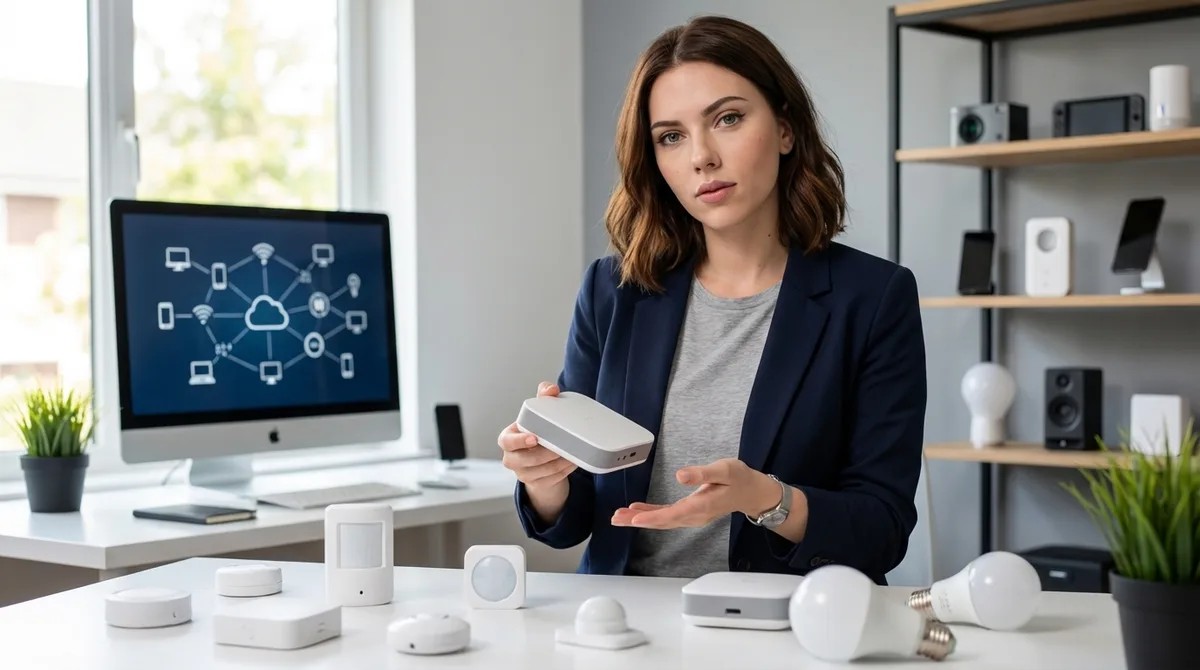
Understanding Hub Requirements: Which Smart Devices Need a Bridge in 2026
You've probably been there—standing in a dark hallway, tapping your phone while a smart light refuses to cooperate, only to discover a forgotten hub buried in your closet has crashed and taken your entire home offline. In this episode, Chelsea Miller draws on three years of hands-on testing with over forty smart home hubs to explain exactly which devices require bridges, why certain protocols demand dedicated hardware, and what that means for both reliability and your privacy. Whether you're building your first smart home or trying to untangle an existing setup, this breakdown of Zigbee, Z-Wave, Thread, and Matter will help you make informed decisions about which hubs you actually need—and which ones are just collecting your data. Not all smart devices need hubs: Wi-Fi devices connect directly to your router, while Zigbee and Z-Wave devices absolutely require dedicated coordinators or gateways because your router simply cannot speak those protocols. Hubs are data aggregation points that often phone home even when marketed as "local control"—Chelsea's 2024 audit found eleven of fourteen popular hubs sending telemetry to cloud servers, with one transmitting over 3,000 data packets daily. Thread devices still need a border router (found in HomePod minis, Nest Hubs, and some Wi-Fi 6E routers) to connect to your IP network, making these hubs in everything but name. When a Zigbee or Z-Wave hub fails, connected devices become completely inert—they won't even respond to physical button presses because the radio has no fallback communication method. Latency varies significantly by protocol: Zigbee averaged 87ms locally but spiked to 340ms during cloud outages, while Z-Wave runs 100-300ms but offers more consistent performance under network congestion. Ecosystem fragmentation is intentional—manufacturers want hub dependency because it creates lock-in, making it costly and complicated to switch platforms once you've invested in a particular protocol. Read the full article: https://mysmarthomesetup.com/understanding-hub-requirements
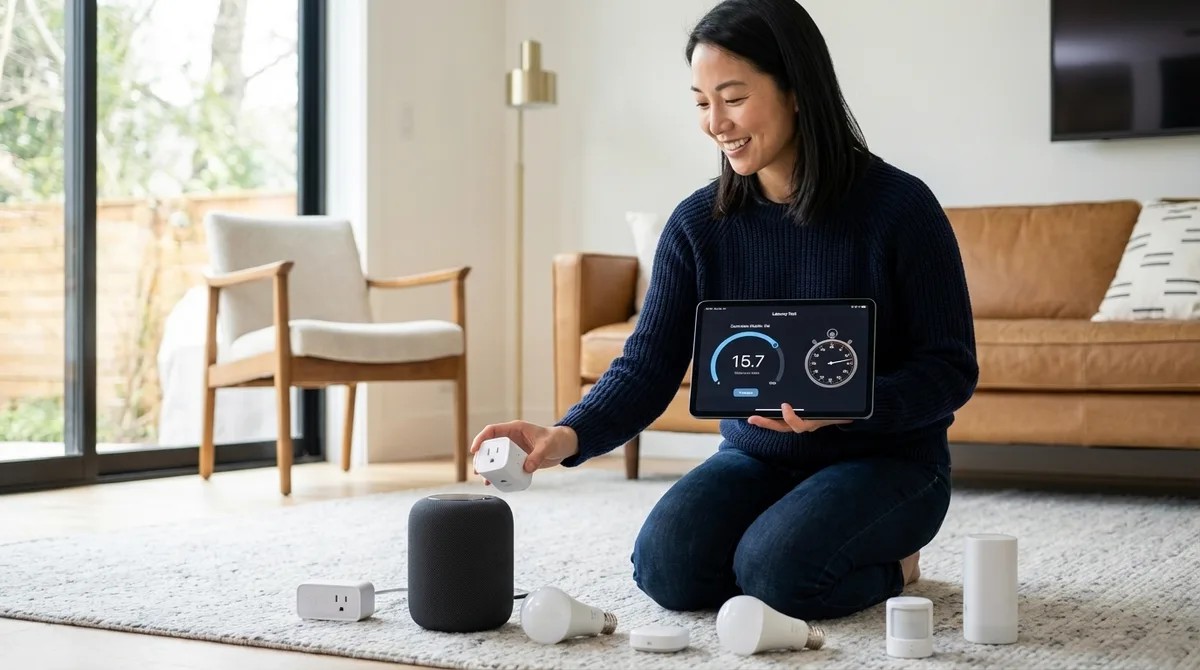
How to Test Smart Device Response Times and Latency Across Protocols
That split-second delay between triggering a motion sensor and watching your lights respond can mean the difference between automation that feels like magic and technology that feels clunky. In this episode, Keiko Tanaka breaks down exactly how to measure smart device latency across every major protocol—Zigbee, Z-Wave, Thread, Matter, and Wi-Fi—using tools you probably already own. Whether you're troubleshooting sluggish automations or optimizing an already-functional system, you'll learn the precise methodology for identifying where milliseconds are being lost. This one's for anyone who suspects their smart home could feel faster but doesn't know how to prove it or fix it. Latency compounds across your automation chain—a 200ms sensor wake time plus 150ms hub processing plus 100ms switch execution adds up to over half a second of noticeable lag that makes smart homes feel mechanical rather than seamless. Wi-Fi devices can add 300-500ms of extra latency during peak network usage compared to off-hours, while Zigbee and Thread mesh networks can actually reduce latency by providing shorter communication hops through additional nodes. Your Zigbee hub channel matters more than you think—if it's set to channel 20 while your Wi-Fi broadcasts on channel 11, the overlap degrades performance on both networks. Recording video at 60fps and counting frames gives you 16.7ms precision when measuring response times, far more accurate than stopwatch testing which introduces roughly 200ms of human reaction time variability. Hub CPU load above 70% introduces unpredictable delays, especially when the system is simultaneously processing energy monitoring data and running presence detection routines alongside motion sensor triggers. Testing during controlled time windows—late evening when network traffic drops but before devices enter sleep modes—creates reproducible conditions that make your measurements actually comparable across sessions. Read the full article: https://mysmarthomesetup.com/how-to-test-smart-device-response-times-and-latency-across-protocols
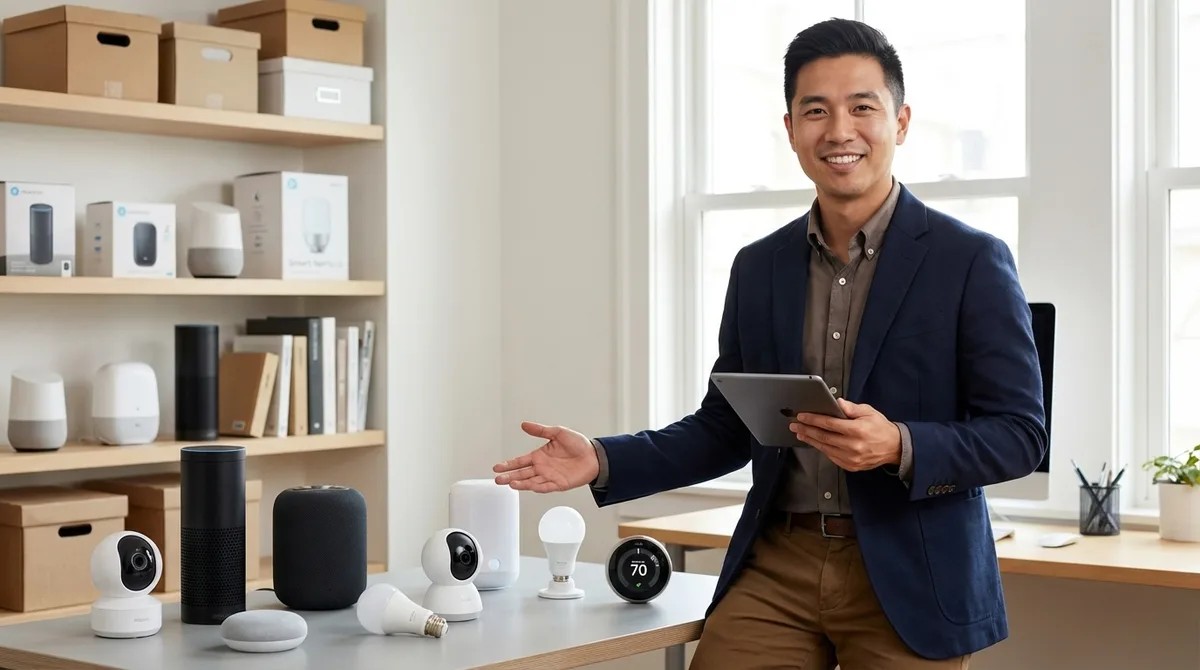
Smart Device Comparison Checklist: 12 Factors to Evaluate Before Purchase
Ever bought a smart device only to discover it won't talk to anything else in your home? You're not alone—and it's costing people hundreds of dollars in wasted purchases. In this episode, Marcus Chen breaks down the 12 critical factors you need to evaluate before buying any smart home device, from your first smart bulb to a whole-home system. If you've ever struggled with compatibility nightmares, surprise subscription fees, or automations that fail when the internet drops, this checklist will save you serious headaches and money. Protocol choice makes or breaks your setup: Zigbee sensors won't communicate with Z-Wave hubs without a bridge, and if you're starting fresh in 2026, Matter 1.4 devices offer the best cross-platform compatibility available right now. Cloud-dependent automations fail during internet outages, while local execution (through hubs like Home Assistant or SmartThings) keeps your system running—a critical distinction for door locks, thermostats, and security devices. Zigbee and Wi-Fi both operate on 2.4 GHz frequencies, meaning dense Zigbee mesh networks can experience interference from nearby routers, while Z-Wave avoids this by using sub-1 GHz frequencies. Automation response time varies dramatically by protocol: Zigbee and Z-Wave typically respond in 200–800 milliseconds, Wi-Fi devices can lag 1–5 seconds, and anything over 2 seconds feels frustratingly sluggish for motion-triggered lighting. Always verify what happens when your hub or internet goes offline—some devices default to "on," others to "off," and some retain their last state, which matters enormously for critical systems like heating or door locks. Don't buy based on promised features or manufacturer roadmaps; only purchase for functionality that exists today, especially when it comes to Matter bridging support through firmware updates. Read the full article: https://mysmarthomesetup.com/smart-device-comparison-checklist
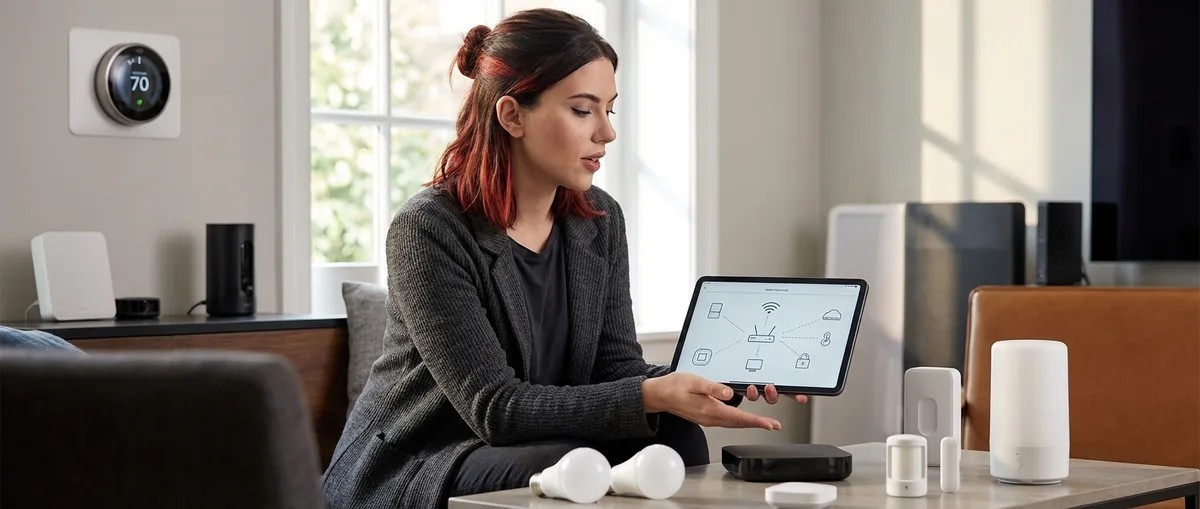
Smart Home Protocol Compatibility Explained: Zigbee, Z-Wave, Thread, Matter, and Wi-Fi
Ever bought two "smart" devices only to discover they can't talk to each other? You're not alone. In this episode, Chelsea Miller breaks down the five major smart home protocols—Zigbee, Z-Wave, Thread, Matter, and Wi-Fi—explaining why they're not just different dialects but entirely different languages. Whether you're building your first smart home or troubleshooting a system that keeps failing at 2 AM, this episode reveals what manufacturers don't want you to know about compatibility, privacy, and which setups actually work when the marketing hype falls apart. Protocol choice directly impacts your privacy: Wi-Fi devices almost always require cloud accounts, while Zigbee, Z-Wave, Thread, and Matter can run entirely locally with the right controller—meaning your motion data doesn't have to leave your home. Zigbee and Wi-Fi both operate on the 2.4 GHz band, causing interference issues. Adjusting your Zigbee coordinator to channel 25 when your router uses channel 6 can reduce packet loss by 60%. Z-Wave devices are frequency-locked by region at the hardware level—a US system won't work in Europe, so moving continents means replacing everything. Matter isn't a radio protocol but a universal translator layer that runs on top of Thread, Wi-Fi, or Ethernet, allowing one device to work with Google Home, Apple HomeKit, Amazon Alexa, and Home Assistant without separate integrations. Thread promises local-only control with bank-grade AES-128 encryption, but testing revealed that half of Thread bulbs still required cloud accounts for initial pairing, undermining the privacy benefits. Mesh network resilience is real: in testing, a 23-device Zigbee network rerouted traffic through alternative paths within 8 seconds after three repeaters were unplugged, with automations still firing despite increased latency. Read the full article: https://mysmarthomesetup.com/smart-home-protocol-compatibility-explained
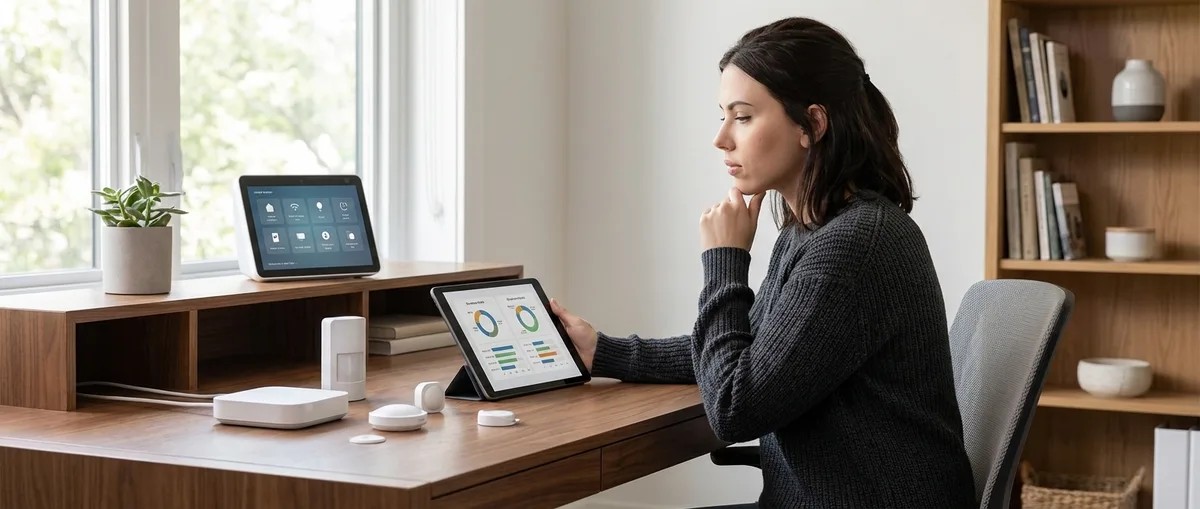
How to Compare Smart Home Device Protocols Before Buying
Ever wondered why some smart home devices keep working during internet outages while others become expensive paperweights? In this episode, Chelsea Miller breaks down the real technical and privacy differences between Zigbee, Z-Wave, Thread, Matter, and Wi-Fi protocols—information manufacturers deliberately leave out of their marketing. Whether you're building your first smart home or trying to escape cloud-dependent ecosystems, this intermediate-level guide gives you a practical framework for evaluating devices before they ever touch your network. Z-Wave and Zigbee offer the highest privacy because they're inherently local protocols that never touch the internet unless you explicitly bridge them to cloud services—while many Wi-Fi devices ping manufacturer servers every 3 to 7 minutes even when marketed as "local." Matter's promise of local control is manufacturer-dependent: some Matter 1.4 devices work perfectly offline, while others refuse to pair without an active internet connection for "verification purposes." Ecosystem lock-in risk varies dramatically—Zigbee and Z-Wave work with dozens of open-source hubs, but Wi-Fi devices often require manufacturer apps and cloud accounts that can disappear overnight, as Insteon users discovered in 2022. You can run a standalone OpenThread Border Router on a Raspberry Pi in about 90 minutes, giving you local Thread device control through Home Assistant without routing data through Google or Amazon servers. Protocol choice directly impacts automation latency: Zigbee delivers 80-150 millisecond response times, which matters significantly for time-sensitive triggers like motion-activated lighting. The ultimate ownership test is simple—if you can't run a device through Home Assistant or another open-source controller, you're renting functionality rather than owning hardware. Read the full article: https://mysmarthomesetup.com/how-to-compare-smart-home-device-protocols-before-buying
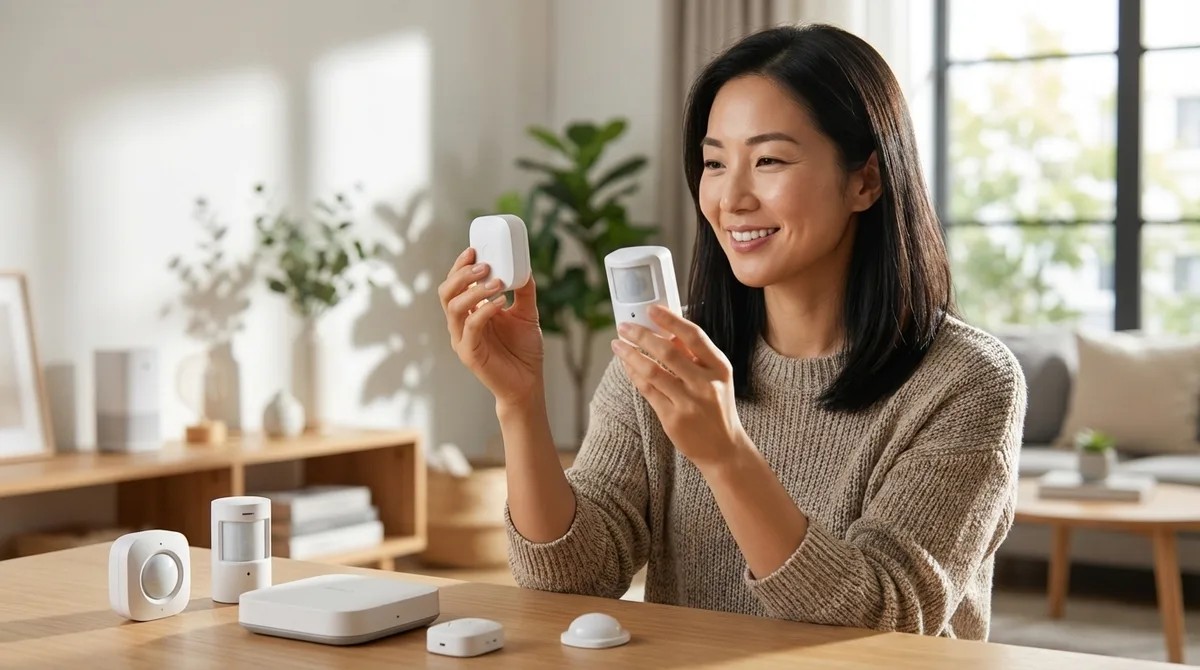
Zigbee Motion Sensors vs Z-Wave Motion Sensors: Latency and Reliability Compared
Ever walked into a dark room expecting the lights to snap on instantly, only to stand there awkwardly for three seconds? That frustrating inconsistency often comes down to your choice of motion sensor protocol. This episode breaks down the real-world differences between Zigbee and Z-Wave motion sensors—not just the spec sheet numbers, but how each protocol actually performs when you're navigating your home at 3 a.m. Whether you're building your first smart home or troubleshooting automation that feels sluggish, Keiko Tanaka unpacks the latency, mesh behavior, and reliability factors that determine whether your setup feels invisible or infuriating. Zigbee motion sensors respond 100–200 milliseconds faster than Z-Wave equivalents on paper, but Z-Wave's longer per-hop range (30+ meters vs. 10–15 meters) often means fewer hops and more consistent timing in larger homes. Z-Wave operates on a quieter sub-gigahertz frequency band that penetrates thick walls, brick, and metal studs more effectively, while Zigbee's 2.4 GHz band competes with Wi-Fi, Bluetooth, and even your microwave for airspace. Consistency matters more than raw speed—a Zigbee sensor that occasionally takes 1,200 milliseconds due to mesh dropout feels more broken than a Z-Wave sensor that reliably delivers 350 milliseconds every time. Battery life differs significantly: Zigbee sensors typically last 1–2 years, while Z-Wave sensors push 2–3 years on the same batteries. In a real-world test with exposed steel beams, Zigbee required three additional plug routers to maintain acceptable latency, while Z-Wave needed zero additional devices. End-to-end automation latency (motion detected to light on) typically lands at 200–350 milliseconds for Zigbee and 300–500 milliseconds for Z-Wave—both imperceptible to most people under normal conditions. Read the full article: https://mysmarthomesetup.com/zigbee-motion-sensors-vs-z-wave-motion-sensors
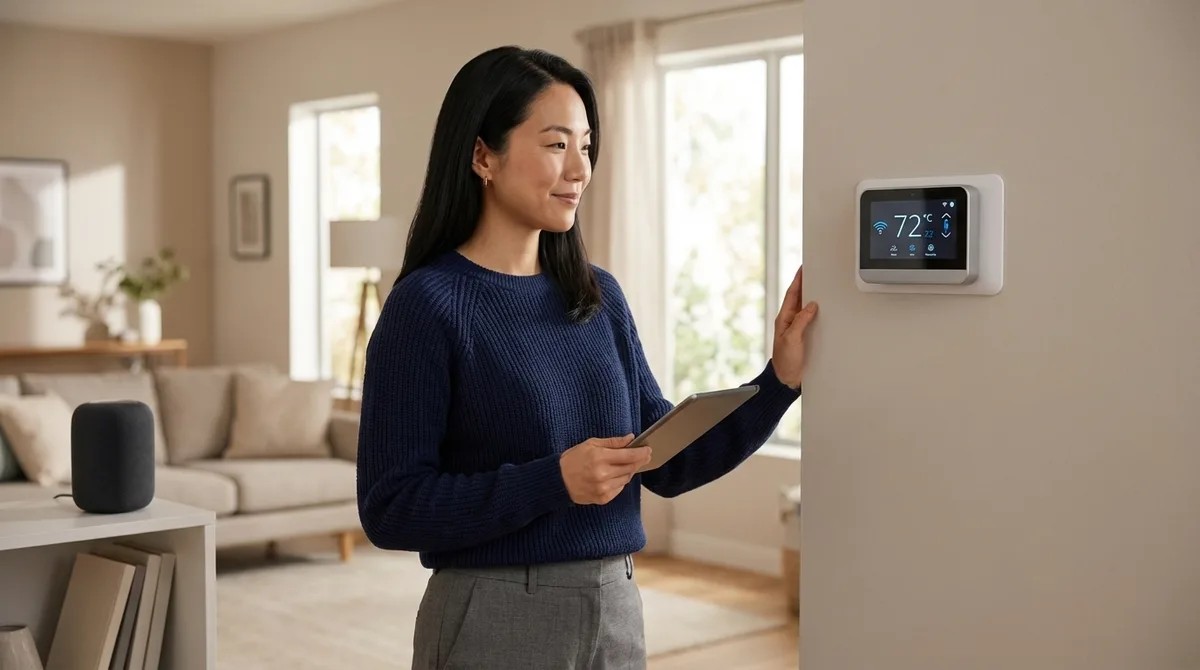
Top 7 Matter-Compatible Smart Thermostats for Multi-Protocol Homes
If your smart home runs on a mix of Thread, Zigbee, and Wi-Fi devices, you've probably struggled to find a thermostat that plays nice with all of them. In this episode, Keiko Tanaka breaks down seven Matter-compatible thermostats that finally deliver true cross-protocol climate control in 2026. Whether you're prioritizing aesthetics, complex HVAC setups, or budget-friendly options for rental properties, this guide helps you find the right fit for a home where multiple ecosystems need to work together seamlessly. The Google Nest Learning Thermostat (4th gen) offers Matter 1.4 certification with true local control, exposing temperature, humidity, occupancy, and scheduling data to Home Assistant, Apple Home, SmartThings, and Alexa simultaneously without cloud bridges. Ecobee Smart Thermostat Premium includes built-in air quality monitoring (VOC and CO2) that feeds into energy-saving automations, adjusting ventilation based on actual air conditions rather than arbitrary schedules. The Honeywell Home T10 Pro supports up to 20 wireless Thread-enabled room sensors that can be hidden in bookshelves or atop cabinetry, making it ideal for design-conscious homes with architectural details worth preserving. Carrier Cor Smart Thermostat exposes granular HVAC state data to your Matter controller, enabling dynamic load balancing automations that shift energy consumption toward cheaper or self-generated solar power during peak production. Amazon Smart Thermostat Plus offers budget-friendly Matter-over-Thread control for rental properties or secondary zones, though it relies entirely on external controllers for scheduling and automation logic. Thread border router functionality in several models extends your mesh network and maintains full thermostat operation even when internet connectivity drops, providing critical reliability for whole-home automation. Read the full article: https://mysmarthomesetup.com/top-7-matter-compatible-smart-thermostats-for-multi-protocol-homes
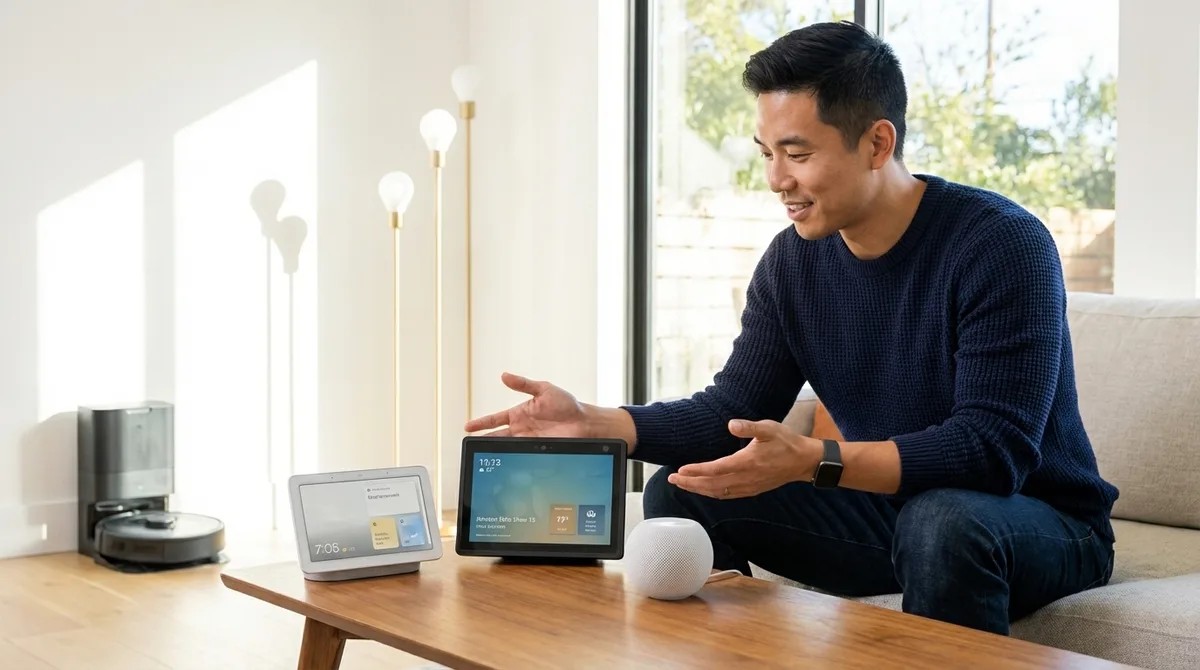
Google Home Hub vs Amazon Echo Hub vs Apple HomePod: Smart Home Controller Comparison
Choosing the wrong smart home hub can leave you with hundreds of dollars in devices that refuse to communicate with each other. In this episode, Marcus Chen breaks down the three major smart home controllers—Amazon Echo Hub, Google Nest Hub, and Apple HomePod—to help you make the right choice before buying your first smart bulb. Whether you're starting fresh or already invested in an ecosystem, this comparison covers protocol compatibility, automation capabilities, response times, and what happens when your internet goes down. Amazon Echo Hub is the only controller with built-in Zigbee radio, making it ideal if you already own Philips Hue bulbs, Sengled lights, or Aqara sensors—no separate bridge required for basic control. Apple HomePod processes all automations locally on the device itself, delivering the fastest response times (100–250 milliseconds) and keeping your smart home running even when internet connectivity drops. Google Nest Hub offers the most reliable Thread border router implementation, with consistent performance across 30+ Thread devices and self-healing mesh that reroutes within 2–3 seconds if a device goes offline. All three hubs only communicate with each other through Matter devices—cross-ecosystem compatibility remains limited without this standard protocol. Amazon's Zigbee implementation handles up to 50 devices reliably before mesh congestion becomes noticeable, at which point you'll need repeaters or network segmentation. None of these hubs support Z-Wave natively, so you'll need a third-party hub like SmartThings if your setup relies on that protocol. Read the full article: https://mysmarthomesetup.com/google-home-hub-vs-amazon-echo-hub-vs-apple-homepod
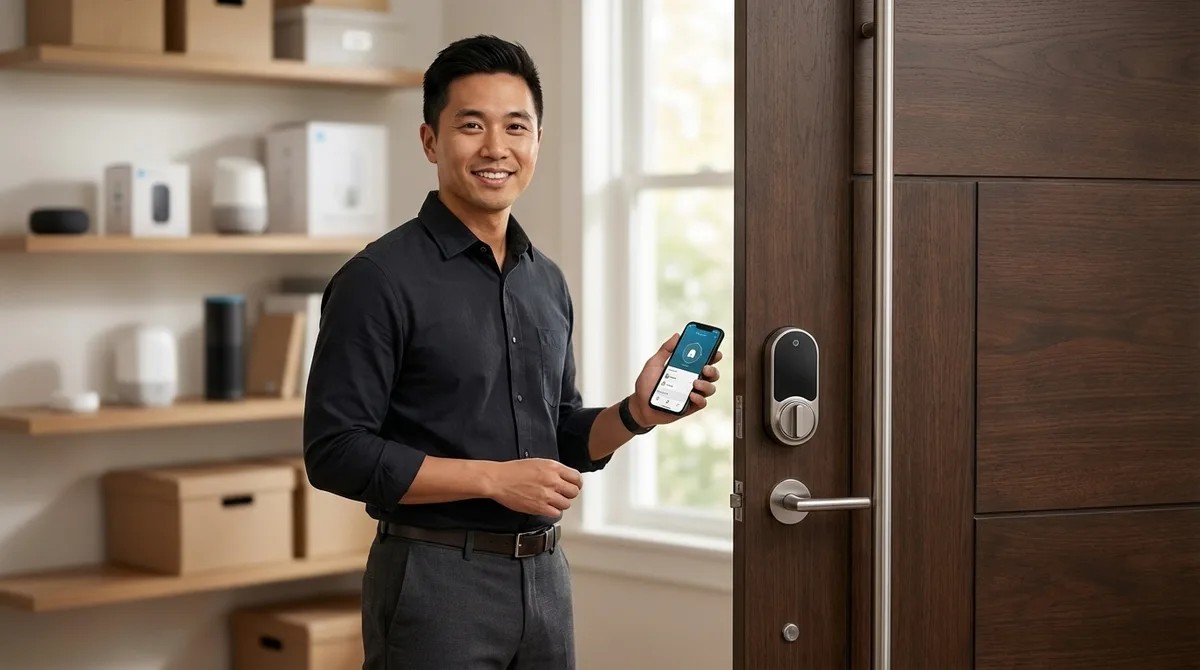
Best Thread-Enabled Smart Door Locks Under $300 in 2026
Struggling to pick a smart lock that won't drain batteries, lock you into one ecosystem, or require a computer science degree to set up? In this episode, Marcus Chen breaks down why Thread-enabled locks have become the gold standard in 2026 and walks through everything you need to know before spending a dime. Whether you're new to smart home tech or frustrated by past purchases that didn't live up to the hype, this guide covers the real-world details that product pages leave out—from border router requirements to door measurements that could make or break your installation. Thread locks require a Thread Border Router to function—your existing smart hub might not have one built in, so check compatibility before buying and budget an extra $50–100 if you need to add one separately. Thread and Matter aren't the same thing: Thread is the network protocol that lets devices communicate, while Matter is the application layer that enables cross-platform control across Apple Home, Google Home, Alexa, and SmartThings simultaneously. Matter 1.4 doesn't support lock codes yet, so you'll still need the manufacturer's app to manage guest codes, temporary access, or contractor entry—basic lock and unlock commands work across all platforms, but code management doesn't. Expect 6–12 months of battery life on four AA batteries with typical use, though locks acting as Thread routers or installed in freezing temperatures will drain faster—lithium batteries outperform alkaline in cold climates. Before ordering any smart lock, measure your door thickness (35–50mm), backset (60 or 70mm), and cross-bore diameter (typically 54mm)—non-standard doors from older homes often need adapter plates that aren't included. Retrofit Thread locks attach to your existing deadbolt's thumb turn and leave the exterior keyed cylinder intact, making installation faster and letting you keep your current keys. Read the full article: https://mysmarthomesetup.com/best-thread-enabled-smart-door-locks-under-300-in-2026
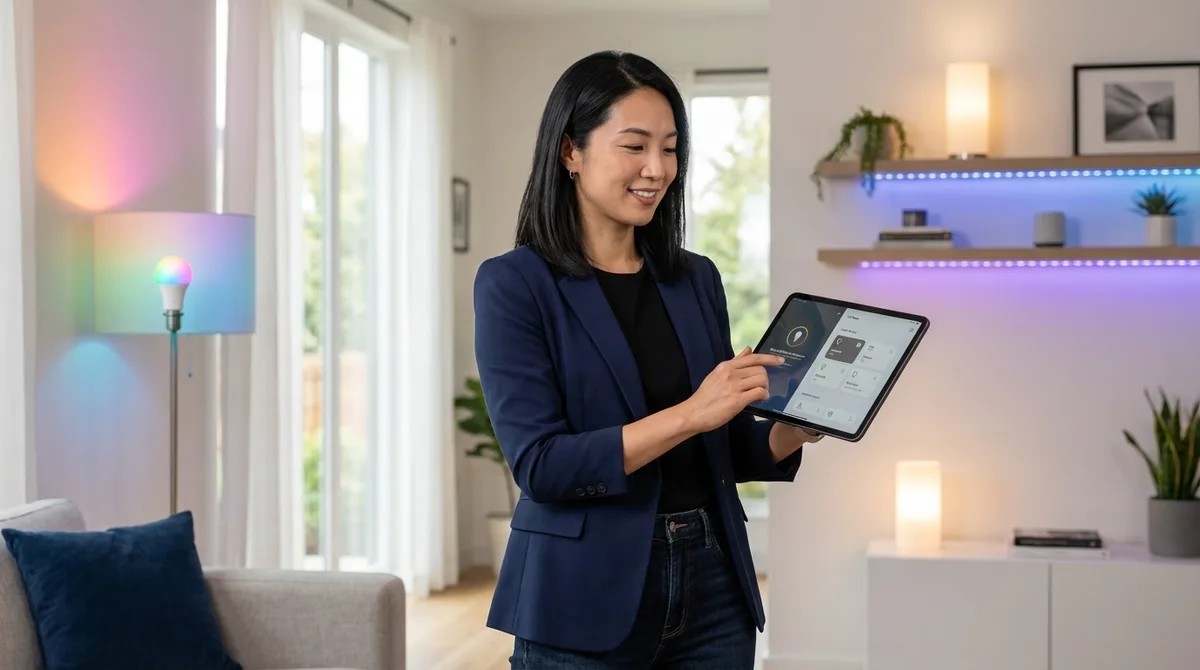
Matter Smart Lights vs Wi-Fi Smart Lights: Which Protocol Is Better?
Ever tap your phone to turn off the lights and wait... and wait... only to watch them finally respond seconds later? That frustrating lag isn't a dying bulb—it's your protocol choice working against you. In this episode, Keiko Tanaka breaks down the real-world differences between Matter and Wi-Fi smart lights, examining how each protocol shapes everything from response times to ecosystem flexibility. Whether you're building out a new smart home or troubleshooting a sluggish existing setup, this comparison reveals what's actually happening behind the scenes when you flip that virtual switch. Matter lights respond in 50–150 milliseconds locally, while Wi-Fi bulbs can lag 200–800 milliseconds due to cloud routing—a difference you feel every time you walk into a room. Wi-Fi bulbs create network congestion because each one maintains a persistent connection to your router; twenty bulbs means twenty devices competing for bandwidth with your phones and streaming devices. Matter-certified bulbs appear simultaneously in Apple Home, Google Home, and Alexa from a single QR code scan—no choosing sides or maintaining separate app connections. Thread mesh networking allows Matter lights to self-heal around failed nodes, maintaining local control even when your internet goes down, while most Wi-Fi bulbs become useless without cloud access. Wi-Fi bulb integrations are fragile—when manufacturers deprecate APIs or discontinue cloud support, you can lose access to entire lighting systems overnight. Matter automation executes locally on your controller, while Wi-Fi automation requires round trips through manufacturer clouds, adding latency and creating failure points. Read the full article: https://mysmarthomesetup.com/matter-smart-lights-vs-wi-fi-smart-lights
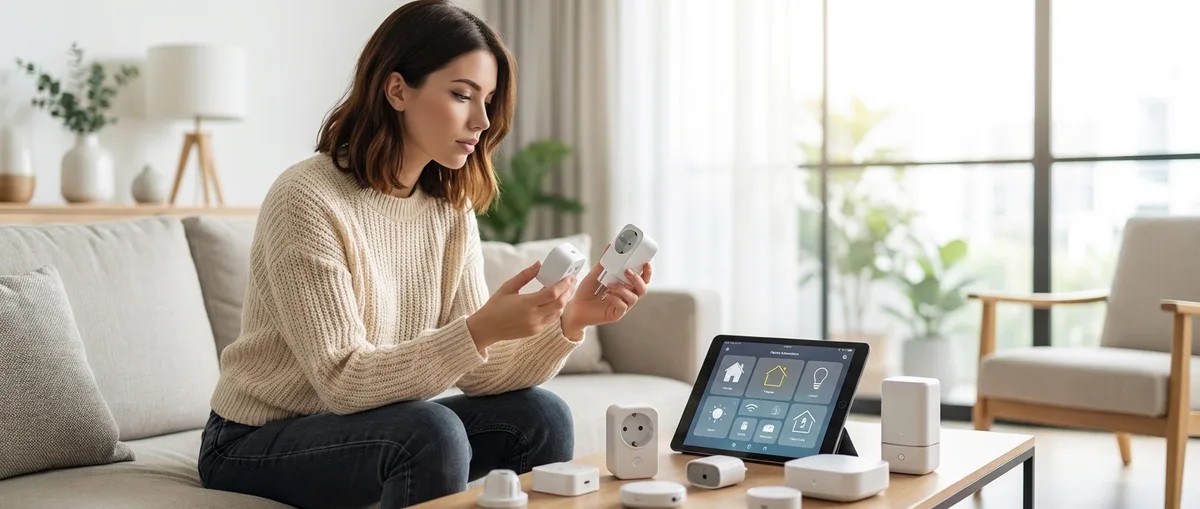
Best Zigbee Smart Plugs vs Z-Wave Smart Plugs for Home Automation
Ever wonder what your smart plugs are actually doing when you're not watching? Chelsea Miller spent three weeks capturing network traffic from twelve different smart plugs and discovered most of them are constantly sending data somewhere. This episode dives deep into the Zigbee versus Z-Wave debate, revealing which protocol actually keeps your home automations local and private. Whether you're building a privacy-first smart home or just want reliable control of your coffee maker, this breakdown of real-world testing across three separate networks will help you choose the right smart plugs for your setup. Zigbee plugs offer faster response times (200-400ms) and broader compatibility, while Z-Wave provides more reliable mesh performance and near-immunity to Wi-Fi interference—Chelsea's 14-day test showed Z-Wave maintained zero disconnections while Zigbee dropped four times during Wi-Fi channel switches. Using Zigbee or Z-Wave doesn't automatically mean local control—some plugs refuse to pair without phoning home first, and you should run packet captures to verify zero outbound connections after pairing to your local hub. Red flags for cloud dependency include mandatory mobile apps for initial pairing, firmware requiring internet access for local features, and manufacturer shutdown clauses buried in terms of service. Energy monitoring refresh rates matter more than most people realize—plugs reporting every 5 seconds enable useful automations, while 60-second intervals miss transient loads entirely and make conditional logic unreliable. Fallback behavior during hub crashes varies wildly between models: "retain last state" is ideal for most setups, but some plugs become completely unresponsive until manually power-cycled—test this before trusting critical devices. Matter 1.4 adoption for smart plugs remains disappointingly slow as of early 2026, and standard Zigbee or Z-Wave devices cannot bridge into Matter without manufacturer firmware updates. Read the full article: https://mysmarthomesetup.com/best-zigbee-smart-plugs-vs-z-wave-smart-plugs-for-home-automation
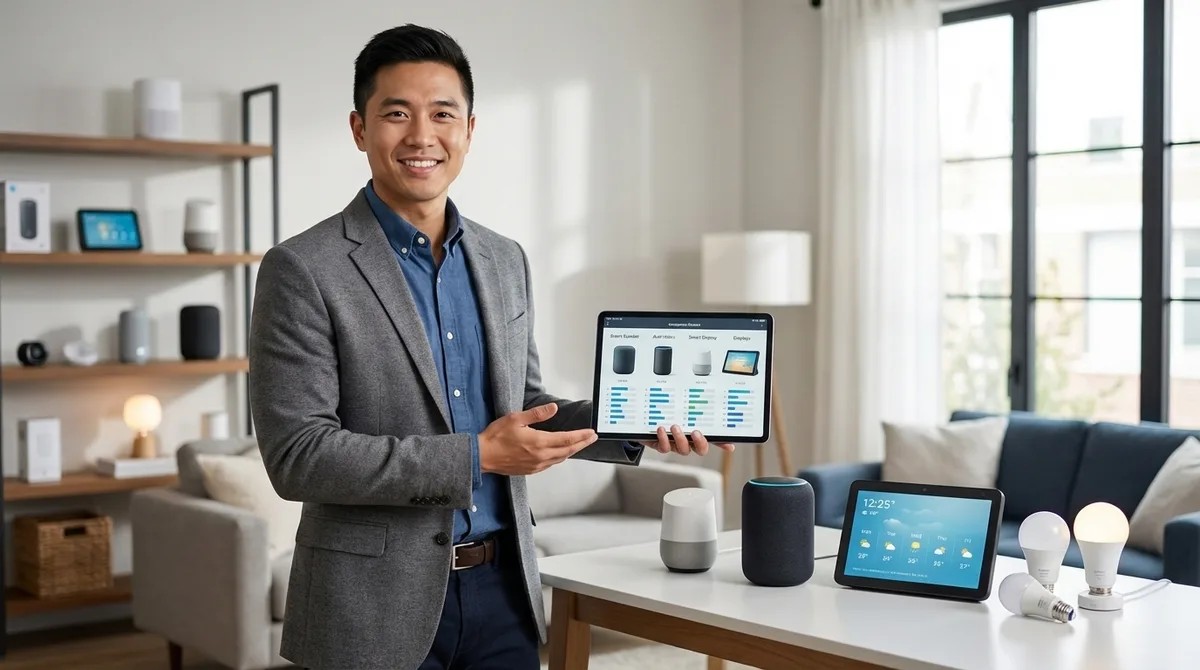
Smart Device Comparison Guide: How to Choose the Right Smart Home Products in 2026
Ever bought a smart device only to discover it won't talk to anything else in your home? You're not alone—most people cycle through multiple products before finding ones that actually integrate with their existing setup. In this episode, smart home consultant Marcus Chen breaks down the real framework for comparing smart devices, moving beyond marketing specs to focus on protocol compatibility, hub requirements, and automation capabilities. Whether you're building your first smart home or expanding an existing system, this guide will save you from expensive trial-and-error purchases. Smart device comparison isn't about feature lists—it's about validating protocol compatibility (Zigbee, Z-Wave, Thread, Matter, Wi-Fi) with your existing hub before you buy, not after the return window closes. Your hub choice dramatically affects what you can add: Amazon Echo supports Zigbee natively, Apple HomePod has no Zigbee or Z-Wave support at all, and Google Nest Hub requires separate bridges for those protocols. Each protocol has distinct trade-offs—Zigbee offers 30-100ms latency with mesh networking, while Wi-Fi devices typically run 100-300ms due to cloud round-trips and become useless during internet outages. The five-layer comparison framework covers protocol evaluation, hub requirements, ecosystem compatibility, automation logic capabilities, and fallback behavior when your internet goes down. Z-Wave provides better range (30-40 meters per hop) and interference immunity than Zigbee, making it particularly reliable for locks and garage doors in larger homes. Matter 1.4 promises unified compatibility across ecosystems, but in 2026 it's still maturing with some devices showing inconsistent controller synchronization—proceed with informed caution. Read the full article: https://mysmarthomesetup.com/smart-device-comparison-guide
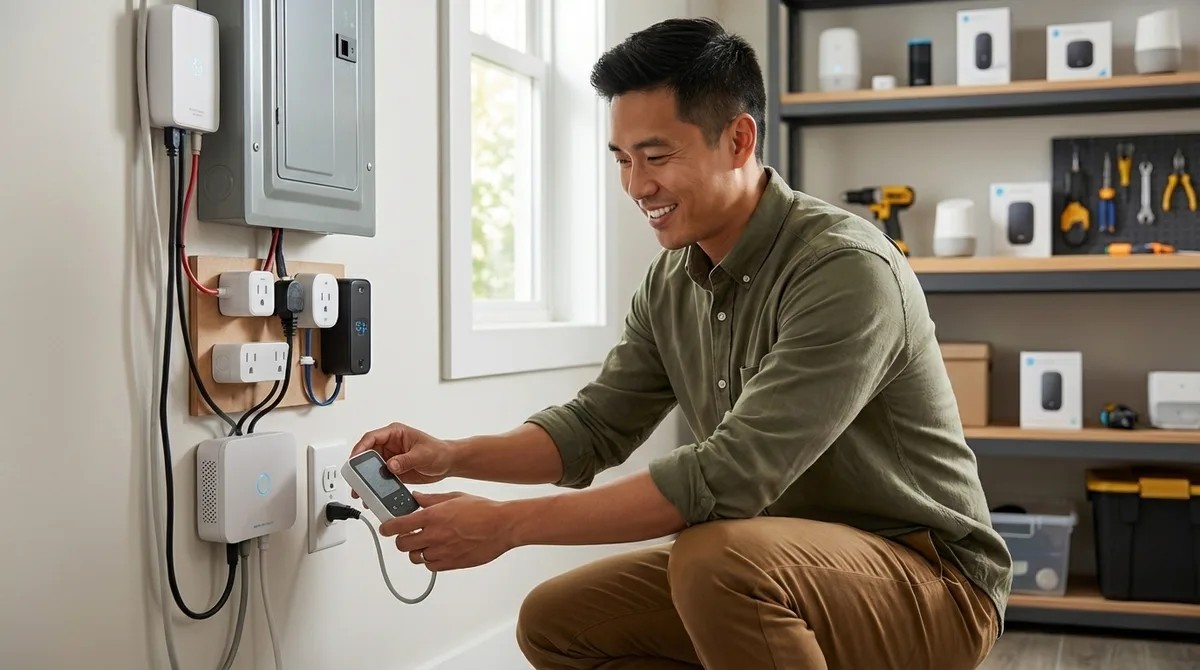
How to Set Up Dynamic Load Balancing for Smart Home Energy Management
Ever had your circuit breaker trip mid-laundry because someone plugged in a space heater? In this episode, Marcus Chen explains how your smart home can automatically prevent electrical overloads by shifting power away from less critical devices before you hit capacity limits. This guide is for intermediate smart home enthusiasts ready to tackle conditional automation logic, covering the specific hardware, protocols, and setup steps needed to implement dynamic load balancing that reduces energy bills and eliminates frustrating breaker trips. Cloud-only energy monitors add 2–5 seconds of latency, which completely breaks load balancing—you need local API integration with 1–2 second update rates maximum for the system to react before breakers trip. Zigbee 3.0 and Matter over Thread smart plugs respond in 200–800 milliseconds, while typical Wi-Fi plugs add 1–3 seconds of delay, making protocol choice critical for effective load shedding. When installing current transformer clamps on your main panel feeds, the arrow direction matters—pointing the wrong way gives negative or inaccurate wattage readings that throw off your entire system. Space heaters (1,500W each), dehumidifiers (400–700W), and phone chargers make ideal shedding loads because they tolerate brief interruptions, while some appliances should never be automatically cut. The full setup requires 4–6 hours initially plus 2–3 hours for testing, and you'll need to know your panel's amperage rating (typically 100, 150, or 200 amps) and which circuits serve high-draw appliances. Local control capability across all devices is non-negotiable—internet outages cannot be allowed to disable your load balancing protection. Read the full article: https://mysmarthomesetup.com/how-to-set-up-dynamic-load-balancing-for-smart-home-energy-management
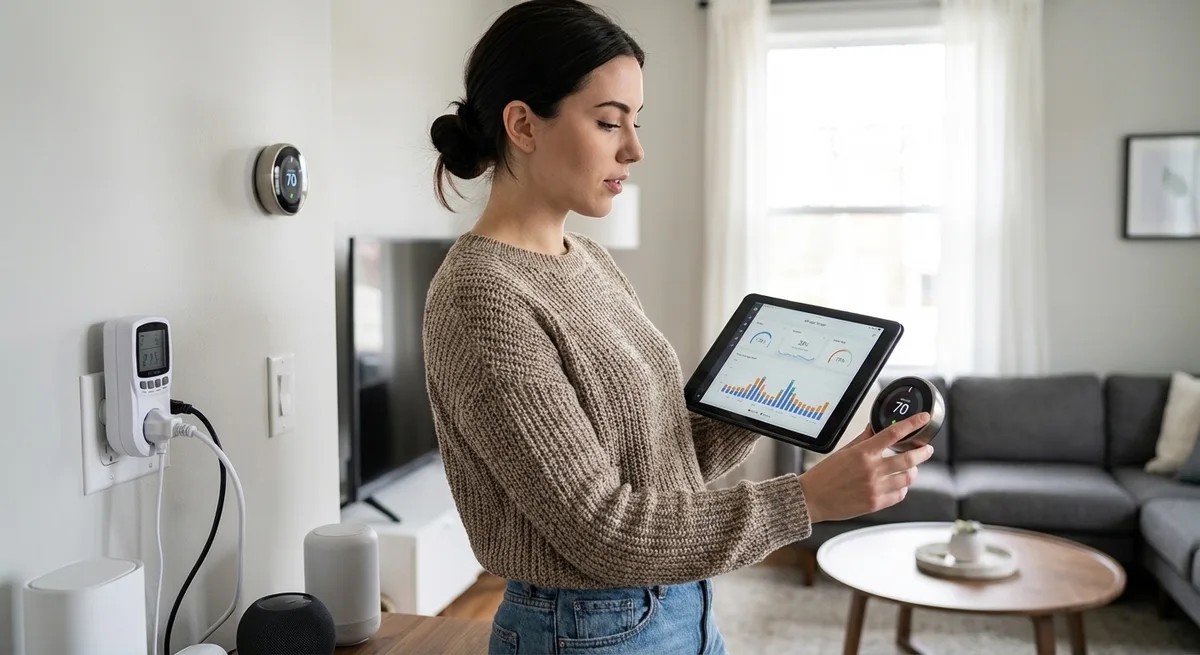
Smart Home Energy Audit Checklist: Identifying High-Consumption Devices and Phantom Loads
Your smart home might be silently adding hundreds of dollars to your annual electric bill—and you'd never know it because the waste happens while you sleep, spread across dozens of devices that never truly turn off. In this episode, Chelsea Miller shares findings from three years of monitoring every outlet in her fully local smart home setup, revealing exactly where the power goes. This is essential listening for anyone running energy management systems who wants real numbers instead of marketing promises, with a practical checklist for identifying high-consumption devices and phantom loads draining your wallet. Baseline infrastructure adds up fast: a typical network closet with a hub, router, mesh nodes, and NAS can draw 48 watts continuously—that's 420 kilowatt-hours annually (roughly $60) before a single smart bulb turns on. Repurposing an old desktop PC as a Home Assistant server could cost you 300+ kilowatt-hours more per year than a dedicated Raspberry Pi setup, translating to about $45 in wasted electricity. Smart features don't always mean smart savings: Level 2 EV chargers can draw 30–50 watts in standby even when no vehicle is connected, potentially consuming more annual energy than your entire lighting budget. Phantom loads from devices that appear "off" are major culprits—a TV soundbar with HDMI passthrough might draw 18 watts when off, nine times the manufacturer's claimed standby figure. Smart displays and wall-mounted tablets are sneaky energy drains, with devices like the Echo Show 10 pulling 7–10 watts idle and repurposed iPads drawing 8–12 watts if they never sleep. Your smart thermostat automations might actually trigger more frequent HVAC compressor cycles than a basic programmable thermostat would—check your runtime logs to confirm you're actually saving energy. Read the full article: https://mysmarthomesetup.com/smart-home-energy-audit-checklist
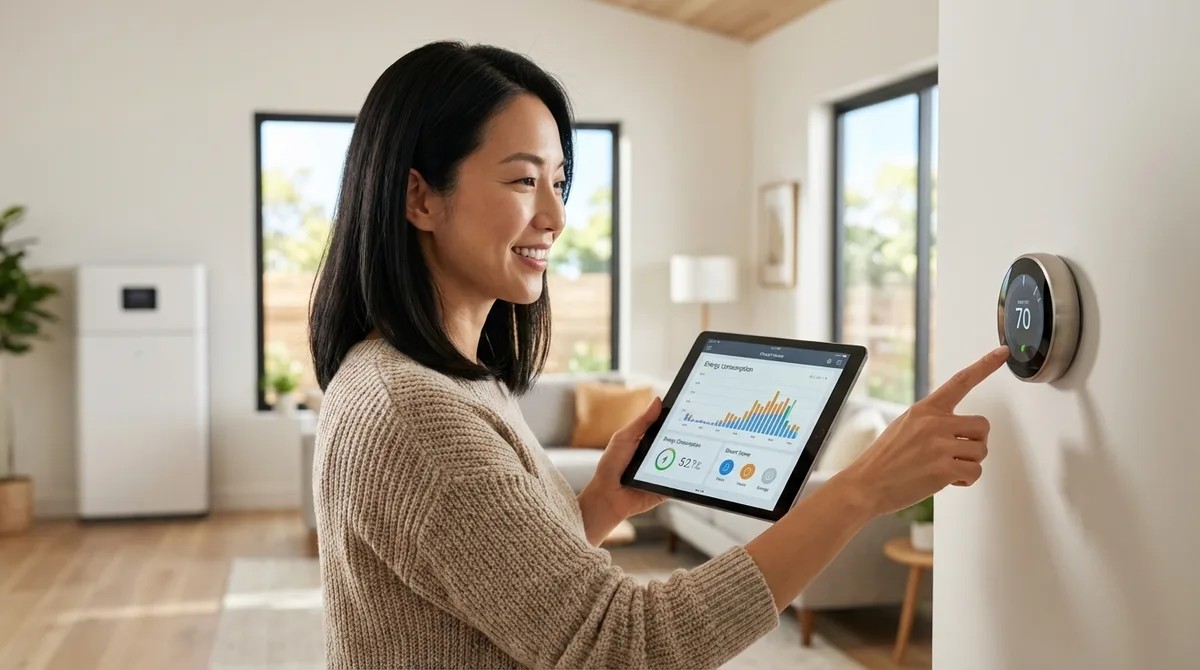
Understanding Peak and Off-Peak Energy Automation: TOU Rate Optimization Explained
Ever notice how your electricity bill climbs every summer despite your best intentions to run appliances at cheaper times? The reality is that manually shifting your energy use to off-peak hours is mentally exhausting, and almost nobody sticks with it. This episode breaks down how smart home automation can invisibly manage your energy consumption based on time-of-use rates—handling everything from pre-cooling your home before peak pricing kicks in to charging your EV overnight—without you changing a single habit. Peak and off-peak energy automation relies on three core components working together: energy monitoring hardware (smart plugs, circuit monitors, or whole-home panels), a central controller that stores rate schedules, and controllable endpoints like smart thermostats, water heater controllers, and EV chargers. Static time-of-use scheduling is the simplest approach, requiring no internet dependency and executing locally with sub-second latency, while dynamic pricing integration pulls real-time rates from utility APIs to adjust device behavior based on current electricity costs. Protocol choice significantly impacts performance—Wi-Fi devices introduce 200 to 500 milliseconds of command latency and depend on cloud connectivity, while Zigbee or Z-Wave systems execute locally with latency as low as 50 to 150 milliseconds once rate data reaches the hub. Thread-based devices maintain mesh network integrity even when the border router reboots, typically reforming within 2 to 5 seconds, making them more resilient during connectivity disruptions. The most advanced systems use machine learning to observe your historical consumption patterns, predict upcoming demand, and automatically pre-shift loads to minimize costs without requiring you to create any manual rules. As of early 2026, Matter 1.4 ecosystems theoretically support cross-platform rate-aware automations, but few utilities publish Matter-native APIs yet—most implementations still rely on RESTful endpoints that hubs translate internally. Read the full article: https://mysmarthomesetup.com/understanding-peak-and-off-peak-energy-automation
How to Create Energy-Saving Automations with Home Assistant and Matter Devices
Every watt you use on most smart energy platforms gets logged, profiled, and potentially sold—but it doesn't have to be that way. In this episode, Chelsea Miller walks you through building energy-saving automations that run entirely offline using Home Assistant and Matter 1.4 devices. You'll learn how to cut standby power, shift loads to off-peak hours, and respond to real-time consumption without sending a single packet to external servers. This guide is for anyone who already has Home Assistant running locally and wants to slash their energy bill while keeping their usage data completely private. Commission Matter devices directly through Home Assistant's interface rather than manufacturer apps to avoid creating cloud accounts that track your consumption patterns. Use a network packet sniffer like Wireshark to verify your devices aren't secretly phoning home—one budget Matter plug was caught sending data to an analytics CDN every ninety seconds despite claiming local-only operation. A typical "off" TV and soundbar can pull eighteen watts continuously, costing over two dollars monthly just to power a standby LED—phantom loads often account for ten to twenty percent of your electricity bill. Matter over Thread delivers thirty to eighty millisecond response times with mesh redundancy, making it ideal for mission-critical automations like preventing phantom loads. Before building any automations, audit your baseline consumption for forty-eight to seventy-two hours to identify which devices are actually wasting power and establish meaningful targets. Proper device naming conventions using underscores and lowercase text makes YAML automations significantly cleaner and easier to maintain long-term. Read the full article: https://mysmarthomesetup.com/how-to-create-energy-saving-automations-with-home-assistant-and-matter-devices
Smart Home Energy Management System Setup Checklist: Devices, Hubs, and Automations
Ever wonder why your "smart" thermostat needs to phone home every six minutes? In this episode, Chelsea Miller breaks down how to build a complete smart home energy management system that actually respects your privacy while cutting your power bill. After discovering her own devices were uploading granular occupancy data to cloud servers, she rebuilt her entire infrastructure around local control—and shares exactly which hardware, protocols, and automations work without external dependencies. If you're serious about energy efficiency but refuse to hand your usage patterns to data brokers, this checklist is your starting point. The Emporia Vue 2 measures 16 circuits with one-second sampling intervals, but you'll need to firewall its MAC address to prevent cloud sync—it attempts to phone home regardless of your settings. Avoid Samsung SmartThings V3 for energy management—it requires cloud authentication even for local Zigbee automations, making true offline operation impossible. The Venstar ColorTouch T7900 thermostat offers 100% local control via REST API with no cloud account required, unlike Ecobee and Nest which validate tokens through external servers even for local network commands. Zigbee plugs outperform Z-Wave for energy monitoring due to 50–150ms less latency, and Wi-Fi plugs should be avoided entirely since they constantly phone home and typically require manufacturer accounts. A UPS for your hub isn't optional—without power backup, all automations cease during outages and devices either revert to last state or lose connection entirely, leaving you blind to energy events when they matter most. Network isolation is critical: supposedly "offline" smart plugs have been caught attempting DNS lookups to advertising trackers even without companion apps installed, so run IoT devices on a segregated VLAN with no internet access. Read the full article: https://mysmarthomesetup.com/smart-home-energy-management-system-setup-checklist