
Wonder Tools
Wonder Tools helps you discover the most useful sites and apps
Jeremy Caplan
Show overview
Wonder Tools has been publishing since 2022, and across the 4 years since has built a catalogue of 77 episodes. That works out to roughly 20 hours of audio in total. Releases follow a monthly cadence.
Episodes typically run under ten minutes — most land between 7 min and 14 min — though episode length varies meaningfully from one episode to the next. None of the episodes are flagged explicit by the publisher. It is catalogued as a EN-language Technology show.
The show is actively publishing — the most recent episode landed 1 weeks ago, with 13 episodes already out so far this year. The busiest year was 2025, with 40 episodes published. Published by Jeremy Caplan.
From the publisher
Wonder Tools helps you discover the most useful sites and apps. Building on one of Substack's most popular productivity newsletters, each episode of the podcast includes specific tips on how to make the most of these new tools to work creatively and productively. wondertools.substack.com
Latest Episodes
View all 77 episodesWhat I Learned About Time 🕰️
✍️ Let AI Interview You
My Quieter Toolkit 🌙
Mornings are for deep work. Afternoons are for everything else — teaching, planning, thinking, movement, and meetings. This is part two of my daily kit. Part one covered my morning apps. Here are the apps and gadgets that carry me through from noon to bedtime. I’ve included a few AI tools, but mostly the quieter tools that don’t get as much attention.Catch up on Part 1 👇12pm: Midday BreakHealthy Minds 🧠 This free app helps me with mindfulness. The 5-10 minute audio lessons work well as walking meditations. I sometimes also use Headspace or Calm for meditation or focus music.Libby 📚 I rely on Libby for free library audiobooks. I listen when walking to lunch or commuting. Here are tools I rely on for finding great books. Lunch* Resy and OpenTable 🍱 for quick reservations nearby* The Infatuation for opinionated local restaurant recommendations * Too Good To Go for trying heavily discounted (66% off) dishes from local restaurants, bakeries, and juice bars. The fixed-price mystery bags reduce restaurant waste. Sometimes you get a delicious bargain, but the quality varies. I’ve occasionally gotten a weird bread or a bland pastry.* MealPal When I don’t bring my own lunch, I like MealPal, a lunch subscription service. Local restaurants offer one dish a day as part of the subscription, which costs about $6/day. I like the variety: you can choose which restaurant to try on any given day. It’s available so far in 12 cities. 1-3pm: Preparing to TeachAfter lunch, I continue developing teaching plans or work on other school-related projects for my job as Director of Teaching and Learning at CUNY’s Newmark Graduate School of Journalism. (More of my thinking in a recent Columbia Journalism Review interview).Craft 📄 My go-to for creating visually engaging digital handouts. It’s easy to use and works wonderfully on mobile or desktop. See my post on why Craft is so useful.Wispr Flow, Text Blaze and Raycast* I often use Wispr Flow to type with my voice. It works in any app. I just hold the function key and talk. * When I do type with my hands I use Text Blaze keyboard shortcuts to add snippets into my email and documents. It works for email addresses and signatures, search prompts, and phrases I type a lot. * Raycast also works well for these shortcuts. Why I rely on Raycast.Notes by Hand 📝 I like writing notes away from my laptop periodically to get my eyes off the screen and to change my brain mode. I alternate between:* I use a Rocketbook reusable notebook for lists and reminders.* A giant whiteboard helps me draw connections and play around with ideas away from the glowing distractions of my screens. * My reMarkable Paper Pro tablet hosts notes I will return to repeatedly. What works for me, paper vs. digitalKeynote for SlidesThis Mac presentation software works reliably offline or on for in-person and remote classes and workshops I lead. Keynote is now part of Apple’s new Creator Studio, a package of software that includes video and image editing tools. I haven’t found the Keynote AI features useful so far, but the basic software is excellent for designing and delivering compelling slides. Pricing: Keynote is free with any Mac. I wouldn’t recommend the subscription upgrade, at $129/year or $30/year for students and educators, unless you’re a heavy user of Final Cut Pro, Logic Pro, or the other pro software tools. iA Presenter I vary slide apps to keep things interesting. I sometimes write a lesson outline and paste that text into iA Presenter, which turns it into clean, typographically sharp slides. Like Keynote, it works offline. For more on why this app is so useful, watch the demo video or read my post.Kahoot, Padlet, and Slido 🤔 I rely on this trio of teaching tools to power activities that promote active learning in classes or workshops — rather than passive listening. Here are more of my favorite apps for teaching. Time Out for Screen Breaks⏳ I set this app to remind me to give my eyes a screen break every 15 minutes. It pulses over the screen to nudge me to stretch or look out the window. The Raycast Focus Mode also helps, blocking email and distractions during short, focused, deep work sprints. 3-5pm: Meetings 👥I try to schedule meetings for the late afternoon to conclude the day with collaboration, after starting with more creative work. Granola for Summaries🤖 Granola weaves my own notes into its summary, sends no bot into my Zooms, and lets me search across meetings for tasks, patterns, or insights. My full post about it👇 describes 10 of the features, along with tips, limitations, and alternatives. Camo for Webcam CustomizationCamo lets me modify my camera to zoom in, adjust lighting, or add overlays during video calls. It also lets me use my phone or other external cameras. Prezi Video and Airtime enable lower-thirds, annotations, and overlay visuals I occasionally use for presentations.Sony UX570 Voice Recorder for Interviews My reliable backup for recording audio. I like that it doesn't require an o
Meet Granola AI ✨
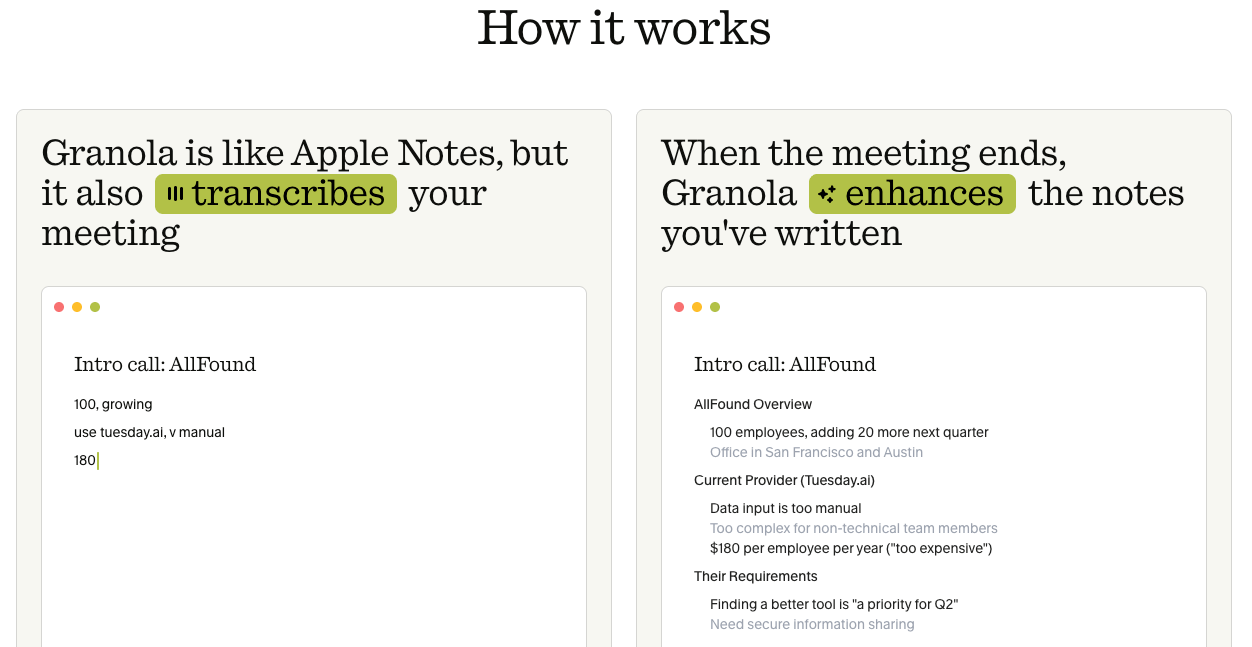
I’ve tried a dozen AI note-taking tools. Granola is the one I use daily and recommend most. Read on for 10 ways to make the most of it.Bottom line: Granola transcribes and summarizes nearly every meeting I have. 998 so far. It helps me keep track of what I’ve learned and promises I’ve made.What it does: It’s software you download, not a bot, so it doesn’t attend meetings. It just runs on my computer or phone. I can use it to record in-person meetings, or anything online: Zoom, Google Meet, or even Substack Live.Setting it up: I connected my Google Calendar. Now it auto-detects my meetings and opens automatically when I start a call.How it’s different: Unlike other bots that spit out a generic summary, Granola gives you a window for your own note-taking. That means I can include my own thoughts and highlight what I find most important. The summary then weaves in my own points in black, distinct from the gray AI summary notes. I can always return to either my own separate notes or the AI-assisted summary.I can now query any meeting I’ve been in since I started using Granola in September 2024. I look for patterns across meetings and presentations I’ve given over the past couple of years.Free or Paid: You can use Granola for free plan. You get excellent summaries of an unlimited number of meetings. I was on the free plan for more than a year. Now I pay $14/month to access all of my past meeting summaries. That also pays for better AI models, and lets me query my notes from Claude or ChatGPT.👇10 ways Granola stands out1. Write your own notes while AI fills in the restMost AI note-takers give you only the AI’s version of what happened. Granola keeps your own notes alongside the live transcript. You always have both.I type my own most important observations, priorities, and reactions during a meeting. The AI fills in other details. This way I’m not reliant on a generic summary the way I am with other tools. My own emphasis and perspective helps shape the summary.After the meeting, my original notes appear in black. The AI-generated content appears in gray. That’s a nice design touch, so you can easily tell which is which.Tip: I use shorthand like triple asterisks (***) for key points and triple ampersand (&&&) for memorable quotes. Or choose your own “internal hashtags.” Pick ones easy to type during a live meeting. Later you can search for those to quickly find what you flagged as important. (Works with any tool)2. Search across meetings by person or company 🔍Granola organizes meetings by people and organizations. If I’ve had a series of meetings with someone, I can click their name and search across all of those conversations. Or I can search through all the conversations I’ve had with people at Acme Inc.This is useful for questions like: What did we agree to last month? What themes keep coming up? What did I promise to send that I haven’t followed up on?You can also create folders for specific projects or series. If I’m attending or teaching a series of workshops, I can then search across all of those sessions.Tip: If you ever write or give presentations, ask Granola to compile key points or ideas you’ve shared in past meetings or presentations. It’s helpful for exploring and building on your own ideas. Instead of using AI to think for you, you’re using it to help you organize and make more of your own ideas.3. Record in-person meetings w/ a phone or laptop 📱I’ve been to public events where I wanted to remember what was discussed. The iPhone app is great. Same account, no separate setup. Your in-person notes sync with your desktop notes and appear in the same searchable archive. Other recording apps I’ve tried occasionally crash when I get a call or open other apps, but Granola has been consistently reliable, even for long meetings. I’ve been surprised to find that it works well even when I’m not sitting close to the speaker.Available on: Mac, Windows, and iOS. No Android app yet, though one is expected later this year.4. Start free with unlimited meetingsThe free version works well if you just want to try it. The transcription quality is the same as the paid version. Students get Granola free for a year. Startups do too.The paid plan is $14 a month. I pay that for unlimited access to my 1,000+ meeting summaries, the ability to query my notes from other AI tools like Claude, and access to the strongest AI models for summaries. The free plan limits how far back you can access old meetings and limits the AI models you have access to.If you don’t need to refer back to old summaries or plug your notes into other AI tools, the free plan is great.Try Granola free for a month with this link.5. Give Claude or ChatGPT access to your Granola notesThis is one of the reasons I upgraded to the paid plan. Granola connects to Claude through something called a Model Context Protocol (MCP). Don’t worry about the technical details. It’s just a way to connect AI tools to one another.The practical benefit: I can ask Claude or C

S2 Ep 1AI, Art, and Drawing the Line 🖌️
This is a free preview of a paid episode. To hear more, visit wondertools.substack.comI recently talked with Jason Chatfield a New Yorker cartoonist and creator of the lively New York Cartoons Substack. He sketched while we talked, as part of his video series Draw Me Anything. We traded ideas about writing, editing, tools, and where to draw the line with AI. 📺 Watch the conversation above, or read highlights below. Takeaways from Our Conversation 🛠️* Teach your AI assistant to offer personalized editing suggestions. I’ve trained a Claude Project to learn from my past writing and editing. It catches typos like double commas, cliches, redundant language, weak verbs, and sloppy copy. Instead of having it make changes, I ask it for a punch list of suggestions. * Talk before you type. I turn on my AI dictation app, Letterly, and just start talking. The AI-enabled transcription and summary I get helps me make sense of ideas rolling around in my mind. Then the next part of the writing process becomes more about shaping and editing those ideas, rather than staring down a blank screen.* Ask AI to interview you. After a conference or a day of meetings, get your AI assistant to ask you follow-up questions. That conversation forces you to articulate ideas you haven’t fully formed.* Teach your AI assistant to be a critic, not a ghostwriter. Ask it to challenge your structure, suggest sections to cut and to explain why, and to point out your blind spots. Your friend might be too polite to tell you a section of your piece you’ve worked on for hours is redundant or dull. Your AI assistant will, if you train it to.* Let’s read books collectively. We’re reading 10 AI books in 2026 through the Wonder Tools Book Group. (For WT paid subscribers). We started with AI Snake Oil, whose co-author was a surprise guest at our first gathering. Reading together allows us to benefit from dialogue. And we can learn more deeply from books than we can from a random diet of posts and videos. Sponsored MessageBuild a site or app with LovableTry Lovable Free. Lovable lets you describe what you need and turns it into a working website or app. Now it even builds slides for you. Go from idea to polished deck in under 10 minutes. No coding needed. I use it to quickly prototypes like an uplifting news page and a landing page for educators. Others have built everything from portfolio sites to custom business tools — you can browse hundreds of templates. If you have an idea you’ve been putting off, this is a fast way to start. Tips Jason shared during our conversation* Work from a calendar, not a to-do list. Sometimes what’s most valuable is a workflow, not a specific tool. Like timeboxing. Jason predicts how long a task will take, blocks time in his calendar (iCal), then learns from the difference between his estimate and how long the task actually took. His timeboxing Medium post about the process went viral.* Build a grumpy editor. Jason created a J. Jonah Jameson–style editor persona in Gemini. If you’re not familiar with the Spider-Man character, he’s a cantankerous, chain-smoking newspaper editor who tears apart a writer’s drafts. Jason says he takes about half of the suggestions. * Choose your tools based on who built them. Jason uses Grammarly and Gemini, but refuses to use Meta AI or Grok. If he doesn’t trust those building a platform, he opts out.* Learn the analog way before you go digital. Jason suggests students draw by hand first, not on an iPad. If you draw a bad line with a dip pen, you can’t hit undo. You learn through that process. * Use AI to brainstorm, but know when to stop. Cartoonist Alex Hallatt of Cartooning in the Age of AI used an AI assistant to riff on cartoon premises from messy notes. Jason said she was intrigued by the results, until the bot offered to draw the cartoon for her. 👇Tools & Apps We Discussed 👇
☀️ My Morning Toolkit
After my 7am wake-up alarm, I lean on about 20 morning apps, sites and gadgets for reading, writing, listening, and getting stuff done. I revisit this toolkit every year. Here's what's stayed, what's changed, and what's new.🌤️ 7:00 am Wake up and prepare for the day ⏰ Peakeep “Invisible” Alarm Clock This $14 bedside clock wakes me up. I set its brightness at zero to keep the bedroom dark at night. I tap the top to check the time if I need to. I bought the clock when I decided to store my phone in another room so it doesn’t suck me in before bed.⭕️ Oura Ring For the past five years I’ve worn an Oura ring to keep track of my exercise, sleep, and heart rate volatility. I like that, unlike an Apple or Google Watch, it has no distracting screen or notifications. I ran a two-week experiment pairing the Oura with a Stelo glucose biosensor to see how my diet impacts my sleep, fitness, and energy levels. I can export my data and query it with AI assistants. Or I use Oura’s own AI chat to ask things like “How is my evening snacking affecting the quality of my sleep?”In the morning I check my sleep quality and resilience scores to calibrate my expectations for the day. Having an objective measure of how well I’ve slept helps me decide whether to push my meager exercise regimen a bit or take it easy. It also helps motivate me on dreary days, and signals when I’m getting sick before I notice. (Read my original Oura 2020 post. Note: I’ve bought my own Oura rings — no affiliation).🧠 Brain Games and 🎶 MusicA breakfast ritual: playing the NYTimes’ Spelling Bee, Wordle, and Connections with my wife and daughters while listening to our favorite classical music host, Jeff Spurgeon, on WQXR. We talk about the music and what’s ahead at school or work, avoiding stressful headlines.Quick tip: We listen on our old Google Home Mini kitchen smart speaker. A quick voice command pulls up just about any radio station in the world. (I saw the newer Google Nest Mini on sale this week for $19). Sponsored MessageAccess the World’s Best IdeasI love reading. But no matter how much I read, I can’t keep up with all the great books I hear about.That’s why I’ve been relying on Shortform for the past several years to help catch up with books I’m curious about but haven’t had time to read. I also use Shortform to remember key points from books I read years ago. I like the biography section, where I’ve learned about the lives of Malala, Bono, and Leonardo da Vinci. While a lot of summary apps I’ve tried have 5-min, AI-generated, surface-level book overviews, Shortform’s writers and editors produce in-depth coverage of nonfiction titles.I also like the business section, which has detailed guides for classic titles and new books I’m curious about like Two Awesome Hours by Josh Davis. In addition to an expert-written overview of key points, with examples, excerpts, and references to related books, you get a one-page summary and contrasting ideas from other authors. Now Shortform has podcast and article guides as well. Wonder Tools readers get a discount. Try it free to explore.Enjoy a free trial and $50 off the annual plan.🚶🏼8:00 Walk My Daughter to School 🏫No tools or tech. 🚊 8:25 CommuteI use Snipd to listen to podcasts on the way to work. Here’s my full take. I also rely on Readwise Reader to catch up on articles I’ve saved. It works offline on the subway. Here’s why it’s worth trying. I use Superhuman to check work email.📆 8:50 Plan the DayWhen I get to work, I map out what's ahead with a mix of paper and apps. 📅 Google Calendar I check GCal for meetings. I‘ve tried other calendars, including Vimcal, Akiflow, Fantastical, and Notion Calendar. They each have useful features, but I tend to return to the free GCal out of habit. It’s reliable, simple, and lets me easily see shared calendars.✅ Apple Reminders I keep three priority tasks at the top of my list. I add to that tier only when I’ve completed one. I have a menu of other tasks and reminders in a “Soon” list. I adopted that tactic from Oliver Burkeman’s great book, Four Thousand Weeks. 📄 Remarkable Paper Pro Move I use this paper tablet — or a notebook — to timebox my day. I map the hours based on priorities, energy level, and scheduled meetings. Having a detailed plan helps me avoid decision fatigue later. When I inevitably lose focus, the plan pulls me back on track. ✍️ 9:00 Writing I start creative work early, when my focus is freshest. Letterly I dictate my thoughts into this app. That helps me get ideas flowing, and I get a bulleted summary or outline to build on. When I want an AI assistant to challenge my ideas, I use ChatGPT’s Advanced Voice Mode or Gemini Live. Letterly and other apps like it (AudioPen) are great for what I call bionic dictation— using AI to structure raw speech into a clean outline or summary. Free alternatives: You can use Apple Notes for dictation on iOS or Mac, or a variety of Google apps if you’re on Android or a Chromebook.Google Docs / iA Writer I like
Teach Smarter with AI
I recently talked with Lance Eaton, Senior Associate Director of AI and Teaching & Learning at Northeastern University and writer of AI + Education = Simplified. We traded ideas about what’s actually working. We came up with 10 specific, practical ways anyone who teaches, coaches, or leads can put AI to work.📺 Watch the full conversation above, or read highlights below.10 Ways to Use AI 🛠️Note: Lance and I alternated tips below 👇1. Spark Richer Student Reflection 🪞Lance: Ask students to reflect through a conversation with AI rather than staring at a blank page. A well-prompted AI will keep asking follow-up questions, pushing students past “I didn’t like it” toward real analysis. 2. Strengthen Your Syllabus 📋Jeremy: Give an AI assistant your syllabus and ask for a critique — for clarity, inclusivity, student-friendliness, and completeness. You’ll get specific, honest feedback. The AI won’t write the syllabus for you, but it will challenge you to make yours better. We don’t always have colleagues at our side who can offer input on our work. So this is an objective, independent, instant, constructive way to get a useful critique.3. Make Materials More Visual 🎨Lance: Turn your syllabus into a graphic version students actually want to read. AI assistants can help you create visual layouts and simple comics-style explanations without any design experience. 4. Improve Lesson Plans 📐Jeremy: Describe your learning goals, your class size, your constraints — then ask AI to generate 10 warm-up or closing activities. You won’t use most of them, and you might remix a couple. But having options means you’ll often figure out something better than what you’d have designed alone.5. Try It Until Something Clicks ⚡Lance: Play with AI until it does something that genuinely surprises or excites you. That moment of “Wait, I could actually use this,” is what shifts the conversation from theoretical to real. “For some students, this is really powerful, including students navigating English as a second language or ADHD or dyslexia — these tools can unlock things.”Sponsored MessageCatch Up On Books: Maximize Your Time 📚Life is short. Your reading list is probably long. Shortform simplifies your journey to success. Whether you’re into self-improvement, business, or psychology, get in-depth book guides with summaries, actionable insights and exercises. Start applying what you learn immediately.Each guide has a concise, useful one-page summary. You also get chapter breakdowns and practical exercises to apply what you’ve learned. Imagine mastering key lessons from books like Atomic Habits in just two hours. Accelerate your career and boost your productivity.Stay ahead of the curve with new summaries added weekly, and use the AI browser extension to quickly summarize articles and videos, freeing up valuable time for what matters most.Get a free trial and $50 off the annual plan. 6. Build Engaging Class Activities 🧩Jeremy: When you need a compelling analogy for a hard concept, or a historical anecdote, or a mini case study for a short role-play exercise, AI assistants can be helpful in expanding what we consider. If you’re teaching a subject you know well, you can set the direction and take responsibility for verification. NotebookLM and Claude can generate examples quickly, and can search your own notes to surface examples you’ve created yourself but lost track of. The goal of using AI in this context is strengthening engagement and improving the learning experience. It’s not for whiz-bang special effects.7. Generate “Bad Examples” Safely 🚫Lance: Examples can be useful to illustrate what not to do, but you’d never embarrass a student by presenting their work as an example of a mistake.“We’re never, ever going to — nor should we — ask a student, ‘This was a really horrible thing, can I use it as a bad example going forward?’” AI tools can generate intentionally flawed examples: a weak argument, a poorly structured paragraph, or circular reasoning. Students learn what to avoid. 8. Catch What You’re Missing 🔍Jeremy: Ask an AI assistant to review your materials for accessibility gaps, unclear instructions or areas where your material could be more inclusive. Think of it as a thoughtful colleague who reviews your work and catches what familiarity made you miss.9. Analyze Student Feedback 📊Lance: Strip names and any identifying information from end-of-semester feedback, then ask AI to identify themes, patterns, and gaps. As Lance put it, “What are some things that I’m not seeing? What are some assumptions I’m making or missing? What are some ways I might redirect the course?” Instead of spending hours manually categorizing open-ended comments, you get a usable overview in minutes — leaving more time to actually act on what students told you.10. Remember What Was Said 🗒️Jeremy: Use an AI note-taker like Granola to capture transcripts of student meetings, advising sessions, and office hours. Request permission first. You’ll have sear

📚 Find Fantastic Books
Escape AI slop by reading more books. 📚 That’s my plan for making the most of leisure time this year. One book a week. Some short. Others mostly visual — I love graphic novels. Plus a new AI & tech book group I’m starting. Books get my eyes off screens, and my brain welcomes that break from news, vitriol, and ads. Read on for my updated guide to finding great read this year. 📖 Find your next read * Most Recommended Books Pick the name of an expert to see what books they recommend and why.* Goodbooks.io and Read This Twice Explore interesting expert picks.* En.app Describe the kind of book you’re looking for and get suggestions. * Whichbook’s World Map 🗺️ Find books set anywhere in the world. Select a country to see a collection of books that take place there. See how it works👇* Where to find book recs is a nice evergreen list from Writing About Reading. I also like the eclectic recs in the NYTimes’s Read Like the Wind newsletter and its intriguing list: Top 100 books of the 21st century. * The most mentioned books in podcasts is a neat list from Snipd. In Snipd’s podcast app you can see which books any podcast has mentioned most.* BookClubs lets you find a book group near you or organize your own. * Fable hosts book clubs & communities for nearly any genre. Find free and cheap books 🔦* Project Gutenberg offers more than 75,000 free ebooks and audiobooks. No registration required. The Top 100 list is a nice source for free reading.* The Internet Archive has searchable e-books and a free library collection.* Bookbub spotlights discounted ebooks on its site and email newsletter. Sponsored MessageStop Wasting Time Sorting EmailWhy bother spending hours organizing your inbox every week when AI can do it for you? SaneBox — which PCMag called the best thing that’s happened to email since its invention — is an AI-powered email tool that brings sanity back to your inbox.SaneBox ensures only important emails land in your inbox, and files other emails into folders. It even lets you hit Snooze, and reminds you to follow up on emails you sent a few days ago.📚 Announcing the NEW Wonder Tools Book Group 🌟I’m excited to launch a new Wonder Tools book group 📚 exploring the most fascinating recent AI and tech books. Each month we’ll have a live online session with a lively discussion, and you’ll also get a book guide with quotes, highlights and insights. Occasional surprise guests will join. 💫This new series, starting in March, is sponsored by Shortform, which publishes high-quality, in-depth guides to non-fiction books. All paid subscribers are invited! Join now for this, and free AI tool access, live monthly online workshops introducing new tools, + other inner circle benefits. Libby has free ebooks and audiobooks from libraries in 78 countries. It works for 90% of U.S. libraries. Check out nearly anything instantly, for free, on any device. You can read your free ebooks in the app or on a Kindle. * Audio or text Check out and listen to free audiobooks or ebooks. * Multiple cards Libby lets you add cards for multiple libraries. That’s useful if a book you want has a waiting list. You can check which library has the shortest waiting list. See where you can get non-resident library cards.Limitation: Libby is digital-only — you can’t use it for physical books. That requires a separate app or site, like the NYPL app in New York. Kanopy provides free access to top-notch feature films and documentaries. I log in with my library card. Watch on the web, iOS or Android, or on a smart TV app like Google TV, Roku, or Amazon Fire TV. Libraries cap the number of videos you can watch monthly. Hoopla is a free app for accessing 3 million audiobooks, ebooks, comics, magazines, and music from 11,500 libraries in the U.S., Canada, Australia and New Zealand. Read, watch or listen in 120 languages from the web or on a mobile device. Bingepasses let you access movies, TV shows, & video courses.World Cat tells you which library near you has a book you want. It works in multiple languages and covers 10,000 global libraries. Search for books in print, ebook, braille, or audio. 📕 Support Independent booksellers* Find the cheapest places online to buy any book: Bookfinder * Find a nearby independent bookstore: Indiebound * Get cheap used books: Abebooks. Check its bargain books + collections.* Support your local bookstore with an online purchase. Bookshop.org has raised more than $40 million for indie bookstores. * Buy audiobooks from local bookstores: Libro.fm* Shop at an online co-op bookshop owned by readers: TertuliaBonus Tip: Prompt AI for personalized reading recommendations 📚Create your own taste atlas. Make a list of books you’ve liked or learned from. Add movies and music you love too, or other interests. Share the list with Claude, Gemini, or ChatGPT. Ask for recommendations based on your tastes.🧒 Find great children’s books * Sora, the library app, not the AI video tool, is a digital library for kids. Schools make ebooks and

Make Gatherings More Engaging ✨
The hardest part of teaching — or leading meetings — is sparking engagement. Getting people to engage enthusiastically with something new can be tough. It’s especially challenging if people are overwhelmed, super busy, or just tired. As we aim to stretch people’s thinking in a new direction, tools are just one part of the overall picture. But they can help. Last week I shared five tools for creating learning paths, interactive lessons, and new kinds of digital notebooks. Today’s follow-up recommendations focus on creative engagement. You don’t have to be a teacher to find these resources for opening up participation useful. If you lead a team, run meetings, or collaborate with colleagues, you can benefit from these tools. I’ve baked into this post multiple ways to engage. * Chime in on the teaching tool chat thread* Share your idea on the shared Padlet about teaching tactics * Test out your trivia skills on my new open Kahoot quiz game* Add a comment to the shared Craft doc about lesson planningPadlet — Inspire Creative CollaborationPadlets are digital bulletin boards where people can post comments, links, voice recordings, or short videos. How it works: Set up a board with a topic or a template. Start with a blank grid, map, timeline, discussion thread, or an image gallery. Participants can use their own devices to add notes, documents, images or comments. Or they can use Padlet’s built-in recorder to add audio or video.How you can use it: Build a board to accompany a live, collaborative lesson, event, or meeting. Or have people contribute to it asynchronously. You can also use it as a showcase for exceptional work, or as a space for peer collaboration. How I use it: I find Padlet useful for group brainstorming, icebreakers, and for online learning activities. For remote classes, I’ve used Padlet to collect questions before class and for team-building collections, gathering people’s favorite songs, books, and snacks, to help us get to know one another. I’ve also used Padlet as a more visual, welcoming, version of an online discussion board. Who it works for: It’s easy to use, so most people jump in without any training. Padlet works at all levels. I’ve used it with graduate students and for mid-career training., as well as with colleagues. It’s popular in elementary and high schools too. It’s one of the best tools for getting people to build on each other’s ideas, rather than passively consuming content.Example — try it! Jump into my board on Engagement tactics for impactful teaching. Explore the ideas others have added and contribute one of your own! Pricing: It’s free to create up to three boards, or $120/year for unlimited use.Sponsored MessageThesys: Build conversational analytics agents without codeBuild conversational analytics agents without setting up data pipelines or building dashboards manually. Get started in just 3 easy steps:* Connect your data* Ask questions in natural language* Get rich insights in charts, tables, slides and reportsPublish and share it with your team.Kahoot — Add Fun to LearningNo other teaching tool generates as many smiles and laughs as Kahoot. It turns quizzes into playful learning games. Why it’s so useful: What makes Kahoot especially engaging is the variety of question formats: In addition to standard multiple-choice and true-false queries, you can have students drop pins on images, fill in blanks, guess numbers, or order items in a list. How to get started: Design your own quizzes or pick from a massive library of questions by teachers and organizations around the world, like National Geographic and NASA. People can play individually or in teams, live or asynchronously. You can share a link or show the game on screen. People play on their own phone or laptop by answering questions and earning points.. How I use Kahoot: Sometimes I start class with icebreaker questions, or conclude a session with a review game. Occasionally, if I sense students losing energy or focus, I’ll turn class-related questions into a playful Kahoot competition for a change of pace. Example — try it! Play a new Kahoot I created about journalism AI. Email me afterwards with a screenshot of your completed game for a digital prize. New tip: Kahoot has a new AI assistant built in, so you can quickly convert text from any document or handout into editable quiz questions. Pricing ranges from $3/month (50 players at a time) to $19/month (200 players). Kahoot’s pricing has gotten more complicated: some quizzes & special features now require premium plans. Alternatives: Gimkit, Wayground and Blooket are good alternative game-style quiz platforms that offer fuller free plans for those on a tight budget. Genially also works well for classroom games, or try the free JeopardyLabs. (Browse and try out existing Jeopardy boards like AI in Schools). Craft — Organize your MaterialsCraft is a surprisingly useful, underrated tool for creating and organizing notes and documents. Use it to develop attractive lesson
Top Teaching Tools for 2026 🏆
I tested more than 200 educational sites, apps and services last year. Some were so confusing that I quickly gave up. Others were too costly. A few went out of business. Many were narrowly useful, e.g. for 3D modeling, math, or music.The top tier tools have consistently been super valuable for me — in my teaching, in my job at the City University of New York, and as a dad of two daughters. To save you the time and effort of sifting through the chaff, I’m sharing the ones I find most useful. Even if you’re not a teacher, these tools may help you gather, organize, share, and present material creatively.The huge number of teaching tools clamoring for attention can be exhausting. School districts access 2,739 edtech tools a year, according to Instructure research and The 74, a nonprofit news organization that covers America’s education system, where I wrote recently about today’s tools.Below you’ll find my first batch of recommendations, whether you teach once in a while or every day, children or adults. The services are all free to try, with paid upgrades available. I don’t work for any of these companies, I’m just a prof and writer who appreciates and shares helpful teaching tools. My list — starting with part one today — is designed to support teaching and learning at any level. I’d love to hear about the tools you find most useful for teaching & learning — add a comment to share here, or join the new chat thread about top teaching tools.Pathwright — Design a learning pathPathwright is one of the best-kept secrets among teaching tools. Launched by a nimble South Carolina startup, it’s a simpler, sleeker alternative to complicated learning management systems like Blackboard or D2L. It’s more elegant and flexible than Google Classroom.Rather than giving students dozens of menus to choose from, Pathwright lets you create a simple learning path to follow one step at a time. You can create a path with a few steps for guided independent learning, or set up a full online course that’s easy to navigate. I like making mini courses that students or readers can complete in an hour to quickly learn something new.Any learning step you create can include a reading, video, activity, assessment, embed, or any other interaction. Learning paths offer a visually delightful alternative to clunkier systems. They work well for professional development, and I’ve found Pathwright works well for remote journalism training.Figjam — Spark visual thinking with collaborative whiteboardsWhen Google shut down Jamboard and Microsoft discontinued Flipgrid, teachers went searching for lively alternative tools. Figjam came to the rescue. Digital whiteboards enable the kind of open-ended visual thinking that’s invaluable, whether you’re teaching about historical networks, systems thinking, scientific processes, or anything requiring students to explore connections and relationships.The platform is free for educators. Figjam also has new AI capabilities, allowing you to instantly categorize student comments or transform a scattered brainstorm into an organized handout. You can even use Figjam for presentations. To add color and bring boards to life, Figjam includes playful stickers, stamps, and templates specifically designed for teaching and learning — from icebreakers to built-in timers.Gamma — Craft superb presentationsConsider replacing PowerPoint or Google Slides with Gamma. You’ll save time preparing slides and they’ll be more engaging for students. Create vertical, square or horizontal slides. Import existing PDFs or PowerPoint slide decks.Unlike PowerPoint, Gamma makes it easy to embed live websites, videos or data visualizations inside your slides to make them stand out. You can even use Gamma to build simple sites, social posts, or interactive lessons.Gamma works well without any AI features, for a traditional deck. Or use its AI to jumpstart a new presentation from an outline, text prompt or document you upload. You can export whatever you design to Google Slides or PowerPoint. Or share a link to your presentation. It’s free for educators to get started.* Here’s a quick example deck I made about journalism tools.* Before Gamma’s most recent popularity boom, I interviewed CEO Grant Lee about why he started the company, which now has 70 million users and a $2.1 Billion valuation.Sponsored MessageBento — A calm focus timer for unlocking better focusGenially — Create interactive handoutsGenially is terrific for creating interactive lessons. Add clickable hotspots to any image, timeline, map, or other image. When students interact with your creation, they’ll see informational pop-ups, links, videos, audio files, instructions, or whatever you’ve added. These hotspots transform static visuals — like simple maps or timelines — into engaging, exploratory learning elements. You don’t have to code anything — it’s easy for tech novices to use.I’ve used Genially to turn old handouts into resources with embedded audio. Students can click on images

🎧 Podcast Overload? Here's My Fix
More than 600,000 podcasts released 27 million episodes in 2025. Keeping up with even a tiny fraction of those 70,000+ daily releases is impossible. So I’ve been exploring new ways to keep up with audio: podcast summaries, audio digests, and cool new tools for finding and saving audio highlights. Podsnacks — Get podcast summaries by emailGet podcast summaries delivered to your email. Catch up on shows you don’t have time to listen to. The free digest includes AI-generated summaries drawn from 25 of the most popular news, business, and tech podcasts. For $5/month, you can get a daily digest of any five podcasts you want. Snipcast is an alternative that offers 2 summaries a month for free or 50 episode summaries for $8/month. TL;DL by Headliner — Listen to podcast digests If you want to listen to podcast summaries, try TL;DL. Pick up to five podcasts to summarize in 5, 10, 15, or 20 minutes. I like that it’s not just an AI-voiced synthesis, but includes excerpted audio clips. You can always click through to hear the full episode. Caveat: expect to wait at least five minutes for each summary, and it’s still in beta. I run into occasional errors.Examples: Listen to this summary from my recent podcast interview with Azeem Azhar. Or try this summary of an episode of Shankar Vedantam’s terrific Hidden Brain podcast.Sponsored MessageMake your own site with LovableTurn your idea into something real. Describe what you have in mind and Lovable makes it into a site or app anyone can visit online.Whether you want a new site for your business or a new portfolio for your work, Lovable is a fast way to create without hiring anyone or mastering complex tech. For inspiration, check out slick templates or hundreds of cool apps others have built with Lovable. No need to write code. Just chat with Lovable to quickly start a project. What are you going to make? Snipd — My favorite podcast app Snipd keeps improving. I rely on it mainly because it lets me save highlights from podcasts I’m listening to by tapping my AirPods. The app also provides detailed podcast summaries so I can decide what to listen to. Among the new features I like most: * Skip intros and outros that clutter up many podcasts. * AI chat with any episode to ask for best quotes, must-listen moments, key takeaways, clarification of a complex idea, or whatever else you want. * I love the new “mentioned books” tab. It shows all the books discussed on a particular podcast. Click on a cover to learn more about the author and to see a list of podcasts where that book was discussed. * Search by guest. Find and listen to all the podcasts where your favorite author/musician/guru has been interviewed. * Listen and highlight audiobooks. Connect a Libro.fm audiobook account and import books with one click to listen to and highlight on Snipd. (Libro supports your local bookstore). Alternatively, find free public domain audiobooks at LibriVox. You can manually upload your own audiobooks.Podcast Magic — Save a key audio momentWhen you’re listening to a podcast on Spotify or Apple Podcasts and want to save a highlight, take a screenshot and email it to [email protected]. You’ll get emailed back an audio clip and transcript of the key moment to save or share. It’s a clever way to easily save and share a quote or anecdote. Example: One show I highlighted recently was Audio Flux, which The New Yorker picked as one of the 10 best podcasts of 2025. The all-star audio duo commissions and spotlights bold, short-form audio stories. (You can also follow Team Audio Flux on Substack).Listen Notes Search for podcast mentionsFind podcast episodes where you’re mentioned. Type in your name or the name of your organization and search. Or look for interviews with a favorite author or musician. Other useful features: * Curated Lists: See recommendations from publications, like the 6 health care podcasts or 7 podcasts for bookworms the NYTimes recommended. * Listen Later: Make and share a curated podcast playlist. The playlist has an RSS feed that you can add to any major podcast player. Here’s a playlist of a few shows I like. Here’s a longer list of my favorites. Podchaser is a good alternative when you’re looking by topic. I discovered new podcasts about tennis and classical music. Also try the new advanced search by combining terms.EarBuds Podcast Collective, founded by podcast guru Arielle Nissenblatt, shares well-curated podcast recommendations. Each week a guest picks five shows to recommend. Example: 5 podcasts about bodies and how we see ourselves. Also: CBC’s Podcast Playlist (RIP) was a great show featuring highlights from all sorts of podcasts. The archive is full of great episodes.Perplexity Voice Mode for Web, iOS and AndroidWhen I don’t have my computer, I prefer searching with my voice to thumb typing on my phone. Querying Perplexity verbally when I’m walking or when my fingers are freezing is convenient because it answers with audio quickly and accurately. I can ask follow-

🗞️ Your News, Your Way
I can’t keep up with all the news that interests me. So I’m exploring new ways to get concise, curated updates. Today I’m sharing three new tools I like. * Huxe Personalized audio shows drawn from your interests, calendar, & email* Google CC A morning summary of your email inbox * Yutori Scouts AI agents that monitor your fave topics and deliver reportsRead on for examples of how each works, and how to make the most of them.Huxe — Personalized Audio UpdatesHuxe is a personalized audio app. Whenever I open it I hear a custom podcast it generates on the spot based on my interests, calendar and email. It greets me with what’s important on my calendar and in my inbox. Then the little radio show made for me shares news and feature stories on topics I’m interested in — from AI and tech to teaching and classical music.Huxe was co-founded in September by Raiza Martin, who left Google after leading the vision and development of NotebookLM, my favorite AI tool. To set up the Huxe app I picked from a list of categories and added some keywords for topics, teams and tech that interest me. I also gave it permission to access my Google Calendar and Gmail. (Connecting those accounts is optional). Huxe is free for now, on iOS or Android. Follow Huxe on LinkedIn where they post interesting updates. In addition to a new “for you” audio update generated anytime I open the app, Huxe also has a Discover tab for listening to audio shows curated from online content. Examples of ones I like:* Product Drops highlights notable new tech, referencing posts on Product Hunt, the best hub online for new launches* Actually Useful has mini case studies about when AI is demonstrably helpful* The Tennis Daily gives me interesting updates during the Australian OpenDesign your own briefing* Start by pressing the “+” button at the bottom right of the interface* On the Research tab, type in a prompt like “What are the latest breast cancer research developments?” or “Newest snack trends in Tokyo?”* Alternatively, hit the “Use Sources” tab and add a list of specific sites you like, X handles, RSS feeds, or subreddits.Ideas to try* Create a personalized learning show with your favorite blogs, newsletter writers, or subreddits you follow. You can add an instruction to give the show a particular focus, tone, or style. * Make a guilty pleasure show for stressful days. It can be as niche as you want — it’s just for you. No one has to know what’s in it, though you can choose to share it. Add a list of topics that amuse you, from hobbies to food, pet, or sport trends. Or pick guilty pleasures like favorite TV shows, snacks, or singers.* Example: In 60 seconds I curated my own show called Reddit’s Daily Glow based on a few subreddits with inspiring news and interesting facts.I used to listen only to podcasts or audiobooks on my commute, but now I mix in these personalized audio updates depending on my mood.Customize your briefings* Use the “Join” button while listening to anything to inject a live question into the show. Like the interactive audio feature in NotebookLM, it prompts the AI to respond to your query before returning to the audio briefing.* In the settings tab, choose two voices you prefer from 19 options.Features I hope will be added: I’d like to be able to rewind and jump around more easily in the briefings. Down the road I’d love to pull in podcast, YouTube, and newsletter subscriptions as source material, and get Huxe updates by email or WhatsApp. I’d also love to use Huxe as a curator to create my own shows, mixing in my own voice and content.Alternative: I like Mailbrew for creating curated email digests from my favorite newsletters, blogs, subreddits, YouTubers, and more. Read my guide (for paid Wonder Tools subscribers) for more on why I like it and how I use it. Another alternative for a quick news overview is Upstract. But that’s basically the entire Internet on one page, which I find overwhelming. Sponsored MessageBuild something LovableCreate websites and apps quickly by chatting with AI. Lovable makes it easy to turn your idea into something real. No need to write code. Just describe what you have in mind, then guide Lovable with suggestions to shape it. To avoid doomscrolling, I made a little Uplifting News page that updates from Reddit. I also mocked up a landing page to help educators with AI. Both took a few minutes. Neither required any special expertise. Just an idea. Whether you want a new business page, portfolio, or an app for your team, Lovable is a fast way to begin without hiring anyone or mastering complex tech. Rather than spinning up a slide deck or spending years outlining a plan, try Lovable for turning your idea into a living site or app. Google CC — A Personalized Daily Email UpdateI’m testing a new Google “AI productivity agent.” It’s basically a personalized briefing Gmail now sends me daily. It’s based on new Gmail messages and what’s in my Calendar. Join the waitlist. What’s useful about it* It saves me from

Azeem Azhar's Favorite Tools ✨
Azeem Azhar is the kind of guy who loves both old-fashioned pens and advanced AI. It was a delight talking with him, not just because he’s a successful entrepreneur, author, and interviewer, but because we share quirky tech tastes. Azeem and his team publish Exponential View — a Substack with 140,000+ subscribers — about how tech is shaping our future. In our live conversation, we talked about Azeem’s AI — and analog — workflow. The discussion also touched on 18 sites, apps, and gadgets summarized below.📺 Watch the video for the full chat, or check the highlights and tool list below.🔎 On AI Research Beyond Google and WikipediaAzeem consistently tweaks how he figures out where tech is heading. Check his “Boom or Bubble” dashboard on whether the AI market is overheated for an example of his analysis.Key takeaway: Azeem’s research workflow has moved almost entirely away from traditional search:* Why he quit Google and Wikipedia. [16:20] “I spend virtually no time on Google searching for things, nothing on Wikipedia at all, not a moment now.” Instead, he surfaces what matters to him with AI searches and custom tools his team has developed.* Manus is his research assistant. Azeem and his team use Manus (a Chinese-founded AI startup recently acquired by Meta) the way you’d send a research assistant to “find color—go off and find the case studies, the anecdotes, the famous quotations.” The team runs queries overnight for 30-40 minutes each.* Shortwave helps with investor intel. This AI tool is superb for searching within your email. Azeem has 40 startup investments. To support founders, he uses Shortwave to search past email to help explore questions like, “How well are they sticking to their milestones? Have they changed the goalposts? Where do they seem to have problems where I can be helpful?” Azeem uses Shortwave to search across 15 years of Gmail messages.* Julius is a resource for data science. He uses this tool, which he’s invested in, as an AI number cruncher. [My post on Julius]🤖 How Azeem Uses AIAzeem set up custom instructions directing ChatGPT to aggressively challenge his assumptions: [6:41] “It can be quite exhausting… it’s like being constantly interrogated.” His follow-up? “I often have to copy the answer and put it into Claude and say, explain this to me like I’m a bright high schooler.” He considers Claude the best coding model and also uses it for text refinement. Bottom line: Azeem uses the two AI models sequentially to force himself to think deeper.Other AI Assistants* Gemini Pro Azeem builds interactive apps with Gemini. “I might explain what I’m looking for, have a discussion, then ask it to build the interactive platform app. Then I can play with the parameters.”* Perplexity Azeem’s go-to for “instant answers” when he doesn’t need deep research.* DeepSeek Azeem’s default for “good enough” queries to cut costs. “In general, it’s really good enough. And if on the occasion I don’t think it is, I can fire it out to one of the other models.”* Grok Azeem experiments with this occasionally as part of his testing.✒️ “I Dip the Pen in this Bottle of Ink”Azeem has a fountain pen without an internal ink cartridge. Why? [9:30] “If I am writing and every 10 or 15 words I have to stop to dip the pen in ink, I’m slowing myself down... In a world where I can move really quickly, I will slow myself down. I’ll get very haptic in the experience and look at what I’m writing and force myself to cross out mistakes, and feel frustrated about mistakes, so therefore slow my thinking down even more.” In a conversation about AI acceleration, Azeem deliberately builds in friction. 🎙️Voice and Writing Tools 🖊️ * Wispr Flow Azeem reads his handwritten notes aloud into Wispr Flow, editing in real-time as he speaks.* Kolo Tino Fountain Pen Azeem likes the feel of pen on paper and its deliberate pace.* Paper Republic Trifold Leather Journal Azeem’s folio holds three separate notebook inserts: “You can have one that’s just for your jotting of your to-do list and then others are for thinking time.”😰 Azeem: “Are You a Bit Stressed, Jeremy?” 😖In our recent conversation, Azeem teased me for repeatedly referencing resources for relaxation. “Are you a bit stressed? Because you’ve talked to me about your squeeze ball. You’ve talked to me about Headspace for meditating. You’ve talked to me about your CMY cube to chill you out. I don’t want to go all shrink on you, but there’s a little hint of intensity there.”Fair point. I do have a lot of calming tchotchkes on my desk. We both shared a bunch of tools we use, analog and digital, for coping with busy-ness and overwhelm. Below are three Azeem recommends: Focus & Wellness* Pzizz Azeem’s most-used app: “[The app’s] run time is probably 10 hours a week on average and has done for a decade.” He paid $50 for a lifetime subscription and uses it for naps, overnight flights, and jet lag recovery.* Oura ring Azeem uses this for health tracking, as have I, since I first wrote about it i

10 AI Tools I Actually Use ✨
I’ve relied on these 10 tools this year to act as a team of AI assistants. They’ve helped me approach work with a spirit of experimentation and exploration. To read the full post online with all the links and details, visit https://wondertools.substack.com/p/my-2025-ai-favorites This is a public episode. If you'd like to discuss this with other subscribers or get access to bonus episodes, visit wondertools.substack.com/subscribe

Ideogram, Explained 🪄
I rely on Ideogram, an AI image generator, to help me create posters, banners, social posts, newsletter illustrations, and video thumbnails. Context: Ideogram competes in an exploding market. Gemini’s new Nano Banana Pro makes remarkable infographics, ChatGPT’s image generator produces fantastic illustrations, and Canva, Adobe, and Midjourney keep getting stronger. Yet I still find myself returning often to Ideogram. Read on for 10 reasons why — and a guide to getting started. 10 reasons I like Ideogram * Your prompt gets automatically improved. Ideogram’s magic prompt algorithm refines your initial query. You can then approve it or revise. * Choose from four options. Each time you submit a prompt, you get back four generated images. Getting to choose one gives you a bit of editorial input.* Public image galleries are helpful for inspiration. Build on others’ prompts. Browse images of all shapes & styles, and top-ranked images, for ideas. * Get accurate text within images. Ideogram generates accurate text for social media graphics, thumbnails, banners, and logos. Ideogram’s guidance on text & typography includes excellent examples of prompts and text designs.* Pick from a variety of styles. Choose from dozens of styles, from Pop Art and Watercolor to Doodle, Travel Poster, and Surreal Collage. I often choose “auto” because I can’t make up my mind. I tend to opt for a clean, modern look for a presentation image, or a more abstract, artsy vibe for creative projects.* Use negative prompts. Paid subscribers can list specific elements NOT to be included in an image. That can be helpful if a particular detail could prevent your image from being usable, as in the burger example below. * Choose your image orientation. You can generate horizontal, vertical, or square images. Free users have 11 orientation options. That’s helpful for generating images that will fit your slide, podcast, newsletter, ad banner, site header, or whatever else. Paid subscribers get additional dimension choices.* Remix anything. Modify images you or others have generated with Ideogram’s remix button. I often tweak what I’ve generated to get closer to what I want. Be specific with your remix query: “dog” may yield a golden retriever instead of the poodle you envisioned.* Extend images. Ideogram’s Canvas feature lets paid users edit, extend, or combine images. Here’s a 45-second video with examples. * Create custom styles of your own Upload or pick a few images to generate a new style you can use repeatedly for a consistent look. 📺 Watch the promo video below to get a sense of it.👇 How to start using Ideogram* Visit Ideogram.ai and sign up for free with your Google, Apple or Microsoft account. * Check the welcome guide for starting tips, examples, and sample prompts.* Explore the public gallery to see others’ images and the prompts they used. * Describe an image you envision in a few sentences. Don’t worry about precise wording. You can opt to let Ideogram refine your prompt.* Choose a style. Decide if you want an illustrated or photographic-style image. Or pick ‘auto’ to let the algorithm decide. You can also select a color palette. * Choose dimensions. Pick a wide, vertical or square image. I mostly generate wide images, which match the width of presentations or web pages.* Click generate. On a free account, you can generate a limited number of images per day. * Wait a minute. The service slows free requests to incentivize upgrades. * Download the image you like and use it any way you choose. Use an AI assistant to sharpen your image promptsAvoid getting generic images when using Ideogram by prompting ChatGPT, Claude, or Gemini to help you craft more detailed image prompts. Here’s how to prompt an AI assistant for this: * Type a few descriptive phrases about an image you’re envisioning* Explain how you plan to use the image (for a poster a thumbnail, etc)* Ask for five surprising, bold, image prompts based on your context for use with your image generation tool. * Iterate. Pick one you like and ask for three compelling variants. Test one or more of those with Ideogram. Pricing* Free for a limited number of image generation credits each day. Depending on traffic to Ideogram, you can expect at least five free images a day. I started on the free plan but now pay for the service * $7/month billed annually for more images, quicker rendering, and advanced features like Canvas, which lets you modify & extend images. Ideogram caveats* Limited free images. I often have to iterate on a prompt several times before getting something usable. On a free plan that may mean getting only one or two quality images a day.* Reduced image quality on downloads. Free users can only download a 70% quality JPEG image, not the full-resolution version. * Public image creation only. All images created on the free plan are public, meaning others can view and remix them. AlternativesGemini Nano Banana ProGoogle recently launched its best image generator with a surprisi

NotebookLM: The Complete Guide 📍
NotebookLM is the most useful free AI tool of 2025. It has twin superpowers. You can use it to find, analyze, and search through a collection of documents, notes, links, or files. You can then use NotebookLM to visualize your material as a slide deck, infographic, report — even an audio or video summary.How to set up a notebook* Pick a purpose. Start a new notebook for a work project or a learning goal. Examples: I created a notebook to organize materials for the new online bilingual MA program we’re developing at the CUNY Newmark Grad School of Journalism where I work. I also set up a notebook to learn more about Gustav Mahler, a composer I revere. I have numerous others for work and personal projects. * Find sources for your notebook. NotebookLM recently added a search panel to help you discover high-quality sources. You decide which, if any, of the suggested materials to add to your notebook. The “Fast Research” is quick and focused, unlike a generic Google search that returns hundreds of results, some of which have gamed the search engine system. * Fast Research surfaces 10 or so documents related to your topic in less than 30 seconds. You can ask it to find sources within your Google Drive, or from the Web. * The Deep Research prompt option in the same panel will more slowly gather many more sources. Tip: make your query as specific as possible to surface relevant, useful sources. Here’s an example of a concise, precise query I used. * Add your own materials. Upload files up to 200 MB and 500,000 words into your notebook. You can add:* Google Docs, Slides, and Sheets* PDFs, images (including photos of your handwritten notes), and Microsoft Word documents* YouTube links and audio, image, or video files (it extracts the transcript)* Website URLs (it extracts the text)No other AI tool I’ve used lets you compile as many different kinds of materials in a centralized AI workspace that’s easy to explore and build with.* Free accounts can create up to 100 notebooks, with 50 sources in each. On a free plan, you may run into limits when creating multimedia materials. You can run free 10 Deep Research queries a month. Students in the U.S. 18 or older can get pro access for free. * Pro accounts, which cost $20/month as part of Google AI Pro, can host 500 notebooks with 300 sources in each. They can run 20 Deep Research queries a day. Collaborate and shareNotebookLM now lets you collaborate as you would with Google Docs. You can choose to invite people as viewers or editors. Give them a full view of your sources and notes, or limit their access to the search/chat interface.You can also publish notebooks publicly. Here are some examples:* Trends in health, wealth and happiness by Our World in Data* How to build a life, from The Atlantic* Shakespeare’s Complete Plays* Parenting Advice for the Digital Age, by Jacqueline Nesi, PhD of Techno Sapiens* Earnings Reports for the World’s 50 Biggest Companies* Secrets of the Super Agers by Eric TopolExplore your materialsAs you add materials, NotebookLM analyzes them and suggests relevant questions. After I uploaded biographical material about Mahler, it suggested search queries — based on the source documents — about why he converted to Catholicism and what poetry collections inspired him. You can also ask any question on your mind or type in any kind of traditional search query.NotebookLM uses natural language processing to make sense of your documents. When you type in a query, the system understands what you’re looking for. When I queried about the death of Mahler’s loved ones, I didn’t have to mention their names or even their relationship to him — NotebookLM understood what I was asking. These exploratory searches are more powerful than old-fashioned keyword searches, which only work if an exact word combination appears in your document. NotebookLM makes it easy to run abstract queries as well, searching for moments of anger or surprise.Tip: target specific sources. You can use the checkboxes next to each source to limit your search to particular documents. This precision is handy when you want to search within a specific report or compare information across just two or three key documents.Visualize informationUse the Studio tab to create shareable reports, slides, graphics, and multimedia out of your notebook material. Unlike other AI tools, NotebookLM’s creations are grounded in your source documents — they don’t pull from the Web or generic training data. Because they draw only from your source material, the creations will change as you add more to your notebook, or if you mark only a subset of sources to be used.Create a mind map first to get an overview of the topics covered in a notebook. Then create the following elements to understand and share your material.InfographicsCreate polished visual summaries. Choose whether you want a landscape, portrait, or square image, and how simple or detailed it should be. Then type in an optional custom prompt to guide the desi

5 Surprising Ways to Use AI 😳
I like pushing AI to be less predictable. When AI assistants are less bland and more bold, they challenge my blind spots and nudge me to rethink. So I asked one of the boldest AI experimenters I know, Alexandra Samuel, to share unconventional tips and tactics when she visited New York recently from Vancouver.Alex, who writes about AI for the Wall Street Journal and the Harvard Business Review, surprised me with the scale of her AI efforts. She described creating 200+ automation scripts and building a personal idea database that helps with drafting pitch emails. Her quirkiest tactic? Using Suno to generate songs to explain complex concepts.Her lively new podcast, Me and Viv, explores her unusual relationship with an AI assistant she trained to serve as her coach and collaborator. She interviews AI skeptics like Oliver Burkeman and Karen Hao to challenge her own embrace of AI. The Suno songs Alex generated serve as a recurring musical thread throughout the series.In a recent episode, “I’m So Sycophantic,” Alex confronts Viv’s most irritating flaw: her pathological tendency to flatter Alex and agree with everything she says.The show’s intriguing premise reminded me of another podcast I love, Evan Ratliff’s Shell Game, whose second season debuted recently. Both are excellent explorations of what it’s like to engage deeply with AI assistants, resourceful and flawed as they are.Five tips from Alex1. Use Suno to turn words into catchy musicWhat Suno is: An AI music generation platform for creating custom songsAlex uses Suno extensively to create songs for her podcast about AI, treating it as a storytelling tool rather than just music creation.“I’m like a monkey with a slot machine. It’s pretty typical for me to generate the same song 50 or 100 times, maybe even 200 times,” she says.The iterative process helps her find the perfect version. She says Suno struggles with switching between male and female voices, musical styles, or languages mid-song. Alex suggests bringing your own lyrics to Suno for better results than relying on its built-in lyric generation. Here’s documentation she wrote up about how she uses Suno. An alternative she recommends: work iteratively with an AI assistant like Claude to develop lyrics that you then import into Suno.Try it for: Turning articles or announcements into short promo songs; creating engaging musical explainers; or generating a newsletter signup song.Alternatives: Udio, ElevenLabs MusicSponsored MessageYour data knows what it wants to beData doesn’t have to be dull. With Flourish, you go from spreadsheet to show-stopping visuals in seconds. Upload your data, get instant chart suggestions, and drop them right into your Canva design. It’s fast, easy, and looks amazing!2. Coda: Create your own productivity hubWhat Coda is: Software tool for creating customized documents and databases. I’ve written about how underrated Coda is as an alternative to other useful tools like Notion and Airtable.Alex calls Coda an everything hub where you can build your own tools. New AI features make it easier to use and more flexible. Alex used Coda to design her own “pitch machine,” a sophisticated story tracking system.She has one table in the pitch machine with all of her story ideas. Another table in Coda has all the publications she writes for, with editors’ names and contact info. With the press of a button in Coda, she can combine multiple story pitches into a single Gmail draft while automatically updating tracking fields and follow-up dates. It took a while to set up, but now saves her time. Who is Coda for? Alex recommends Coda for power users who like messing around with tech. She offers this test: “If you use XLOOKUP in Excel, then you should use Coda. If you don’t know XLOOKUP, you should use Notion. It’s like a nerd-o-meter.”Try it for: Project and campaign idea tracking, managing a client database, or automated email or Slack message generation.Alternatives: Notion, Airtable, Google Workspace, Obsidian3. CapCut: Create social videos with AI help What it is: Video editing platform with AI featuresAlex uses CapCut, along with custom Python scripts, to create music videos for Instagram, YouTube, and TikTok. She says she has mixed feelings about CapCut because of its TikTok/ByteDance ownership, but relies on it for now. She’s been working on a system for syncing the appearance of captions on screen to the moment when song lyrics are heard.Try it for: Creating stylish, captioned social media videos or turning podcasts into videos.Alternatives: Captions, Descript, or Kapwing4. Claude + MCP: connect AI to your docsWhat it is: AI assistant connected to external databases and tools via Model Context Protocol (MCP)MCP servers let you connect sites and apps to AI platforms. That’s how Alex connected her Coda account to Claude. Now that they’re linked, Alex can pose casual questions to Claude, which can then look for things in her Coda docs.“I can actually just have a conversation with Claude and s

🌟 Google Docs Gets Smarter
Google Docs has new tricks to try: an audio button to hear your writing read aloud; an optional AI helper to summarize your doc; an activity dashboard to see who is viewing your work; and colorful templates to add visual spice. A billion people use GDocs, making it the most popular free writing tool in the world. It remains reliable, free and easy to use. Read on for an update on what’s new and notable. 5 notable new Gdocs features1. Get AI help compiling a new doc 🧑💻 “Help me create” is a new command for building a doc out of existing ones. * Select File > New > Help Me Create and type in a prompt. * How to use it: Mention existing docs with the “@” sign and describe the new doc you’d like to create out of existing ones. I used this to generate an action list out of a feedback summary document. * Caveat: Requires an eligible AI plan or Google Workspace.2. Listen to your writing 🎧Have an AI voice read back your writing. * Select Insert > Audio Buttons. Choose from seven upbeat voices. * When to use this: I like listening for awkward phrases or clunky transitions when editing my work. * Requires an eligible Google Workspace plan or individual AI subscription.Sponsored MessageTap. Hover. Discover. With Flourish, data becomes an experience. Add motion, layers, and interaction that invite your audience to explore, not just observe. It’s the difference between showing information and making it come to life.Try Flourish →3. See document activity 📊A new dashboard lets you see who else in your org has viewed a doc and when. * Select Tools > Activity Dashboard * Tip: Adjust your privacy settings within the activity dashboard if you don’t want your doc views to be showed to others. * See when a doc has been shared and with whom, alongside a a chart illustrating when comments have been added. * Caveat: Requires Google Workspace; not available in solo free accounts. 4. Insert new “building blocks” into docs 🧱Include an AI summary of your document, a decision log or other templated, editable text blocks. * Select Insert > Building Blocks and pick from a lengthy list of options. * Tip: Use the email block to draft a Gmail message within your doc — or ask AI for help starting it, based on what’s in your doc. Then send it to Gmail as a draft you can revise. 5. Try new templates 🎨Google has added 40 new designs to the 55 already in the template gallery. * Select File > New > From a Template to see the additions. * What’s good: The new project roadmap and onboarding templates are nice. The existing resume, letter, and proposal templates are also well-designed.5 of the most useful GDocs features1. Tabs let you create sections within a doc One doc instead of many. Don’t create 20 separate files for each project. Use a central doc instead with multiple tabs for organization. Share everything in one place.Try using tabs for… * A long project. When you’re writing something with multiple sections, create tabs to organize your work. Stat: docs can include up to a million characters.* Collaboration. Each person can take their own tab. No more typing over others’ words. * A class or meeting. When teaching or leading a meeting, create a single doc with instructions and questions. Duplicate the tab for each participant, or create distinct tabs for each topic. Rename the tabs. Now everyone’s input lives in an organized, collective doc.Tips for tabs* 🎍 Emoji-enhanced titles. Decorate the title of any tab with an emoji to separate sections visually. * 🔗 Share deep links. Within the three-dot menu next to a tab’s title, choose the “Copy a link” option to share a link to a specific tab. That makes it easy to return directly to an important spot.* ↗️ Reorder tabs. Drag tabs up or down to reorder them. Drag one into another to make it into a subtab.. * 📋 Outline view. Use the “Show Outline” option in the three-dot menu next to a tab’s title to navigate through subsections. Limitations* No printing or downloading all tabs. Annoyingly, you can’t print or download everything in the the various sections at once. Solution: Go to Google Drive to download the full document, including all its tabs. Or print one tab at a time.* No granular privacy. You can’t set privacy levels distinctly for each tab. If the doc is public, each tab is public too. If the doc is private, you can’t let people see one particular tab.Design docs for the webPageless format. Many of the docs we create never need to be printed. So GDocs now offers a design option for docs you’ll only use on screen. It lets you include wider images and eliminates artificial page breaks. See a gif of Pageless view. How the pageless format is useful * Cover image. Add a photo, drawing or illustration at the top of a document as a visual header. * Collapsable sections. Click the triangle next to a section header to hide the text within it. That’s helpful for giving others a streamlined view of a doc.* Auto-adjusting images. Images and line breaks adjust to your screen size.* Better tabl

📱The Best Mobile AI Apps
15-second summary of this post: Your phone is now a pocket AI studio. Design a presentation, get voice coaching, conduct research, or make a quick infographic. The biggest players — ChatGPT, Gemini, Copilot, and Claude — all offer numerous free features on both iOS and Android. And a growing group of alternative AI apps now offer private AI for free. [See my recommendations for free, private AI on your laptop.] Read on👇 for a guide to the most notable features of the top AI chat apps.ChatGPT: Your Conversationalist 🗣️ iOS & AndroidAdvanced Voice Mode is the ChatGPT app’s most distinctive feature. Ask it to play a tough interviewer or a skeptical client as you prepare for a difficult conversation. Or have it ask questions to help you make a decision. Most of what you can do on your laptop you can do in the ChatGPT mobile app. * Create an image. Ask for an infographic, a cartoon, or a photo illustration. See examples of seven ways I use these images. * Ask for deep research. Get a detailed analysis with dozens of sources. See examples of nine ways I use this research. * Study & learn. This new mode helps you strengthen your skills & knowledge.* Analyze files or images. Turn a handwritten note into digital text, or make sense of any document, diagram, or manual. When I can’t figure out how to assemble or operate something, this offers faster help than a Google search. * Use integrated apps. You can now access Canva, Figma, Spotify, Expedia, and other tools inside ChatGPT. Try prompting for a graphic within ChatGPT while waiting in line with your phone, then edit it later in Canva.👇Pulse is ChatGPT’s best new pro mobile feature. It creates customized notes for me every morning. The AI assistant synthesizes info from my chat history, my Google Calendar, and what I’ve expressed an interest in learning. This morning’s Pulse note, for example, included tactics for using new Substack features, Penguin stories for sharing with my daughter, and breakfast ideas I had asked about for my rice cooker and bread machine. These aren’t news updates — they’re personalized resources prepared by an AI assistant. I don’t use or recommend relying on AI assistants for news searches, especially given AI’s struggles with news accuracy. Caveat: Pulse isn’t yet available for free accounts. Gemini: Your Creative Partner 🧑🎨 iOS & AndroidThe Gemini app has five special features, in addition to its core chat capability.* “Nano Banana” image generation model. Edit photos, blend multiple images, or design a poster. Worth trying: ask it to turn any image from your phone into a record album, book cover, or billboard poster.* Deep Research. Generate exhaustive reports with citations whenever you need thorough background on an issue. Try this prompt: “Create a step‑by‑step plan to adopt [tool/technology] in a team of [size]. Include costs, training time, change‑management risks, and how to measure success. Cite case studies.” See a few of my tips for strengthening deep research queries. * Veo 3 video generation. Paid accounts only. Create 8-second clips with Veo 3.1, Google’s new video model. Experiment: create a slick moving background for a slide. * Canvas. Make an infographic, a quiz, or a simple game. Quick test: make a self-grading quiz to challenge yourself on something you’re learning. * Guided Learning. Put Gemini in teacher mode to help you gradually strengthen your understanding of anything. Try this: ask it to walk you through the history of any concept or tech you’re curious about. When I choose Gemini: I use it as an alternative to ChatGPT and Claude when I want particular kinds of image edits and creative image designs. I also use it to experiment with generating short video clips, for guided learning, and for research reports. Sponsored MessageShare anywhere. Stay brilliant.With Flourish, your interactive charts go wherever your story lives. Embed them in websites, blogs, reports, or campaigns. Each one stays live, on-brand, and beautifully in sync as your data updates. No coding. No fuss. Just visuals that travel beautifully.Claude: Your Mobile Studio 👷 iOS & AndroidClaude’s app has a new voice mode I like. It waits for me to tap the screen to signal I’m done, so it rarely cuts me off when I pause to think—unlike ChatGPT, which often assumes I’ve finished talking. You can choose from five voices. Create on the GoCreate Artifacts — interactive little applications — from your phone. You can make games, learning resources, document templates or other useful mini programs. You can also now use Claude Code from your phone. What I most value about Claude is its excellent Projects feature, which lets me organize relevant documents and instructions for each distinct area of work. I use other tools (like ChatGPT, Gemini) for images and video, which Claude doesn’t do, but I rely on Claude for assistance with alt-text, SEO text, project planning, and other tasks where understanding my context is crucial. Copilot: A Flexible Assistant

🎯 My Private, Free AI Setup
Short on time? Read this 30-second summary of today’s post. 👇Download a free, private AI program to run on your computer. Use it offline without any subscription cost and avoid the risk of having sensitive info ingested into a large language model like ChatGPT, Claude, or Gemini. The newest versions of private AI tools like Jan run easily on my 2021 Mac laptop, cost nothing, are easy to use. They’re a good alternative to costlier AI platforms. 🔰 Quick start guide * Download and install the free Jan. Other good free alternatives to consider include Msty, Anything LLM, or LM Studio. * Open Jan and pick an open-source large language model. The model you use impacts the AI’s response style. You can switch anytime. I use the v1 model. * Try your first query. Here are a few quick mini prompts to start with: * “Summarize the pros and cons of using AI for [specific task].”* “Turn my rough notes below into a short summary and bullet points.”* “Turn this angry email draft to my service provider into a constructive message more likely to generate a helpful response.” * Adjust the app’s appearance settings, including font size and shortcuts. * Close other processor-intensive apps on your computer, like video editing tools, to reduce the likelihood of your computer slowing down.🕵🏻 Five reasons to use private AI* Save money: Avoid subscription fees by running AI models on your own computer. Generate unlimited responses without monthly charges. * Keep your data private. Using private AI on your computer ensures no data is sent to or stored on big tech firms’ servers. No conversations leave your device. You can even run these tools offline. * For sensitive legal, medical, financial or personal issues, ask questions without worrying about your data ending up in a large language model’s training data. * Work offline: Having full offline access is handy whether you’re traveling without WiFi, working in a remote area, or hesitant to trust a random public network.* Experiment with hundreds of open source models. Choose an open source large language model that suits you. Each is trained differently. Some are stronger at certain languages, others specialize in coding. New ones emerge regularly. Switch as often as you’d like. By contrast, ChatGPT, Claude, Copilot and Gemini limit you to the platform’s own models. * Tip: Use LM Arena to compare two models’ responses side by side. * Reduce your environmental impact: If you run hundreds of daily prompts, a local AI app may mean less use of Internet infrastructure and remote data servers.💫 Jan is an excellent, free, private AI tool* Platforms: Mac, PC, Linux. What I like about it* Fast and easy to set up and use. Jan takes a minute to download and install. Using Jan is as easy as using ChatGPT, Claude, or any other chatbot, though you do have to make an initial decision about which model to use. * Assistants. Create customized AI helpers for various purposes. One for translating Chinese, another for coding. Task it to “Act as a software engineering mentor focused on Python and JavaScript. Provide detailed explanations with code examples. Use markdown formatting for code blocks.”* Projects. Organize queries into distinct folders for easy access to subjects of interest without searching through hundreds of threads. * Integrations. Link Jan to Canva, Todoist, Linear, or other tools using MCP — model context protocol — connections. * Documentation and resources. Lots of useful documentation including a handbook and blog. What’s Next: Jan AI is developing mobile versions for iOS and Android and adding integrations to link Jan to other services.Partner MessageLighthouse is the leading newsletter for CEOs, COOs, CIOs, and Transformation Leaders focused on achieving success in the digital age. Join over 40,000 subscribers who gain insights into proven AI frameworks, high-ROI strategies with minimal risk, and leadership approaches that empower teams to excel in the age of AI. Subscribe for free.🩺 A Jan case studyBecki Lee, a Senior Technical Writer, uses Jan to explore health questions she wants to keep private. “I have a chronic illness I’m struggling to get diagnosed,” she emailed me. “So I created an assistant to help interpret test results and brainstorm possible explanations for my symptoms. Obviously, it’s super important to take this with a grain of salt (a chatbot is absolutely no substitute for a doctor). However, this helps bubble up conditions I can research further on my own, and it also generates questions I can ask my actual doctor.” ✨ More free AI options for Mac, PC or LinuxMsty The free version of this well-designed app has multiple unique features. Unlike Jan, which is completely free, Msty also has paid advanced features. Its best free features include:* A built-in prompt library with hundreds of options.* Special focus and zen modes that strip away side menus. * Create multiple personas, which are assistants with distinct personalities. Each can adopt a different styl