
Wonder Tools
87 episodes — Page 2 of 2

7am to noon: my digital workflow ☀️
Curious about my actual tech toolkit? I'm sharing the apps and tools that powered me through a recent morning, from wake-up alarm to lunchtime break. This builds on my recent focusing and timeboxing posts. I’d be delighted to hear about the tools you’re relying on today in a comment below or an email reply. [Check out part 2 of this post]7am Get ready for the day ☀️I welcome the morning by getting my body and brain moving, picking a few words of gratitude, and gauging my wellness. When I’m exhausted, running late, or otherwise 🤪 off-center, this gets blurred. * Oura Ring — I check my sleep quality and resilience score to calibrate my expectations for the day. Having an objective measure of how well I’ve slept, my heart rate volatility, and other metrics helps me decide whether to push my exercise harder or give myself grace. It also helps motivate me on dreary days. (I posted about the Oura I bought four years ago).* Brain Games Playing the NYTimes’ Spelling Bee, Wordle, and Connections with my wife and daughters is a fun breakfast ritual, and less stressful than scanning headlines. I also like Pointed, Bloomberg’s new (first) game, & various other quick thinking games. * TickTime Cube Timer I flip this onto its 1-min side to initiate a simple countdown. Having this nearby helps me stick to a new habit: a trio of 1-min core exercises. Doing these at the start of the day helps get my energy going. It also means a busy day later won’t rupture my routine. * I learned from James Clear’s Atomic Habits that even a few (consistent) minutes is better than nothing. I also use the timer for quick work sprints, focusing on something hard for five, 10, or 20 minutes at a time.8am Walk my daughter to school 🏫No tech. No tools. 8:30am Plan the day 📝Commute While commuting to work, I listen to podcasts with Snipd (here’s why I like it). If my subway isn’t too crowded for me to lift my arms to read, I use Readwise Reader to catch up on articles I’ve saved for later (why Reader is great). I also use Superhuman’s email app to check for work emergencies.When I get to work, I map out what's ahead with a digital / analog mix.* Google Calendar 📅 I check GCal for meetings. I experiment with other calendars, including Vimcal, Akiflow, Fantastical, and Notion Calendar, but on this day the simple, free GCal is sufficient. * Apple Reminders ✅ I keep at most 3 priority tasks at the top of my list. I only add to that top tier when I’ve completed one. I adopted that tactic from Oliver Burkeman’s excellent Four Thousand Weeks. * Remarkable Paper Pro 📄 I timebox my day hour by hour based on priorities, energy level, and scheduled meetings. Having a detailed plan helps me avoid decision fatigue later. And when I lose focus, it pulls me back on track. * Sometimes I use Sunsama, a digital planner. I like varying my routine, so I rotate between planning there or on my Remarkable tablet [here’s why I use it], my office whiteboard, a Rocketbook erasable notebook, or paper. 9am Writing ✍️I tackle creative work early when my focus is freshest. Tools help minimize distractions and friction so I can concentrate and think.* Letterly I dictate my thoughts into this app, which cleans up filler words and formats my dictation into an outline, summary, or series of questions to explore. It's good for getting ideas flowing before more detailed thinking and editing. When I want an AI assistant to challenge my ideas, I use ChatGPT’s Advanced Voice Mode, but Letterly is great for bionic dictation. * Lex This writing tool provides a simple interface plus an AI editor that lets me check grammar, spelling, syntax, repetition, and more. (See my writing toolkit).* Google Docs / iA Writer Reliable blank canvases with minimal friction. * Raycast Without switching apps, I can quickly add items to my Reminders or Calendar, maintaining my writing flow. (Why Raycast is a hidden gem).* Headspace Focus music without lyrics helps with concentration and blocks out city noise around my Times Square office.10am Wrangle Email 📨I set up periodic sprints to process email so it won’t consume my day.* Superhuman I use keyboard shortcuts to move through routine emails quickly. Superhuman also has helpful tags and filters so I don’t drown in messages. The automated reminders ensure I follow up on open threads. Boomerang is a great alternative for follow-ups if you use Outlook or Gmail. * Shortwave I like this AI-powered email app for easily finding, organizing, and summarizing messages.* Lazy I use a quick keyboard shortcut to clip and file important info from an email into Lazy, my notes app, with contextual info automatically included (sender, date, subject line) without having to switch out of my email app.* Flow Dictating messages saves my hands from typing fatigue. It’s remarkably accurate compared with old-fashioned dictation software. Unlike Letterly, this plugs text directly into whatever app I’m working with. Sponsored MessageThinking about building a newsletter but

Raycast: My favorite hidden gem 🚀
Raycast is one of my favorite free apps. It’s a hidden gem that helps you do almost anything on your computer—add to your calendar, list tasks, search files, do math, or control apps—without touching your mouse. It’s free for Mac and coming soon to iOS and Windows. I use Raycast dozens of times daily for tasks that might take seconds individually, but cumulatively interrupt my flow. It saves me half an hour a week I can reallocate to deep work or family time.Read on for seven of my favorite ways to use Raycast and some limitations and alternatives.1. Do quick math and conversions 🧩 * Convert temperatures, currencies, time zones, or measurements* Calculate dates, like "100 days from now" or "days until Nov 7, 2028"* Perform any math equation2. Find anything you’ve copied—even days ago 🌟* Easily summon your full clipboard history to paste anything you’ve copied * Retrieve text, links, and even images easily * Save frequently used text as favorites3. Save time with text shortcuts 💬 Create shortcodes that expand into text you frequently type:* Set up snippets for your address, signatures, or common responses* Type custom text like \addr to instantly paste your mailing address or set @@ to automatically paste your email address * Create snippets for links, instructions, or anything you repeatedly type4. Add tasks, events, and notes without switching apps 💫Interact with your favorite apps with keyboard shortcuts.* Add tasks to Apple Reminders, Todoist or other apps* Create Google Calendar events using natural language* Control Spotify playback without switching windows* Send quick messages in Slack* Add notes to your favorite note-taking app, or use Raycast Notes for easy access to a digital notepad For example, by typing ⌥+Space (or your custom shortcut) followed by "remind" and your task text, you can add something to your to-do list without ever leaving your current application.Try these app integrations 🎯* Notion Add to any existing page or search for something. It also works with Capacities, Craft, Obsidian or most other note-taking tools.* Chrome/Arc — Search your browser history or quickly find a tab* CleanShot X — Take a quick screenshot or screen recording* Zoom — Start, schedule and join Zoom meetings. Also works with Google Meet, Teams and other meeting platforms.5. Control your computer settings 💻Using Raycast lets you avoid navigating through system menus.* Raycast Focus: Set timers and block distracting apps to get work done* Adjust screen brightness* Split your screen between two or more windows* Lock your computer when stepping away* Toggle system settings like Wi-Fi or Bluetooth6. Find files, tabs, and web results instantly 🔎Find exactly what you need in seconds, without having to dig through folders.* Locate files anywhere on your computer* Search the web directly with Google or Perplexity* Look up word definitions* Find specific emails* Search within applications7. Get AI help right from your keyboard (Pro) 🦾You can add AI capabilities for $8/month * Get AI input anywhere on your computer* Use natural language to control your system or to find GDocs, for example.* Generate images through AI extensionsHow to get started* Download and install: Visit Raycast.com and download the free application (Mac only for now. iOS and Windows coming soon.)* Choose your launch key: This is the magic key combination that will quickly open Raycast’s pop-up window so you can use it for all of the efficiencies detailed in this post. By default, Raycast uses [Option] and [Space], but you can customize it. I use [Control] and [Space].* Add extensions: Browse the extension store and add integrations for apps you frequently use (Google Calendar, Apple Reminders, Spotify, Notion, etc.)* Set up the clipboard manager: Try copying a few different items and access them with ⌘+Shift+V or whatever key combination you choose* Create your first snippet: Add a snippet for your email signature or address with a simple shortcode like \sig* Configure quick keys: Set up custom keyboard shortcuts for your most-used actionsBonus resources* Watch to learn more: 101 things you can do with Raycast 📺 * Get free Raycast extensions for your favorite apps: raycast.com/store* Sample Quicklinks you can add to Raycast: ray.so/quicklinks * Simple snippets you can add to Raycast: ray.so/snippets Coming next* iOS app launch (April-May 2024): Raycast’s first iPhone version will launch soon for fast access to notes, AI chat, links, and snippets. Android will follow later.* Windows version: Hundreds of people are doing alpha testing to strengthen this before launch. Snippets & AI features will arrive in the next few months.* Cross-device synchronization: Your Raycast settings and data will flow between platforms when new versions launch.Alternatives* Alfred: Offers shortcuts like Raycast, but requires more manual customization for advanced workflows. I still sometimes use this for its clipboard manager.* TextBlaze: Has advanced features I li

ChatGPT’s New AI Image Creator 🎨
OpenAI just made the most significant leap in image generation I've seen over the past year. You can now type a simple prompt using ChatGPT 4o and create a remarkable photo illustration, infographic, cartoon, or just about any other visual.What makes this special? * Versatility. Create nearly any kind of visual you can imagine. * Intelligence. The AI understands your intent based on an ongoing chat thread and its understanding of the world, rather than just focusing on prompt phrases. That means you don’t have to master technical lingo or explain common concepts.* Continuity. You can create variations on any image and use consistent characters or styles for ongoing stories, presentations, or projects. * Text. I’ve been amazed at the rendering of vast amounts of text inside images, as in the parking sign above. Other AI tools struggle with more than a few words. It’s available for all ChatGPT users, whether you’re on a free or paid plan, on any platform. Read on for how to make the most of it, limitations, and alternatives.7 ways to use ChatGPT's new image AICartoons I've always wanted to draw cartoons but never had the skill. Now I can quickly prototype visual sequences. While human cartoonists bring unique creativity that AI can't replicate, this tech allows anyone to experiment.Infographics What impressed me most as I beta tested this model in recent weeks was its extraordinary level of nuance, detail and text accuracy. I created explanatory infographics for AI learners and music appreciation students. If you've spent hours building infographics or relied on stock, this may be a turning point. Caveat: The model sometimes struggles to accurately render text in non-Latin languages. Posters Create event ads, announcements, social posts, or signage without having to rely on a template. Quickly test out visual ideas that might otherwise take hours to flesh out. Slides Generate compelling images for presentations. Create wide or tall slides with big words or numbers, stylish quotes, or clarifying flowcharts. You can now use ChatGPT for help with planning a deck and designing its slides. Determining the purpose, structure, style, approach, and delivery is still your human role. Illustrations While DALL-E 3 (ChatGPT's previous image tool) worked well for some illustrations, this new 4o image generation opens up a broader range of styles, including conceptual images (like this) for blog posts, newsletters, or videos. StoriesIf you write fiction or poetry, you can now generate consistent character images. I’m delighted to be able to experiment with illustration styles for fan fiction I’m working on with my daughters based on the "Not Quite Human" series about a robot disguised as a human teenager.Designs Create icons, logos, or micro-illustrations for your projects. You can ask for multiple versions of a design in different styles, then build on the one you prefer.How to prompt ChatGPT 4o for great images1. Iterate through conversation Unlike other image generators that require a new prompt each time, ChatGPT 4o now enables an ongoing revision dialogue. Ask it to change styles, adjust elements, or create multiple related images. Caveat: asking for a correction on one element sometimes results in unexpected changes to other parts of an image. And ChatGPT will refuse some requests on content policy grounds.2. Upload reference images The multimodal nature of the model helps it understand and incorporate elements from images you share. I uploaded an image from a well-designed invitation and used it as inspiration for a private book group visual. 3. Prompt for prompts Use ChatGPT, Claude, or Gemini as a thought partner to suggest effective ideas or prompts based on your goals. This meta-approach helps you broaden your ideation.4. Compare across services Even with this major advancement, it's worth testing your prompts in other services, like the ones noted below, to see how results differ and which model works best for a particular project. 5. Save winning prompts When you find a formula that works well for the kind of images you'll want to generate repeatedly, save it. A snippet manager like Raycast, Alfred, or TextBlaze makes saving and reusing these prompts easy. Once created, you can just type "\illo" — or whatever keyboard shortcut you choose — to paste in your favorite illustration prompt. This allows you to add custom details while keeping your base prompt intact.LimitationsOpenAI has acknowledged several technical limitations of the new image generation model in their surprisingly candid launch post. 1. Cropping challenges When creating wide or tall infographics or slides, the AI sometimes misjudges dimensions, resulting in cut-off text or images. You may need to prompt again to fit all content properly.2. Complex information hallucinations For complicated requests like showing all elements in the periodic table, ChatGPT may struggle to track more than 10-20 items and hallucinate imaginary elements to fill gaps.
Essential AI tools for better work 💫
Today’s post grew out of a lively conversation I had with Mahan Tavakoli on his Partnering Leadership podcast. Listen to Mahan interview me about AI and its impact and you’ll hear my enthusiasm spilling over. His podcast focuses on leadership; my take is that this tech is of tremendous potential value to all of us, whether we’re leaders, specialists, or independents. Listen to the full podcast above, watch it on YouTube, or read on for key points and my quotes in black and white.AI’s impact as a creativity multiplier 🌼The most powerful AI tools don't just save time—they expand our consideration of what's possible. These assistants help us consider 5 or 10x the number of creative options we’d otherwise think about. AI tools I consistently rely on 🏵️Research and analysis 🧐* Perplexity: Unlike Google's long list of links, Perplexity delivers concise, citation-backed summaries that work like a “presidential brief.” This is perfect when you need to quickly understand consumer patterns, industry trends, or a complex topic. Read more of my take.* NotebookLM (and Claude Projects): Upload your own documents, examples and data to get personalized AI assistance. That ensures the replies to your prompts are anchored in your own materials and context. Now you can work with huge collections of information more efficiently and creatively. Why NotebookLM is so useful.Communication efficiency 🗣️* Shortwave: This email tool uses AI to help you find messages using natural language rather than exact keywords. Many of us waste huge amounts of time hunting for messages. Shortwave helps. (See my email toolkit)* Letterly and other voice-to-text AI tools like AudioPen and Oasis have transformed how I capture ideas. I call this "bionic dictation" because these tools don't just transcribe your voice but transform it into organized text. This is particularly powerful for people — like me — who think out loud. As you think aloud, your AI assistant acts as an “idea mirror,” reflecting back to you a coherent summary of your own key pointsMultimedia creation 🎥* Gamma (and Beautiful.ai) Create pro quality presentations without design skills. Spin up slide drafts quickly from a link, a doc, a detailed prompt or an outline. Experiment with multiple styles quickly & easily. [Why Gamma is great]. Spend time thinking and strategizing, not fussing with menus.* Hypernatural For quick video creation, paste in text a link to a newsletter or blog post, or give it some text, audio, or video. From virtually any raw material you provide it will create an original video you can revise. See how I use it.* Eddie Edit video with simple text prompts. I recently trimmed an hour long workshop to an eight-minute highlight video just by instructing Eddie into what sections were most important using natural language. Here’s why I’m impressed with it.* Descript Edit audio and video without any technical expertise. The AI removes background noise, sound gaps and filler words. And you can customize your project by trimming the transcript just as you’d edit any text document. Why I rely on it.AI tactics that work surprisingly well 🎯1. Reverse interviews 🎙️Instead of just querying AI, have it interview you. Get the AI to interview you, rather than interviewing it. Give it a little context and what you're focusing on and what you're interested in, and then you ask it to interview you to elicit your own insights."This approach helps extract knowledge from yourself, not just from the AI. Sometimes we need that guide to pull ideas out of ourselves.2. AI-assisted planning 🤔AI is particularly helpful for strategic planning. Try this: create a Claude Project — or a ChatGPT Project — and detail for your AI assistant your objectives and operating context. Have it help you think through a plan for the next month based on your goals.The benefit is comprehensive thinking. Our planning falls short when we've left something out. We've forgotten to consider various factors or haven't fully analyzed how things could go wrong.3. Identify writing weaknesses ✍️Give an AI assistant like Gemini, Copilot, Claude or ChatGPT text you've written, with a prompt asking for specific feedback. For example: * Ask for questions your writing should answer but doesn’t yet. * Prompt for a blind spot or a key point a critic might say you’ve missed. * Tell your AI aid to point out a section of your text that’s boring or bland.This approach elevates your work. In this paradigm, your assistant isn’t writing for you. It's giving you objective feedback on your work and helping you strengthen your own eye for edits. It’s pushing you to reach a higher standard.📺 Watch a 3-minute excerpt from the interview 👇 (or full video here) This is a public episode. If you'd like to discuss this with other subscribers or get access to bonus episodes, visit wondertools.substack.com/subscribe

5 new AI tools you'll actually want to try⚡️
Hundreds of AI tools emerge every week. I’ve picked five new ones worth exploring. They’re free to try, easy to use, and signal new directions for useful AI. 1. Sesame ⚡️ Talk with a surprisingly lifelike AI Of all the AI bots I’ve communicated with, this one sounds the most lifelike. Pick either Maya or Miles to talk with for free in Sesame’s conversational demo. Try one of these topics. You can download your conversation afterwards. It’s deleted from the company’s servers within 30 days to protect your privacy. I’ll keep an eye on this company: Sesame aims to build “an ever-present brilliant friend and conversationalist, keeping you informed and organized, helping you be a better version of yourself.” Another intriguing new AI conversationalist: I’m also intrigued by my experiments with Natura Umana’s “AI people.” Rather than one AI bot that covers everything, the NatureOS ecosystem hosts multiple conversational bots, each with a different focus. I’ve talked with Hector about well-being and Athena about fitness. The NatureOS interestingly includes hardware, so you can summon these lifelike AI characters with a quick tap of special earbuds. (See a video demo).2. Convergence 🎯 Assign tasks to an AI agent Ask Convergence’s AI agent to buy groceries for you, find a gift on Amazon, get you a restaurant reservation, research what people say about your company, or do any number of other tasks. This is just one of many new AI agents trained to use a Web browser for you, and none are yet fully reliable. When I tasked Convergence with making a list of LinkedIn profiles of speakers at the upcoming Perugia International Journalism festival, it got some right and many wrong. With simpler tasks your odds of success are higher. You can request up to five tasks for free per day, or pay $20/month for an unlimited number of tasks. 3. Scribe 🖋️ Transcribe super accurately. Temporarily freeUntil April 9, Scribe — a remarkably accurate new transcription model from ElevenLabs — is completely free. In my tests it got the names of websites right, — — most transcription tools get those wrong. It also captured tiny speech nuances so well that I’d recommend this over other tools for anything requiring top accuracy. It works in 99 languages. 4. Google Career Dreamer 🚀 Imagine a new job Dream up potential new directions for your career with this simple, well-designed free site. You don’t have to log in, enter your name, or share any personal info. Just type in the kind of work you do and confirm whether you have certain skills and interests. Add your education if you want. The AI immediately gives you a “career identity statement” and shows you a map of jobs that might interest you. Hover over any to learn more about them. You can even open up nearby job openings in that field. You can then jump to Gemini, Google’s alternative to ChatGPT, to work on a cover letter or continue your career ideation. Gems are now free You can now create a free Gemini “Gem,” which is an AI tool customized with your specific instructions and up to 10 documents you upload. It’s Google’s answer to ChatGPT’s Custom GPTs. Try this: Create a new “Career Gem” by uploading your resume, past cover letters, career planning docs, and any other relevant materials. Provide instructions if you have a particular style, language, or approach in mind. This new trained AI assistant you’ve customized can then help you anytime you return to it to refine a cover letter, update your resume, practice for an interview, or even brainstorm career ideas. Alternative: You can use Google’s default “Career Guide” gem without uploading anything, but it’s not personalized.5. Adobe Enhance Speech 🎙️ Improve audioAdobe recently upgraded its audio cleanup tool. Upload any audio recording with background noise and immediately get a clean version to download. There are new sliders for adjusting the enhancement and background noise. You can then use Adobe Podcast to edit the cleaned audio by trimming the transcript just as you would in a Google Doc. It now works for recordings in French, German, Italian, Spanish, Portuguese, and English.If you’re making a podcast, you can choose from royalty-free sound collections with intros, outros, transition sounds, and background music. It’s free to try for a month and included with existing Adobe subscriptions. Catch up on recent posts 👇 Peek inside Shannon Almeida’s toolkitI love learning how creative people do the work they’re most proud of. I’m curious about the tools they rely on, so I’ve been interviewing people to discover more about their workflows. Below is an example:Meet Shannon: After growing up in Mumbai and studying finance and economics at Boston University, Shannon co-founded multiple ventures, including Benefactory and Volv, a social news app that delivers nine-second article reads.Tool Philosophy: Less is More “I'm about making the best out of the least amount of things because life is overwhelming enough. It's about how to make m
Paper vs Digital 📓 What finally works for me
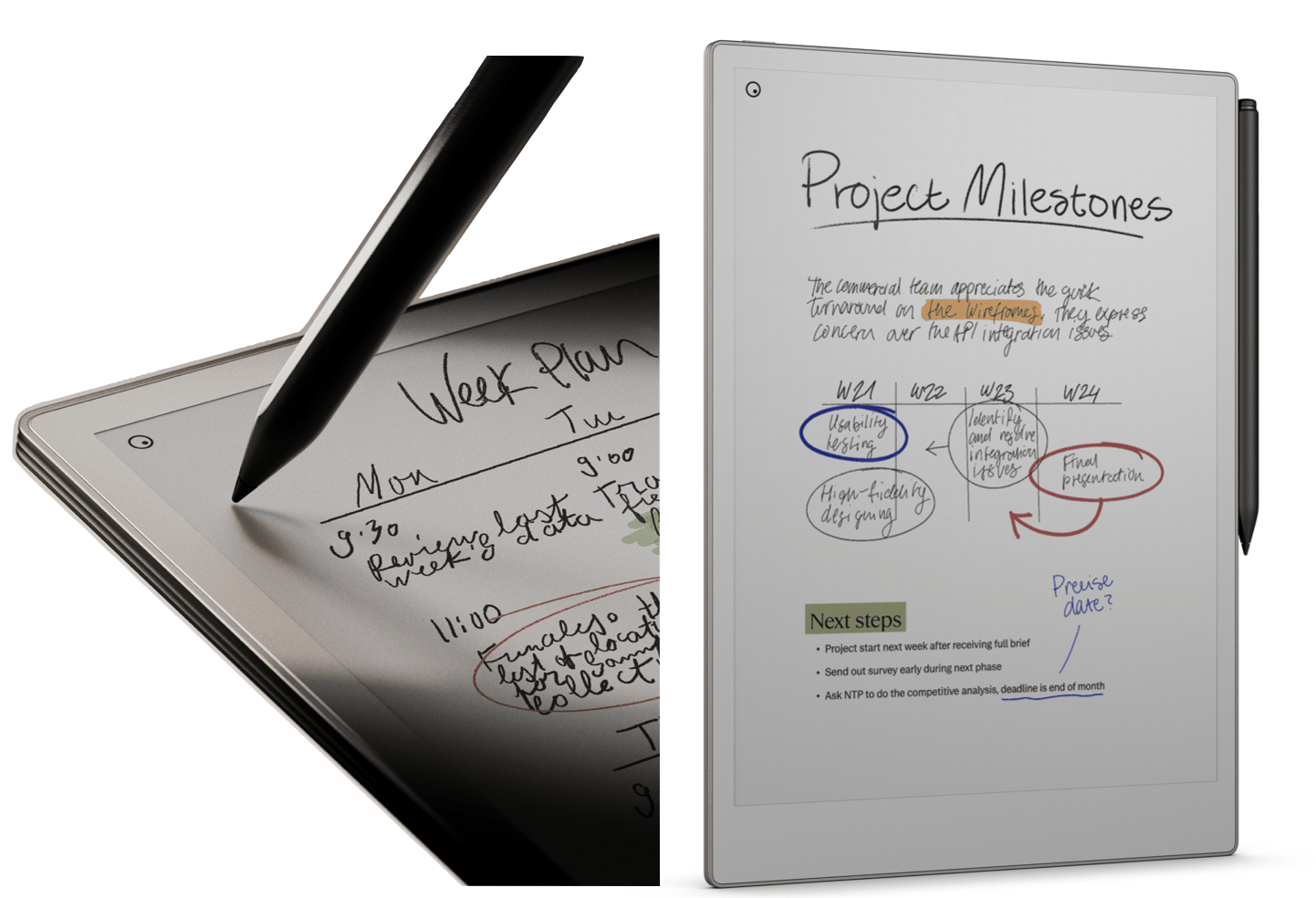
I like thinking on paper. That’s why I’ve got a box under my desk with 27 old idea notebooks. But when I’m looking for a specific note scrawled early in 2020, digital notes are helpfully searchable.Given that paper and digital have distinct advantages, I’ve been experimenting lately with hybrid approaches. Read on for what I’ve found to be most useful.My current notebook of choice is a sleek digital device that feels like paper: The reMarkable Paper ProWhat it is: A specialized paper tablet originating from Oslo, Norway that feels like a cross between a Kindle and an iPad. It’s designed for writing and reading, not Web surfing, games or social apps. In touch and sound it’s closer to paper than any digital device I’ve used. It’s simple to use, well-designed, and I rarely need to charge it.Choose this if… You like the feel of paper but prefer having a single, organized device to piles of paper notebooks. It’s great if you’re easily distracted by multi-purpose devices (that’s me) or if you spend a lot of time taking notes by hand and want a luxurious, minimalist device. My favorite features* Feels like paper. You can adjust the marker (stylus) to look and feel like various pens or pencils. The screen somehow even sounds like paper. * Backup and sync. See any of your notes later on your phone, tablet, or laptop app as editable PDFs. During an online meeting you can even use the paper tablet as a whiteboard to screenshare live notes or diagrams. Note: I’ll demo this live screensharing in an upcoming live Wonder Tools workshop for paid subscribers, where I’ll share more of the device’s strengths, limitations, and alternatives. * Flexible annotations. I like annotating PDFs as I read. You can toggle your notes on/off to return to the original. Unlike the Remarkable 2, this model lets you add color annotations, though I rarely do. You might find it handy to have distinct hues for highlighting facts or quotes.* Distraction-free. No apps, email, browser, or notifications to tug at your attention. * Easy import. You can easily import articles or documents from your Web browser or from Google Drive or Dropbox.* Eye-friendly It’s easier on your eyes than an iPad or computer, and works well in the dark, too, with an adjustable, built-in backlight. * Templates. You can start with a blank page or your choice of lined or dotted page templates; calendar or task list templates; or even a Bullet Journal from the new template and workbook collection.Caveats* Single-purpose device. If you need a multi-function tablet, this isn't it. If you already have a digital watch, phone, tablet, & laptop, you may have enough. * Premium investment. The $579 price point makes this a luxury device for those who can afford to invest in a fancy note-taking tablet. * Doesn’t work with Kindle books or other reading formats. It’s great for PDFs and ePub files, and you can even import Web articles with a bookmarklet in your browser. But you can’t use it to read your Kindle books.* Feels large for reading. If you’re used to holding a small Kindle in your hand, this device feels big at 274 x 197mm (10.8’’ x 7.8’’). The reMarkable 2 is a little smaller and cheaper ($399). * No multi-document view. Unlike a laptop or an iPad, this device doesn’t let you view multiple documents at once. That’s good for staying focused, but it adds friction when you’re switching back and forth between two reference documents, as I’ve been doing lately. * Slower page turns. As with other E Ink screens, you have to wait a bit longer for each new page to load on this device than on LCD or LED screen devices. * Clunky handwriting to text conversion. You can convert handwritten notes into digital text, even if you have messy handwriting like mine, but the process involves multiple clicks and I haven’t been thrilled with the resulting conversion and formatting. * Slight learning curve. It’s easy to use out of the box. But for advanced features, like triple-tapping to cut and paste text or adding multiple annotation layers, you’ll need a bit of practice.Pricing: $579 with the Marker (stylus) or $629 with the Marker Plus, which has a built-in digital eraser. The Book Folio protective cover is $89, while the Type Folio cover, which lets you type notes, is $229. The eraser tip is worth the extra $50 for quick corrections. The cover with built-in keyboard is only necessary for those who type all the time or use the device in place of a laptop. The optional Connect subscription for backing up your device and syncing to mobile and desktop apps is $30/year after a free 100-day trial. My flexible, reusable backup notebook: RocketbookWhat it is: A reusable notebook with plastic pages (made with Polyester/ Polypropylene) that you write on with erasable FriXion pens. How it works: To digitize notes, use Rocketbook’s free smartphone app (iOS or Android) to scan a page and send it to Google Drive, Evernote, Slack, Dropbox, Box, Trello, OneNote, OneDrive, iMessage, iCloud or Google Photos. Th

9 useful AI prompts ❤️
Summary: New AI models emerge weekly, but useful prompts are surprisingly stable. I’ve found nine versatile templates to be consistently useful after experimenting with hundreds. They work well even on the free versions of ChatGPT, Claude, Gemini, and Copilot. Read on for the templates and tactics. How to benefit from this post: Adapt these prompts as foundational formulas for getting help from your AI assistant. They’re customizable recipes rather than rigid scripts. Experiment with them. Improve them. Make them your own. Each section below has a button that will take you to the full prompt template and an example. You can add comments to those prompt pages. Pick one for a current project to expand your command of AI. Iterate on it and share your results in a comment for others’ benefit.1. Interview me 🎙️Act as an experienced interviewer. Interview me thoughtfully and creatively about [topic /project /idea]…Goal: Overcome a blank pageUse this when… * You’re stuck battling writer's block* Your thoughts are scattered* You’re trying to crystallize abstract ideasTips:* Specify how you want to be interviewed (e.g., "Ask one question at a time")* Request follow-up questions that build on your previous answers* Ask for a summary of your responses at the end to clarify your thinking2. Help me edit ✍️Act as an experienced editor. Please first slowly read and analyze the following text without rewriting it: [paste or upload text]. Then provide a numbered list of concise, specific, constructive observations to help me strengthen the piece by noting any of the following issues in my writing… Goal: Polish your wordsUse this when… * You’re refining an important message* You don’t have a friend or colleague to help with editing* You want to strengthen an early draft before sharing itTips:* Request specific feedback on common weaknesses like clichés; weak verbs; passive voice; awkward or confusing phrases; redundancy; run-on sentences; or issues with grammar, spelling or punctuation. * Ask the AI not to change your text but to provide a numbered list of potential issues for you to address, along with concise explanations of the concern. That way it’s not making changes on your behalf. You remain in full control of the editing process and the language you choose. * If you find yourself overwhelmed with editing suggestions, prompt your AI assistant to proceed like a patient editing coach progressing step-by-step, noting only one issue at a time.3. Organize my rambling 🖊️Please organize the following information into a clear, structured format: [paste or upload notes/ thoughts/ transcript]. Identify the main themes or categories, group related points together, and create a logical flow…Goal: Structure messy materialsUse this when… * You have disjointed thoughts needing structure* Your meeting notes lack organization* You've brainstormed ideas and need help categorizing themTips:* Try different organizational frameworks (chronological, thematic, priority-based)* Request specific formats like bullet points, numbered lists, or sections with headers* Transform transcripts into actionable summaries with clear next steps in a format you customize 4. Push my thinking 🤔Help me explore unusual, creative, unconventional approaches to [topic/ challenge/ issue]. First, briefly summarize what conventional wisdom typically suggests in this situation. Then, provide 5-7 surprising, unexpected, or innovative alternatives…Goal: 10x your ideasUse this when… * You suspect your thinking is limited or conventional or you may have blind spots* You’re aiming for exceptional — not satisfactory— work* You’re open to new directions or radically distinct ideasTips:* Ask specifically for "surprising, unusual, unexpected, or unconventional approaches"* Request multiple options — 5-10 different possibilities to start. Then ask for even more ideas. The AI doesn’t tire, and it might be the 9th (or 17th) idea that finally resonates.* Consider how elements of multiple responses might be combined5. Help me plan 📆Act as an expert project manager. I need to plan [project/ task/ event] with these constraints: [time/resources/ team composition/ other limitations]. My goal is to [desired outcome], and my working style is [preferences]. Please draft 3 possible structured plans… Goal: Map out a day, a long-term goal, or a complex project.Use this when… * Tackling complex projects with multiple components* Feeling overwhelmed by a task or deadline* Needing an objective perspective on your approach* Coordinating work across team members with different skillsTips:* Include specific constraints (time, resources, team composition)* Mention your preferences and working style* Specify the level of detail you need in the plan* Ask for contingency options if certain approaches don't work6. Help me understand 🧠Act as a wonderful teacher and experienced explainer. I need help understanding [concept/ document/ idea] at a [beginner/ intermediate/ advanced] level. My backgrou
Wonder Tools 📚 Find terrific books
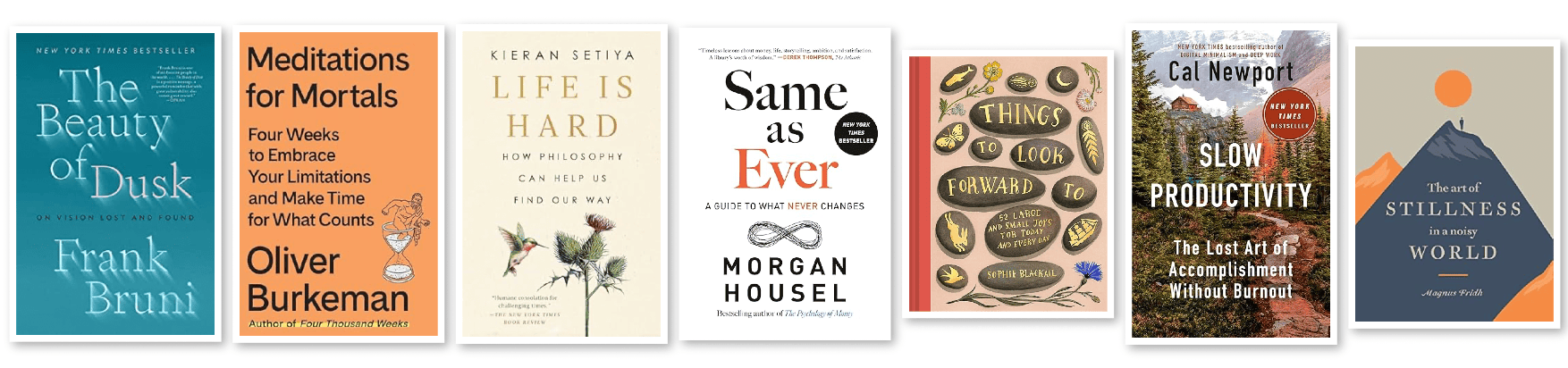
Books offer a compelling, slower alternative to the onslaught of negative news. With terrific new free tools, it’s increasingly easy to access print, digital and audio books. Read on for an update on my favorite book sites and apps. Thanks for reading and sharing. Libby lends out free ebooks and audiobooks through libraries in 78 countries. It works for 90% of U.S. libraries. You can search for and check out nearly anything, instantly, for free, on any device.* Audiobooks Check out and listen to audiobooks at any speed. You may not need to pay for an Audible subscription. * Definitions Click on any word in an ebook you’re reading in Libby for its definition or to see where else that name or phrase appears. * Highlight Save memorable passages for your notes.* Multiple cards You can use multiple library cards within a single Libby account. That helps you check which library has the shortest waiting list for a book in high demand. (See where you can get non-resident library cards).Limitation: Libby is digital-only — you can’t use it for physical books. That requires a separate app or site, like the NYPL app in New York. Kanopy provides free access to top-notch feature films and documentaries. I log in with my library card. Watch on the Web, iOS or Android, or on a SmartTV app like Google TV, Roku, or Amazon Fire TV. Limitation: libraries limit the number of videos you can watch monthly. Hoopla is an alternative to Libby that works with 3,900 library systems in the U.S., Canada, Australia and New Zealand. Like Libby it hosts audiobooks and eBooks, but also bundles in comics, movies, TV shows, magazines, and music. Use Hoopla to read, watch or listen from the Web or on a mobile device. I recently discovered its free Bingepasses, which allow instant access to a collection of magazines or videos for a week.World Cat tells you which of 10,000 global libraries near you have a particular book. It works in multiple languages. Search for books in print, ebook, braille, audio, or other formats. Find your next read 📚* Most Recommended Books shows you a list of smart people. Pick an expert or celeb you like and see which books they recommend, along with brief quotes on why they like each book. Check Goodbooks.io and ReadThisTwice for more expert/celeb book picks.* Whichbook’s World Map offers a creative way to find a book about any part of the world. Select a country and see books set in that region (See gif 👇). * Where to find book recs is a nice list from a Writing About Reading post. I also like the eclectic recommendations in the NYTimes’s Read Like the Wind newsletter. * BookClubs lets you find a book group near you or organize your own. * Fable hosts book clubs & communities for sharing what you’re reading. Find free and cheap books 🔦* Project Gutenberg has more than 75,000 free ebooks and audiobooks. No registration required. See the top 100 list for free reading inspiration.* The Internet Archive has searchable e-books and a free library collection.* Bookbub is handy for bargain hunters. It shows discounted and free ebooks. Availabe as a newsletter or check the site for deals. Support Independent booksellers 🪟* Alibris has 200 million titles from indy booksellers around the world. * Powell’s is the world’s largest independent bookstore. * Bookfinder lets you search online to find any book at the cheapest price.* Indiebound helps you find a nearby real-world indy bookstore. * Abebooks has great deals from independents. Check its bargain books + collections. Caveat: Amazon has owned it since 2008.* Tertulia is a well-designed online co-op bookshop owned by readers.Make your own book list ✅* Listy is free. It’s easy to look up & add books, and later export your list. (See my prior post about it).* LibraryThing is free and easy for cataloging books & tracking reading.* Free Notion book tracking template lets you customize a collection page.* Free Airtable book list template & my Airtable example: 30 authors I like. Use AI to explore and expand your taste in books 📚After making a list of books you’ve liked or learned from, prompt an AI engine (ChatGPT, Claude, or Gemini) for personalized reading guidance. Read my recent post for how & why this is so useful for analyzing your own reading tendencies and discovering new gems. Sponsored MessageFast & Flawless transcripts with Scribewave: trusted by journalists, researchers and creatives for its accuracy and privacy.* 🌍 Unmatched accuracy: Powered by industry-leading language models, Scribewave guarantees the most precise results on the market in 94 languages.* 📁 For power-users: Bulk upload and download files in seconds.* 📊 Flexible pricing: Choose between usage-based pricing or subscriptions.* 🔒 Self-learning: The only speech-to-text tool that learns your language.* 🖋️ Total control: Easily refine transcripts and export to Word, Google Docs, Adobe, and more.* 🚀 Save 3 hours per hour of content with Scribewave.✨ Ready to transform your workflow? Try Scribewave f

Voice AI 🎙️ say it, don't type it
Typing isn't always the best way to get your thoughts down. Sometimes talking through an idea leads to better clarity. New AI tools can reliably transform those spoken thoughts into clean, organized text. I've spent months experimenting with voice AI tools — first on my phone, and now on my laptop. They’ve been helping me pull ideas from my brain onto paper. The tools below have become crucial to my workflow. Read on for my five-minute guide to making the most of voice AI.Why voice AI beats traditional transcription ✍Traditional transcription simply converts speech to text. Modern voice AI does much more:* Instant transformation: Speak naturally and get a polished draft, outline, or summary* Smart cleanup: AI removes filler words and adds proper punctuation* Format flexibility: Convert speech into various formats like bullet lists or structured documents* Context awareness: AI understands context and organizes your thoughts logically. Because it’s grounded in your own words, it doesn’t hallucinate.5 ways I like using voice AI 💫Here are some scenarios where voice AI is particularly valuable:1. Journal entriesInstead of staring at a blank page, I speak my thoughts at day's end. The AI transforms my stream of consciousness into organized reflections.2. Meeting follow-upsAfter an in-person meeting, I open my voice AI app, hit record, and talk through key points while they’re still fresh. I don’t worry about the structure of my sentences or about pausing as I think. The AI waits for me and summarizes my rambling.3. Presentation planningSpeaking through presentation ideas helps me figure out my narrative flow. The AI helps me organize my thoughts into a structured outline. I can talk through multiple potential versions, then compare them on screen later. 4. Book notesTo preserve insights from something I’m reading, I turn on a voice AI app and flip through the pages or scroll through the text to remind myself out loud about intriguing passages or ideas. I then save the structured note the AI creates. I like being able to look back at the text while dictating the note. And the editing part of my brain interferes less when I’m talking than when I’m typing. 5. Daily planningStarting my day by verbally mapping out my priorities helps me think through what’s ahead more effectively than typing out a list. Voice AI apps to try 🎤Letterly 💌* Easy to use Just press the app’s big button. Up to 15 minutes per recording.* Cross-platform Record or access your past text-from-voice across automatically synchronized desktop, web, and mobile apps.* Smart format detection The magic transform option can automatically reformat your words, turning lists into bullets or structuring email drafts for quick copy-and-pasting into other apps.* Customizable outputs Transform recordings into LinkedIn posts, podcast or video scripts, structured documents, or your own custom formats.* Iterative refinement Try different transformations of the same recording until you get exactly what you need. * Multiple languages Record in any of 90 languages, or record in one language and have the app translate your text into another.* Offline and screen-off options Record anywhere, even without Internet access. Try using background mode without your screen on. I often record with my AirPods while walking with my phone in my pocket. Founder’s tip: “Don’t confuse it with dictation,” says Letterly’s founder and CEO Anton Lebedev. “You don’t need to pronounce the perfect text you want to write. Instead, think out loud, speak slowly, quickly, or even chaotically. AI will understand you. Think of it like a writing assistant you’re telling what to write. The assistant can understand you and figure out how to rewrite the text.”Letterly Pricing: $80/year after a free trialOasis 🏖️* Multi-purpose output Get your recording transformed simultaneously into various formats—from a memo or outline to a blog post or TED talk. * Make custom templates Create and name short prompts that reflect your preferred styles or formats. Those become part of your personalized prompt library for transforming future recordings. I made one for my journal entries.* Web accessibility Like Letterly and Audiopen, you can access your recordings and transformed text through a browser on any device.* Oasis pricing: $5/month or $50/year for enough credits for hundreds of monthly uses. * Read my previous post about why Oasis is so usefulAudioPen 🖊️* Customize rewrite length Customize the length setting if you’d prefer summaries of your transcribed recordings to be shorter or longer. Create and access them on your phone or on any device through your browser.* Shareable audio notes Send individual audio note links to colleagues or collaborators. Or send then to other apps with a Zapier integration. * Flexible organization Combine multiple audio notes or their summaries into larger collections. You can search for old notes or arrange them in folders. * Rich template selection Choose from various tr

Help your parents stay safe online
When’s the last time you fielded a tech support call from a parent? You want your parents — or anyone you support — to benefit from email, photo sharing, and video calls. You also have to protect them from scams, malware, and unnecessary complexity. Or maybe you are that parent and want to stay safe online. Either way, today’s post aims to support you. I periodically help my parents make sense of confusing WebEx conferencing instructions or Microsoft Word settings. So when Wonder Tools reader and tech expert Paul Schreiber offered to write a guest post based on his professional and personal experience, I welcomed his input. Below he outlines specific hardware recommendations, security steps, and practical tips you can implement today. The next section of this piece is by Paul. Paul: Over the past few years, I’ve helped my parents and some friends’ parents stay safe online. Here are some things I’ve found work well.Simplify hardwareSkip the computer…Many folks don’t need a powerful computer. They just need access to email, messaging, and the web. An iPad or Chromebook for ~$300 provides this (along with thousands of apps), while reducing the burden of maintenance.… Or pick a simple oneA MacBook Air is a great choice if they do need a computer. There’s less malware and Apple provides a single, simple source of support. No need to worry about separate or conflicting instructions from hardware and OS manufacturers. Plus, if they already have an iPhone, the Air works with it seamlessly. Replace the routerReplace their current router with one or more eero devices. Eeros:* Automatically connect to each other in a mesh for large homes — no more clunky extenders with separate network names. They also work for apartments with thick walls.* Automatically configure themselves with the right network settings* Automatically stay up-to-date* Can be monitored and administered remotely from your phoneSponsored Message Tell stories with factsScroll.ai is the AI notebook for journalists, helping you turn your sources into stories. Think Claude or Notebook LM, built specifically for research-based writing.Just add any video, audio, or article and Scroll will translate, transcribe, and summarize, all in one easy-to-use notebook.Add guardrailsMake yourself the adminWhen setting up the computer, create two accounts:* One for yourself, with administrative rights* A standard account for your parentIf they accidentally install adware or other junk, it will only affect their account, not the whole computer, and it’ll be easier to remedy. Install an ad blockerAds slow down the page and trick people into installing malware. I recommend the free uBlock Origin for Chrome, Firefox, and Edge. (Note: avoid the similarly-named uBlock.) For Safari, consider buying 1Blocker, Wipr, or AdGuard.Adjust settingsSet up a family accountApple (iCloud+) and Google (Google One) both sell cloud storage that can be shared with your family. For about $10 per month, you ensure everyone’s device is backed up and their photos are synced. You can also share some apps without repurchasing them.Make yourself the recovery contactAdd your email and phone number as a recovery contact (Apple, Google) for your parents’ important accounts. This lets you help when they forget their password. It also lets you reset it if they become incapacitated or die.Set up legacy contactsUnlike recovery contacts, legacy contacts control an account after someone dies. Setting these up gives you legal permission to access the account. Each service handles it differently, so read instructions from Facebook, Apple, and Google carefully.Today is trash dayGo through your parents’ computer and/or phone. Delete unused apps. Clean up the downloads folder, removing installers (such as .pkg and .dmg files) as well duplicate or outdated files.PasswordsPasswords are a pain. Good news: you no longer need to memorize them. With a password manager, the only two passwords you’ll need to remember are those for your computer and your email. Your password manager will automatically create hard-to-guess passwords and fill them in for all other log-ins. It won’t fill your password in on sites trying to steal your information.* Set up password autofill and teach them to use it. * Spend a few hours using Chrome, Safari, Firefox, or 1Password to generate new passwords for their 25 most important sites.* Share key account passwords with yourself.Final Tips* If you want personalized advice, visit Consumer Reports’ security planner. * If your parents or relatives are easily duped by fake reviews, set up bookmarks for Consumer Reports, Wirecutter, the Good Housekeeping Institute, Vetted, or other trustworthy review services.p.s. Bonus Tools — Recommended by Jeremy* Print Friendly makes it easy to print anything online.* Postlight Reader removes clutter from articles, making reading easier. * Permission Slip is a free app from Consumer Reports that helps you learn what companies are collecting data about you or

Create your AI taste atlas ❤️
Imagine turning your reading history into a treasure map. By feeding a list of your favorite books and movies to an AI assistant, you can uncover hidden patterns in what you love. From your subconscious attraction to unreliable narrators to your love for stories that begin at the end, you may be surprised by what an AI assistant can reveal. Building a personal “taste atlas” helps you understand your reading self better. It can also surface blind spots in your cultural diet and point you toward unexplored literary territories you’re likely to love.Why analyze your preferences? ⚡️This isn’t just another recommendation engine. Netflix or Amazon may suggest what to watch or buy next based on viewing history, but a taste atlas goes much deeper. It analyzes themes, narrative structures, and emotional resonance across media formats. It can reveal connections between novels you adore and foreign films you’ve never heard of, or help you articulate why certain stories stick with you while others don’t. You can tune the atlas by adjusting the info and examples you give it. You can customize the analysis with your prompts, asking for particular kinds of observations or recommendations.With AI’s help, you can map out your own universe of awesome. As you scout out gaps in your reading or movie watching, you can discover authors and films that expand your horizons.Start by gathering your favorites 🤩You need to provide an AI assistant with a list of at least 10-15 titles that resonate with you for meaningful insights; 30+ is better. Here are the fastest ways to gather them. * Physical books or DVDs: snap a photo of your bookshelf. AI can read the titles. Or write a list of titles on paper. AI assistants can read handwriting surprisingly well. * Digital readers: refer to your Kindle library, your “read” shelf on Goodreads, listen history on Audible, timeline on Libby, or any doc or spreadsheet you maintain with your favorites.* Streaming: Apps like Likewise, Sofa, Listy, Listium, Letterboxd, Trakt, and Reelgood let you compile lists of favorites. You can use those collections to train your AI assistant. * Use your voice: If talking jogs your memory, use conversation mode in ChatGPT, Claude, Google’s Gemini, or Microsoft’s CoPilot. Let the AI interview you about your favorite books or movies. * Scan award lists. If you can’t think of favorites, check a list of Oscar-winning movies or book awards for reminders of what you’ve enjoyed. Criteria: Consider titles you often revisit or recommend. Include recent favorites and older resonant ones. Give extra weight to those that provoked emotion, changed your perspective, or prompted action. Ideally, note not just the title but one or more aspects of a work that particularly resonated. Prompt AI to analyze your list 🔎Once you've compiled your list, use your preferred AI tool to uncover patterns in your literary tastes. Prompt the AI assistant for insights to advance your self-understanding. After that, ask it to help you discover more books/movies you'll love. Start by writing a detailed prompt to elicit a thorough, subtle analysis of your taste in books or movies. Here’s an example you can adopt or adapt: You are a perceptive literary critic and cultural analyst with deep knowledge of literature across genres and cultures. Carefully analyze the attached list of my favorite books for patterns. Think deeply about connections between titles and topics that might not be immediately apparent. Where you notice interesting patterns, explain your reasoning and cite specific examples. Please analyze this list of my favorite books. Create a detailed literary taste profile that identifies:Core Elements:* Primary themes and topics* Genre preferences and style patterns* Narrative approaches and structure choices* Character types and relationships* Tone and emotional range»»»» Upload a file with your list or paste it. * Here’s a related prompt for film. * Additional taste atlas prompts to enrich your analysis. * Case study of a taste atlas I created for my book group. Which AI tool to use? 🎯* ChatGPT 4o worked well for me in importing Google Docs and PDFs with my favorites. Its analysis and recommendations were nuanced and helpful. * Limitation: Occasionally, it suggested authors who were already in my existing lists, despite being prompted not to. * Claude Pro provided an excellent overview of the kinds of books I’ve selected for the book group I facilitate over the past eight years. It helped identify gaps in our reading list and offered useful suggestions for future titles. * Limitation: Some documents I tried to import, like my Readwise reading highlights, were too large to fit in a Claude Project I created for my taste atlas.* Gemini 2.0 Experimental Advanced, Google’s newest model, was an excellent voice partner in analyzing my current reading interests. * Limitation: 2.0 couldn’t yet import documents, but Gemini 1.5 could. It helpfully analyzed the Google Doc with my complete Readwise H
Protect Your Focus: A 10-Minute Guide 🎯
A dozen tabs open. Notifications pinging. I just opened my laptop and unread emails are already calling my name. Sound familiar? To break this routine, I’m relying on a carefully chosen stack of tools and tactics that protect deep work from daily distractions. Rather than hunting for a perfect productivity app, I've curated a three-layer system for planning, focus, and analysis. In today’s video and the post below I’ll show you how it works. Feel free to steal any of these tactics as you’re refining your own workflow for the new year. My focus stack has three layers: * Planning tools that help me decide where to direct my concentration.* Focus tools to help my wandering mind return to the task at hand.* Analysis tools for tracking progress and observations about my work so I can improve my focus over time. Read on for a 10-minute guide to setting yourself up for a fruitful day of focus. 1. Planning: Design your day 🚀 Think of focus setup like a chef’s mise-en-place: organizing your workspace before diving into complex work. Start by collecting and prioritizing a handful of core tasks so you have a short menu to choose from. Include time estimates. That helps you be realistic about what will fit on that day’s calendar.Book tip: Read Work Clean by Dan Charnas to see how much chefs can teach journalists, educators, and other info professionals about productivity.I often fall victim to the planning fallacy. I overestimate how many things I can get done on a given day. That leads to end-of-day disappointment when I haven’t completed everything on my list. To avoid that issue, assess your time estimates at the end of the day. After two weeks of doing that, you’ll get better guessing how much you’ll actually accomplish in a day. Book tip: Read Madeleine Dore’s terrific book "I Just Didn't Do The Thing Today" for a guide to coping and conquering those I’m-not-productive-enough sentiments. Also check out Rest as Resistance by Tricia Hersey.Keep it simple: power tools that work ⚡️For me, task software should be as simple as possible. [See more of my philosophy on this]. I prefer to get stuff done rather than spend hours mastering software menus. That’s why I recommend simple, free task software tools. * The bottom line: Workflowy, Apple Reminders, and Google Tasks all help you do the four basic things you need to do with to-dos:* Create simple lists, organize and add to them, and reliably and quickly access the tasks on multiple devices.For a more advanced software tool, consider Todoist or Things, which allow you to categorize tasks in a more sophisticated way with projects and multiple views. Sponsored Message from Griff FoxleyFeeling creatively blocked? Dreaming up a life transition that’s overwhelming? Your internal mindset plays a crucial role in your success. As a coach, I help seekers, creatives, and solopreneurs overcome limiting beliefs, build confidence, and achieve big goals in a program tailored to you. Let's navigate the challenges of today's competitive landscape together. Book a free discovery call!Pro tools, minus the complexity 🔥You may prefer a pro tool that combines planning with managing tasks and calendaring. Teams aiming to put all their projects, tasks and plans in one spot can use a hub like ClickUp, Monday, or Basecamp. But if you’re working independently and want something simple, I like Sunsama. Sunsama has a variety of useful features for planning your day. It works well for timeboxing. Here are some key features that make it so useful: * Planning and review modes let you prepare for and conclude the day with reflection and intention, avoiding the temptation to work reactively. * Estimate how long tasks will take, add notes or substasks, then schedule the tasks directly in your calendar. * Optionally use AI for time estimates and to categorize tasks. That helps analyze how you’re allocating time.* Employ focus mode to time your current task. When you complete it, the next task appears in the corner of your screen. I use this for deep work to block out everything but my current project.Time design: Intelligent scheduling 📅* Vimcal, Akiflow, Fantastical, and Motion are among the best-designed calendar tools. They sync to your existing calendar (e.g. Google or Outlook).* Use natural language to schedule things. Say something like “Meet Pat at 3pm Tuesday at HeyTea to talk about our AI summit.” Avoid a minute of manual data entry a dozen times daily and you’ll save an hour each week. Calendar magic: AI-assisted planning 🗓️Reclaim, like Motion, can automatically put time on your calendar between your appointments for priorities that you've set in advance. For example, you may want to routinely find time for meditation, calling a loved one, stretching, or praying. Reclaim adds those moments to your calendar between existing appointments on your calendar. They show up privately on your calendar. If you choose to let it, Reclaim can move your self-care slots if a meeting gets scheduled into th

Wonder Tools ⏰ Try Timeboxing
I’m starting this year with a focus on tactics, not just tools. Timeboxing is the tactic I rely on to plan my 100 weekly waking hours. In this post I’m sharing tips and tools to help whether you’re new to timeboxing or a pro.To read this full post online, visit https://wondertools.substack.com/p/timeboxing Timeboxing is the practice of scheduling tasks and deep work directly onto a calendar. By specifying how long to spend on each task, timeboxing helps you create a realistic plan taking into account your priorities and available time.How it works for meI start the day with 15 minutes of reflection and planning. I usually use a portable notebook or Sunsama. I review tasks, set priorities, and schedule specific time slots for deep work. I allocate time that’s available to me between meetings and teaching responsibilities.Why timeboxing might work for youTimeboxing might be a fit if you have the freedom to decide what to do when. It’s especially useful if you have a sense of how long things often take you and know the daily rhythms of your concentration levels, i.e. when you’re best able to focus. It doesn’t have to be all or nothing: timebox a fraction of your schedule if unpredictable work or personal responsibilities limit your flexibility.Here's a simple process to start timeboxing today:* Choose your planning time Pick either the end of your workday or first thing in the morning. I prefer a.m. when I’m most focused.* List your priorities Spend 5 minutes listing your most important tasks for the upcoming work session. Not everything. Just the top few.* List necessities Spend 5 minutes listing other less-valuable tasks that you have to get done today. Again, not everything. Just what’s most essential.* List notes and for-later items Spend 2 minutes jotting down anything else that comes to mind that you’ll need to remember later to help you get your work done, or that you’ll need to put on a future work list.* Estimate durations Next to each task, write how long you think it will take, adding a 25% buffer to account for interruptions or hidden sub-tasks.* Block your calendar Schedule each task into specific time slots.* Review at day’s end Consider how long things actually took, what worked well, and what didn’t. That reflection will strengthen the next day’s plan.Pro tip: Start small. Begin with just your morning or afternoon hours. Start with the simplest tools available to you, whether that’s paper and pen or your existing Outlook or Google Calendar.Common pitfalls to avoid* Over-scheduling Don't fill every minute. Leave buffer time for unexpected tasks and the occasional rabbit hole.* Unrealistic estimates Most tasks take longer than we think. Double your initial estimates.* Ignoring energy levels Match challenging tasks to your peak energy times.* Too much rigidity Build in flex time for inevitable disruptions.* Planning too far ahead Focus on the very next work session, not next week. Who knows what will happen to complicate plans or alter priorities?How timeboxing supports popular productivity frameworks* The Eisenhower Matrix This approach focuses on assessing what is urgent and important. While Eisenhower analysis helps you prioritize and decide what to do, timeboxing helps you decide when to do it and how long to spend. It also nudges you to commit to it by putting it on the calendar.* Eat the Frog This idea suggests doing the most important or most difficult task first. Timeboxing helps give you a structure for putting that task onto your calendar and allocating sufficient time for it.* The 80/20 Rule This concept suggests that 20% of the work you do delivers 80% of the most important value. It helps focus attention on what's most valuable when you’re deciding what’s worth your time. Timeboxing helps you execute on that prioritization by making it tangible on your schedule.Recommended timeboxing toolsGraph paper, sand timers, and Post-its* Graph paper works well. Organize your schedule into boxes, with each representing 10 or 15 minutes. Here’s a nice notebook version.* Sand timer It’s old-fashioned, attractive, and doesn’t require batteries or a screen. Get one that lasts 15 minutes — or whatever work interval you prefer. Benefit from a visual reminder to stay focused.* Writing Guru Mallary Tenore Tarpley recommended this sand timer in an excellent recent piece on gifts for writers. Choose between 5, 15, 30 or 60 minute durations for $10 to $13.* A nice notebook and pen help provide a clean, pleasurable surface for planning. I like the classic Leuchtturm1917 notebooks.* Post-its Put one 15-minute task or deep work step on each Post-it. Line up eight in order to plan out a two-hour work sprint.Google Sheets / Microsoft ExcelA free spreadsheet can work well for planning if you work independently and don’t rely on a digital calendar.* Here's a blank Google Sheets template for planning in 30-minute increments. Click “Use Template” at the top right to make your own private version. Or copy it. Adjust

📚 Wonder Tools 2024 Favorites | Mini Apps and Podcasts
💎 In retreating from 2024’s chaotic news, I appreciated the niche apps and podcasts below. Consider today’s post a holiday care package 💝 with little bites. 🔮 Looking ahead: As 2025 approaches, I’m exploring a bunch of surprising new AI services I’ll write about soon — from Sora’s video generation 🤯 and a whimsical new Google tool to 🧠 brain-measuring headphones 🎧 and an AI-powered, voice-recording pendant. 🤔 I’m also experimenting with tactics for coping with overflowing task lists… post coming soon! 👉 Meanwhile, you’re invited to join me in 2025! I’m looking for new contributors, partners and sponsors for 2025. Collaborate with me on Wonder Tools. Or reply to this email to say hello and share any questions or feedback. I read every message I get and respond to as many as I can. 🧑💻Tiny appsI love single-purpose tools that solve specific problems brilliantly. Whether it's cleaning up my Mac, downloading videos, reminding me to take a break, or capturing text from images, these specialized Mac apps have become essential to my workflow. You can try them for free or buy them individually for a few bucks. I discovered that 250 of these little apps are included with a SetApp subscription, which I started paying $10/month for a couple of years ago. It’s like a mini Netflix for software, which is appealing to me as someone who loves experimenting with tools. Most of the apps I don’t need, just like I don’t watch most of what’s on Netflix. The useful ones, though, make the subscription worthwhile, especially because it includes Craft, one of my favorite apps, plus others I use regularly:* Clop Instantly resize any image just by dragging it to a digital box — useful for social media or newsletter posts.* TimeOut Automate onscreen reminders to look away from the screen & stretch.* PullTube Easily download videos from YouTube, Vimeo, Facebook, Dailymotion, Soundcloud, Instagram and others.* TextSniper Capture text onscreen to your clipboard. Useful for online books, presentations, videos or anything you see onscreen you want to add to notes. * Teleprompter App Record videos with a teleprompter. * CleanMyMac Remove unused apps, free up space, speed up my laptop.🥇 Still on my list from 2023: * Sunsama Plan a workday step by step, then reflect on it at the end.* Likewise Get free, personalized recommendations for books, shows, movies and podcasts.* Vetted Vet products before buying w/ summaries of trustworthy reviews.* Lungy Relax for 1-minute with this free app’s breathing breaks. * HiNote Send visual text messages with this cute, simple, free app.🎙️Must-Listen Podcasts🎯 For Professional Growth & Learning* Think Fast Talk Smart Stanford Business School lecturer Matt Abrahams hosts terrific conversations about how to communicate better. Each episode includes immediately actionable tactics for everything from crafting persuasive emails to giving memorable presentations. * HBR IdeaCast Practical business guidance I consistently learn from. The show just celebrated episode #1000, featuring 10 highlights from past shows. * Before Breakfast Laura Vanderkam overflows with practical insight. I love these bite-size episodes. I’m glad her Vanderhacks has landed on Substack. * Newsroom Robots by my collaborator and colleague Nikita Roy is great for getting up to speed on all things AI and journalism with interviews of smart leaders around the world.* People I Mostly Admire features Freakonomics co-author Steve Levitt interviewing smart guests about big ideas. I like the way he uses sharp, challenging questions to push past predictable answers.🌟 For Curiosity & Personal Interest* Against the Rules Michael Lewis’s storytelling is a great fit for the surprising saga of sports betting, the subject of the new season of his excellent podcast. * 99% Invisible Every year this delightful show about the design of our built world has a special “mini-stories” show. I miss many of the other episodes, but never this. Listen to the newest one.* Hidden Brain I learn something every time I listen. I admire the story crafting and the interviews so much that if I had a vote for the Podcast Hall of Fame, I would nominate Shankar Vedantam (along with Gayle Allen, Dr. Laurie Santos, and Terry O’Reilly). * Feel Better Live More I like the 15-minute bitesize episodes featuring highlights from Dr. Rangan Chatterjee’s lengthy interviews with the world’s most interesting mental and physical health experts.* Trader Joe’s My guilty audio pleasure. There’s nothing professionally valuable in this one. 😳🫣 I just like hearing about TJ’s new products and the food scouts who help launch the newest snacks. p.s. See a collection of 60 of my all-time podcast favorites. This is a public episode. If you'd like to discuss this with other subscribers or get access to bonus episodes, visit wondertools.substack.com/subscribe

🏆 Best of 2024
I tested hundreds of new tools this year. Many were duplicative. A few stuck with me because they’re so useful. The dozen noted below are helping me mine insights from notes, summarize meetings, design visuals— even code a little, without being a developer. You can start using any of these in minutes — no big budget or prompt engineering PhD required. Check out my list and leave a comment below noting one of your own favorites. 👇Check out the full post online: https://wondertools.substack.com/p/wonder-tools-best-of-2024Strengthen your work kit with AI1. Search Smarter: Perplexity 🔎Get instant, citation-backed briefings instead of drowning in a long list of search results. See how and why that’s so useful.2. Mine Your Own Material: NotebookLM 📓Apply AI to your notes and documents with citations and no hallucination. See examples and benefits.3. Tackle Complex Work: Claude Projects 📂Enhance work you’re doing on an ongoing basis. Upload relevant docs, files and give instructions and context to one of the best AI engines. It’s great not having to coach it from scratch on each query. Read more about why this is useful.4. Edit text with an assistant: Lex 📝Lex helps you get messages across clearly. Use it not to write for you but as an excellent editing assistant and watchdog suggesting fixes for grammar, cliches, passive voice, readability, brevity, repetition, & more. See more of my fave writing tools.Enhance your visuals5. Design engaging imagery: Ideogram ✍️Make posters, graphics, illustrations or whatever you need to enhance documents, presentations, reports, or social media posts. Read more on why I love this tool.6. Design Beautiful Docs: Craft 🎨Create great-looking documents, notes, handouts, guides, and other visual resources without design skills. Version 3, just out, adds even more polish. See why I use Craft all the time.7. Create Pro Media: Descript 💻Edit audio and video as easily as editing a document. Why I rely on Descript. Others I found useful this year: Hypernatural for social video & Eddie for editing with natural language9. Visualize Data: Napkin ✍️Transform any description of an idea or framework into a neat infographic. Read my overview.Power up workshops and meetings10. Capture Meeting Gold: Fathom 🎥Transform any Zoom call into an actionable summary with timestamped highlights.11. Teach Interactively: Butter Scenes 🧑🏫Lead engaging online sessions with a second screen for enhanced interaction.Create games & apps with no prior skill12. Build Without Coding: Windsurf Cascade 🧑💻Turn your ideas into working software without any technical knowledge. I was delighted at the ease and speed with which I could start creating. See what I learned and examples of what I made.📺 Here’s my video summary 👇Dig DeeperPerplexity 🔎 Search with AIWhy this is a winner: Google searches require sorting through dozens of links and lots of irrelevant material. Perplexity, by contrast, offers useful summary briefings on any topic you want to learn about, with relevant citations, so you can dig deeper into original sources.How I use it: To get up to speed quickly on concepts, people or topics that are new to me, for both work and leisure interests. Also for product comparisons, to educate myself on cultural trends with helpful citations, and to find useful sources for context on historical events.Read more: My take on how to make the most of PerplexityNotebookLM 📓 Apply AI to researchWhy this is a winner: Draw connections between up to 50 files and documents that relate to a project you’re working on. NotebookLM has a huge context window so you can upload millions of words for each project, much more than you can add on other platforms. You get helpful insights with citations to help you return to relevant sections of your documents.An example of how I use it: I created a notebook for my Readwise highlights, which includes the passages I’ve marked in my Kindle books, online articles I’ve highlighted, and podcasts I’ve listened to with Snipd. Now I can query my own highlights on my favorite passages from the past decade to gain insight about material that’s resonated with me.Streamline CollaborationFathom 🎥 Sum up meetings with AIWhy this is a winner: Following up on dozens of meetings is hard. Fathom makes it easy by giving you great summaries of any online gathering. You get both a summary and a timecoded transcript so you can jump directly to key moments in your recording.Other strengths: It’s easy to set up by linking it to your calendar. That enables it to join your Zooms. Afterwards you can send other attendees a link to the summary. You can auto-request approval so no one is surprised by having an AI present. If you ever don’t want it there, it’s easy to remove or turn off. You can even mark highlights during the meeting with a button click. I still use the free version — it’s so good you may not need to pay.How I use it: To summarize and return to important points in internal and external meeti
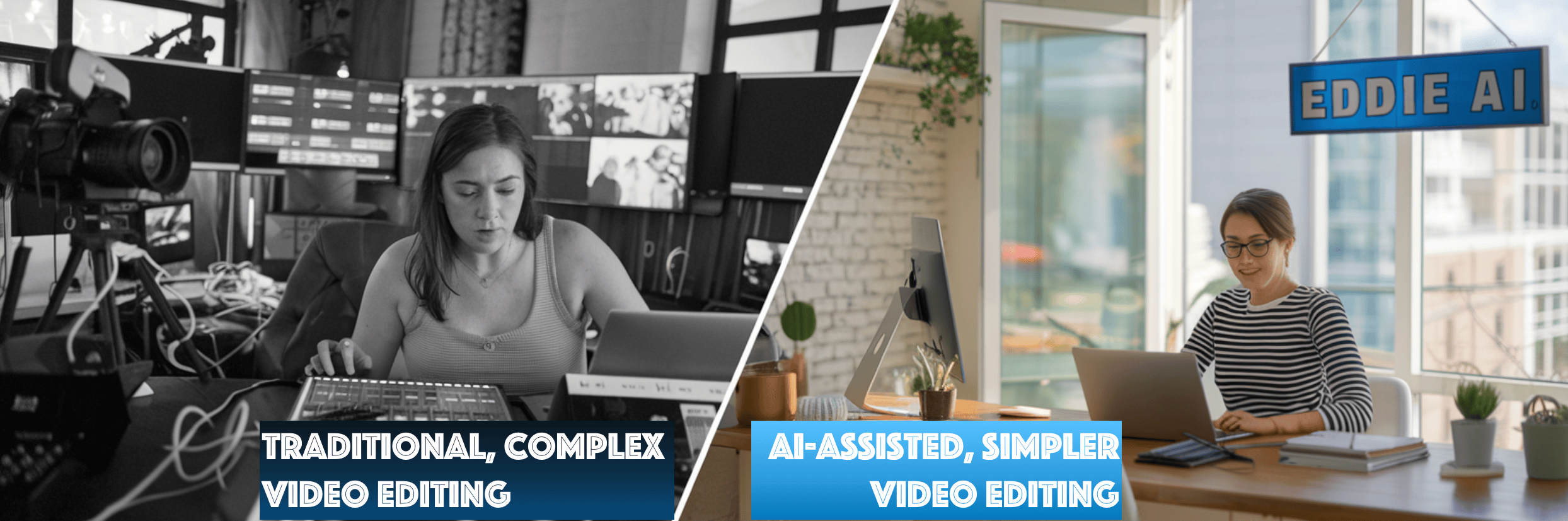
🎬 Meet Eddie: AI that edits videos
“Hey, can you cut that two-hour conference presentation down to a two-minute video for LinkedIn?”Two years ago, that request would have sent someone deep into video editing software, scrubbing through footage, setting careful cut points, and wrestling with export settings. Now you can simply tell an AI bot what you want and watch it begin to assemble your video.For the full newsletter post, visit: https://wondertools.substack.com/p/eddie-ai-video-editingEddie AI is the first tool I’ve tried that effectively lets anyone edit a video with natural language. Explain what you want in your own words — whether you’re cutting together highlights for social media or a rough draft of a video edit to share with colleagues. It’s free for now, with pricing to follow in 2025.Eddie aims to supplement — not replace — other video editing tools. You can’t yet use it for advanced video edits like color or audio corrections or adding transitions, titles, or special effects. It works only with talking videos because it relies on transcript text to perform edits.Even so, Eddie offers a glimpse of where video editing is heading. It’s already handy for quick preliminary edits to share with colleagues, or for beginners who just want to trim lengthy interviews.Traditional video editing software can drown beginners in complex menus, keyboard shortcuts, and software details. Eddie makes it more accessible. Video editing — like coding and image generation — is opening up to those without technical skills. Read on for how it works, why it’s worth trying, and a few limitations and alternatives.How Eddie works: A quick start guideThe basic workflow* Go to HeyEddie.ai and sign in with a Google account.* Upload a video from your computer or Dropbox/Google Drive.* Type what you want, e.g. “make a five-minute highlight reel.”* Review, and revise with additional prompts.* Download the video to share it. Or export a draft formatted for Adobe Premiere, Final Cut Pro, Da Vinci Resolve, or Avid.What’s special about Eddie* Beginner-friendly. Just describe what you’re aiming for and get a good working draft, even if you’ve never edited a video before.* Prioritizes content over technical details. Instead of mastering menu commands, you can focus on the story you’re trying to tell.* Iterative refinement. Easily request changes, like “Make the opening snappier,” or “Focus more on the Q&A section."* No file or project limits. Upload video files of any size — even 100gb — and create as many individual projects as you want.Sponsored MessageCapture Every Word With VoiceHubMeet VoiceHub, the new productivity platform from Rev. It’s revolutionizing how businesses—from newsrooms to law firms—handle their most valuable asset: conversations. Think of it as your team's AI-powered conversation hub. While basic transcription tools might capture words, VoiceHub captures insights.What sets VoiceHub apart? Its AI accuracy beats Microsoft, Google, and other enterprise services. But it's not just about accuracy—it's about changing how you use those accurate transcripts.With VoiceHub, you get:* Universal capture of audio and video across mobile, desktop, and meetings* Best-in-class AI transcription in seconds* Custom AI templates that automatically extract insights & action items* Enterprise-grade security with SOC 2 Type II compliance and SSO* Seamless integration with major tools like Zoom and SlackRequest a DemoEddie’s Limitations* ⚠️ Talking heads only. Only works for interview videos. Eddie analyzes the transcript, so it won’t work for silent footage of scenery or abstract video.* 🎬 Limited editing capabilities. No color correction, audio leveling, titles or transitions yet.* 🗣️ English-only for now. Footage and prompting aren’t yet tuned for other languages.* ✂ Can’t yet make word-level edits. Ask it to remove sentences, but it can’t yet cut individual words or phrases, e.g. “like” or “sort of.”* 💻 Desktop only. Doesn’t work on mobile.Alternative tools to consider* 🎯 Convert articles into videos* Hypernatural is my AI tool of choice for converting written or audio content into short social videos. I use it to create drafts of videos out of the text of newsletter posts or presentations I’m working on.* ⚒️ Edit online with advanced features* Kapwing is a versatile Web-based video editing tool. I use it to edit footage manually, as with traditional software. You can also use Kapwing’s AI to add captions, dub a video into another language, or prep social media highlights. Unlike Eddie, Kapwing won’t yet let you edit a video with natural language prompts. See my review and a demo of Kapwing.* ✂️ Edit like you’re revising a document* Descript lets you edit a video or audio file like a Google Doc. You can delete words to edit out sections of your video or audio. Unlike Eddie, Descript lets add transitions, titles, and music. I like its AI capabilities for removing background noise, filler words, and silences, none of which Eddie can do. But Descript doesn’t let you e

Wonder Tools — AI turns ideas into apps
I don’t know how to code. So I was delighted this week to discover a new AI service, Windsurf Cascade, that helped me make several little games and apps right after downloading the free software. How it works: I draft a prompt explaining to the AI what I’m envisioning. It spits out code I can test, then I ask for revisions. I then publish and share an app. Why it matters: Windsurf is the first tool I’ve seen that makes it easy for absolute beginners to code full games and applications without any prior experience. If you’ve ever been curious about coding but intimidated by the complexity, now’s a great time to dive in with AI assistance. What you can do: If there’s a game you’d love to make — or a simple application— you might finally be able to do so without professional help. Read on for how it works, what you can do with it, and why I’m so excited about this new service.Getting startedDownload the free Windsurf code editor. Once installed, the software lets you chat with an AI assistant in one window, while code shows up in another. The AI guides you through generating code to run new games or apps you make. How to begin: Chat with it just as you would with ChatGPT or Claude. Windsurf incorporates both top AI models to understand your requests and generate the necessary code. Your first prompt: Start by telling Windsurf’s AI in a few sentences about the subjects, games or applications of interest to you, asking it for ideas for what you can make. * Start simple. Consider beginning with the simplest of games — like Tic-Tac-Toe or Hangman. You’ll get a quick feel for the interface.* Level up a bit. Move on to a trivia or arcade-style game, or a little converter or calculator. * Make something useful. After you’ve made a couple of quick apps, try customizing a mini application you can use for work or a hobby. Consider making a teaching or learning game. Or an information assistant that looks up policy information in your own documents or spreadsheets. Use it yourself or share it with a friend or colleague.What the founder says Varun Mohan, the CEO and co-founder of Codeium, which makes Windsurf, told me in a recent Zoom interview that he was surprised at the surge of interest from non-coders. “We have a lot of non technical people at the company. Very quickly, once the product was released internally, all of them were spending the entire day building apps instead of doing their job,” he said. He said Codeium’s goal is to help developers — and others — more efficiently complete ambitious projects. "Our goal is to actually reduce the time it takes to build apps by 95%.” Pricing, platform and privacy * Pricing: Free for the first two weeks. You can continue using the code editor indefinitely for free, but after that the AI assistance costs $10/month. * Platform: Works on Mac, Windows and Linux. Not designed for mobile devices, though the apps and games you make will work on mobile browsers, and you can theoretically use Windsurf to make mobile apps.* Privacy: Your games, apps and other software can run locally on your machine. The files are private until and unless you upload them to a public server. Ideas for what you can make* Trivia games Ask the AI to create a Jeopardy or Who Wants to Be a Millionaire-style game with questions it designs or pulls from a public database like the Open Trivia Database. Or post your own questions in a published Google spreadsheet or Airtable and share it with the AI. * Action games If you miss your old Atari or arcade games of yore, ask the AI to help you make your own version of Frogger, Pac-Man, or Donkey Kong. * Learning games Brush up on your geography, periodic table, presidents, star formations, or whatever else you’d like to study. * Skill games Strengthen your typing with an app measuring your speed and accuracy. Or improve your listening skills by guessing the pitch of notes played or the name of a song. Customizing skill games allows you to choose your own look, feel, and functionality. * Mini work applications Make a little cost or sales calculator tied to your specific services. Or a timeline estimator for planning projects with particular parameters. Or an analysis tool that references a particular spreadsheet or document. Watch someone make a check-sharing app and a personalized email weather alert.Useful features* The AI excels at debugging code. Programming errors can cascade through an application, making it difficult for novices to identify and correct problems. When something's not working right, I just tell the AI what's wrong. It figures out the problem and helps me fix it.* You can learn as you go. The AI can answer questions as well as write or edit code for you. As I watch the AI generate code and iterate on app features, I can ask it to explain what it’s doing or how a bit of code works. * You can create as many public or private projects as you want The software lives on your computer, so you can keep all your work private. In my case, I’m aiming to m

AI for Data 📈📊
Julius is a promising new AI service for analyzing data. I’ve been using it to make sense of — and visualize — my analytics dashboard and find meaning in giant datasets. You can use it for virtually any type of business or scientific data, or simply to categorize survey responses or interpret spreadsheets. Read on for what’s notable about Julius and other new approaches to AI data analysis.How I’m using JuliusJulius has helped me make revenue projections and identify reader retention patterns. It can turn anonymized analytics data into specific actionable observations. Substack, Google Analytics, and other platforms offer limited dashboards for understanding readership trends. I have neither the budget to hire a data analyst nor the time to do deep analysis of large datasets without help. So Julius is handy at providing me with insights I can further explore. I think of it as generating idea leads — or data idea seeds. 🌱It’s remarkably versatile. You can use it to break down a scientific or geographic study, financial data, or anything else. It runs Python code, so you can replicate its analysis. It builds on the top models from OpenAI and Anthropic, tuning AI specifically to focus on data. What you can use it forHere are examples Julius’ team shared with me, now that there are more than a million people using it: * Academic research data Biology experiment results, bioinformatics datasets, psychology doctoral thesis data, and survey data analysis.* Business data Google Ad reports, cybersecurity data, a product manager’s product usage and behavioral data, and sales forecasting.* Data science analysis Predicting housing prices based on economics data, clustering customer segments, and detecting credit card fraud. How Julius differs from ChatGPT * Julius lets you upload huge data files — up to 8gb on paid accounts.* You can use Python as well as R, a preferred coding language for academic researchers.* With Julius, you can access extra shared server computing horsepower — both CPU + RAM. Basically, it can crunch more numbers faster than other AI chat services, if you’re on a paid account. * You can repeatedly reference data files once you’ve uploaded them. If you’re using Julius for free, data may not be stored, though. I’ve had to re-upload files.* You can install special analysis packages/libraries for advanced projects. Example: Here’s my visualization thread with Julius exploring an Our World in Data dataset on Kaggle showing global energy consumption.Pricing: Free for 15 queries a month; $20 for 250 queries; or $45 for unlimited. There’s a 50% discount for students and academics if you use a .edu account or email [email protected]. Privacy: Julius erases data from company servers when data is deleted within the app, and each user has access only to their own data within the company’s secure notebook file storage. Per its privacy policy, Julius works with various AI models that aren’t allowed to train on its user data.Other AI tools for data analysisWobbyWobby lets you import your own data, paste in a URL, or search for data sources. You can upload a .csv or Excel file or even copy and paste something from a spreadsheet. You’ll soon also be able to upload a PDF. Once your data is uploaded you can chat with it, visualize it, or draft a document summarizing key data insights with AI assistance. The interface centers around the creation of documents. You can create standard documents or landscape-style slides. I prefer creating docs and slides in other tools, and I prefer the Julius interface for exploring datasets.Wobby feels a bit rough around the edges so far in my testing. It has a lot of potential as a way to turn raw data into reports you can share with colleagues. I appreciate its versatility in letting you choose to upload or search for data. If you’re frequently generating internal reports about company data, it may save you time.Co-founder and CEO Nathan Tetroashvili recently told me about news organizations using Wobby to streamline data analysis in Europe. In one case, a small news team used Wobby to visualize local election data. They created custom data visualizations for each locality that would have been much more time consuming and difficult to produce with their prior tools.* Pricing: After a 10-day free trial it’s $36/month billed annually for individuals; more for teams.* Privacy: Wobby is incorporated under Belgian law and complies with GDPR rules that help safeguard data privacy. Read its policy for further details. * Watch a helpful, 8-minute demo video showing Tetroashvili using Wobby to analyze, visualize and draft a report about the gender breakdown of national parliaments in Scandinavia. Bigdata is useful for analyzing market info, pricing data, job analytics — who is hiring — and other financial sources and stats. It’s not for the casual user. Plans run $50 to $100/month billed annually, so I won’t be maintaining a subscription. If you’re in finance you can likely expense it. If not

Create WOW images with AI🪄
Even if you can't draw or take a decent photo, you can now illustrate anything. Services like Unsplash, Pexels, and free Creative Commons search simplify finding free high-quality images. Canva lets anyone quickly create simple graphics. And now services like Ideogram let you capitalize on AI image generation to dream up your own instant visuals. I used to rely mostly on DALL-E 3 for AI image generation through ChatGPT, but Ideogram has become my new favorite. It gives you four options per query, creates more vivid art, and includes accurate text within images. I use it to create social media graphics, illustrations for this newsletter, and designs for slides. Read on for how to make the most of it. How to start using Ideogram* Visit Ideogram.ai and sign up for free with your Google or Apple acccont. Explore the public gallery to see others’ images and the prompts they used. * Describe an image you envision in a few sentences. Don’t worry about precise wording. You can opt to let Ideogram refine your prompt.* Choose a style. Decide if you want an illustrated or photographic-style image. Or pick ‘auto’ to let the algorithm decide. You can also select a color palette. * Choose dimensions. Pick a wide, vertical or square image. I mostly generate wide images, which match the width of Web pages.* Click generate. On a free account, you can generate a handful of free images per day. * Wait a minute. The service slows free requests to incentivize upgrades. * Download the image you like and use it any way you choose. Check the help page for additional guidance. Pricing* Free for 10 slow credits a day (~5 images). * $7 or $16/monthly billed annually for more images, quicker rendering, and advanced features like Canvas, which lets you modify & extend images. Ideogram’s Best features * Create 5 images daily for free. Experiment with the service’s top-quality engine. You don’t need a paid account to get great results. * It’s easy to prompt. Ideogram’s “magic prompt” algorithm refines your initial query into a polished image request you can approve or revise. * Choose from 4 options. Each time you submit a prompt, you get back four generated images. Being able to choose one gives you a bit of editorial input.* Get accurate text within images. Many AI generation tools can’t reliably reproduce text well. If you ask for an image with a phrase in it, words may be be misspelled and letters mangled. (See my recent bungled attempts with DALL-E 3 and Adobe Firefly). Ideogram, though, is particularly good at handling text in images. Accurate text is valuable for social media graphics, thumbnails, banners, and logos. Check out Ideogram’s guidance on text & typography, which includes sample prompts you can build on. * Pick from a variety of styles. Choose from photorealistic images (“realistic”) or three kinds of illustrations (“design,” “anime,” or “3D”). There’s also a poorly-named “general” option. I often choose “auto” to choose from multiple approaches. I can opt for a clean, modern look for a presentation, or a more abstract, artsy vibe for a creative project.* Use negative prompts. Paid subscribers can list specific elements NOT to be included in an image. That can be helpful if a particular detail could prevent your image from being usable, as in the burger example below. * Pick your image orientation. You can generate a horizontal, vertical, or square image. Free users have 11 orientation options. That’s helpful for generating images that will fit your slide, podcast, newsletter, ad banner, site header, or whatever else. Paid subscribers can specify any dimensions.* Explore the public gallery of generated images. Browse what others have created to spark new ideas. You can draw inspiration from others’ prompts. Take a look at top-ranked images. * Remix anything. Modify images you or others have generated with Ideogram’s remix button. I often tweak what I’ve generated to get closer to what I want.* Extend images. Canvas, a new feature, lets paid users edit, extend or combine images on a large canvas. Read about what’s new or watch a promo video to get a sense of it.👇 Caveats and concerns about AI image generation* Less control. With traditional visual editing tools like Photoshop, Illustrator, Figma, and Canva, you have full control over the pixels you’re designing. When generating images with AI, you can create amazing art within seconds, but you have less sway over a visual’s specifics. * Risk of confusion. Some AI-generated images look like real people, objects or buildings, which can occasionally be misleading if not captioned or explained. For instance, an AI-generated photo of a person in a business setting might be mistaken for a real employee.* Displacement of artists. Talented professionals may see diminishing demand for their services as people increasingly look to AI services in lieu of hiring creatives.* The rise of AI sludge. With AI image generation spreading, sustaining a distinct visual identity may get hard

ChatGPT’s free voice wizard 🧙
ChatGPT’s Advanced Voice Mode— free as of Oct 21— is like having a 24/7 wizard in your pocket. From language practice and virtual museum tours to meditation and public speaking guidance, I’ve been discovering unexpected practical uses. It only works on mobile for now, and it’s sensitive to background noise. But it feels magical. Read on for my recommendations, privacy considerations, usage ideas, and caveats.How to try it out* Download and open the ChatGPT mobile app.* Tap the voice icon. Tap the large wave image on the bottom far right to activate Advanced Voice Mode. (The smaller microphone icon just initiates dictation).* Start the conversation. Speak in any language. Ask for help with a problem or instruct ChatGPT to interview you. Or try one of the tactics below. You can start over anytime, so don’t worry if you stumble. * Protect your privacy. Adjust your settings if you don’t want OpenAI to train its models on your words. Under the mobile app’s settings tab, go to the Data Controls section and turn off “Improve the model for everyone” and “Improve voice for everyone” unless you are open to having OpenAI use your audio clips and other content to train its AI models.* Return to the chat afterwards. ChatGPT generates a transcript you can review. Select and save any useful text. Or long tap on anything ChatGPT said and click “replay” to hear the audio again.* Experiment for >15 minutes. Try at least five conversations to get a feel for this new modality. It may seem like a silly party trick at first. As you dive deeper into substantive dialogue, you’ll see its fuller value. Read OpenAI’s Advanced Voice Mode FAQ to learn more. 7 surprisingly practical ways to use voice AIOpening up ChatGPT’s Advanced Voice Mode (AVM) is like conjuring a tutor eager to help with whatever simple — or crazy — query you throw at it. Talking is more fluid and engaging than typing, especially if you’re out and about. It’s not a substitute for human expertise, but AVM provides valuable machine intelligence. * Get a virtual museum tour. Ever feel confused in a museum about a particular artist or painting? AVM can suggest aspects of an art work to explore, or help you think out loud about what you’re noticing. Unlike a recorded guide, ChatGPT adapts to your questions and interests in technical details, biography, public reception, related works, or whatever else. I’m often curious about contemporaneous music, literature, and global events.* Chat with historical figures. I like having simulated conversations with Emily Dickinson about her life and poems. (AVM can simulate a dinner table full of your favorite writers, composers, artists—even fictional characters). * Practice languages. ChatGPT serves as my linguistic partner, asking questions and correcting mistakes with infinite patience. It can teach vocabulary and grammar, correct pronunciation, and engage in situational dialogue. Tip: You can also use it as a universal translator when traveling. Instruct it to “Translate between languages x & y, repeating only exactly what was said in the other of two languages.” * Explore books. While wrestling with a complex section of Lincoln in the Bardo by George Saunders recently I engaged AVM in a conversation about the book. I needed a nudge to help me dig deeper. AVM is handy for answering historical, geographical, or vocabulary questions that arise while reading. I also like prompting it to ask me probing questions. (For a related exploration of this, watch Dan Shipper’s helpful video).* Blow off steam. When facing anxiety about a health issue, work challenge, or election, use ChatGPT as a sounding board. It’s not a substitute for therapy or human support. It is nevertheless useful for venting and enriching self-awareness. Read a clinical therapist's thoughts on this.* Get fitness or meditation support. Ask AVM to suggest stretches, count out loud, or guide you through deep breathing exercises. * Practice a presentation. I’ve been using AVM recently for dry runs of video talks I’m working on. I ask for feedback on structure and delivery. Steal this simple prompt 👇“Suggest seven surprising, creative, unconventional, unexpected and productive ways to leverage your capabilities for [specific task or goal]” Stretch Your Thinking: 5 AI Mental Workouts* 🤔 Conduct a reverse interviewPrompt ChatGPT to ask probing questions on a topic you're exploring. Then ask it to compile your answers into a writeup for you. Benefit: Trick yourself past writer’s block while ensuring the words and ideas are your own.* 😈 Play devil’s advocateAsk ChatGPT to argue forcefully against your current approach to a project. A critique can raise awareness of potential weak spots, or push you to do some rethinking. Benefit: address blind spots & develop creative alternatives.* 🌱 Fast-forward to your future Have ChatGPT role-play your older self. Tell it a bit about your life journey, or feed it your bio. Then try talking to yourself 10, 20, or 30 years from now. Wha

How NotebookLM is improving🐬
Google’s free NotebookLM made improvements today to what has become one of the most powerful ways to use AI.NotebookLM helps you draw insights and learn from notes, documents, links, and recordings. It doesn’t do research on the Web, scan its internal databases, or make up content to please you. Instead it’s grounded in — and focused exclusively on— analyzing the sources you provide.Today, Oct 17, Google improved NotebookLM’s most popular feature. You can now customize its automated AI-generated podcasts to focus on a specific topic, target audience, or document you’ve uploaded. I’ve been testing that and consider it a remarkable new way to generate audio. Read on for an updated overview of one of the year’s most surprising AI tools, including suggested ways to use it, a few limitations, and some alternatives.Updates to Google’s Fast-Growing ExperimentWhat’s new: Since I first covered NotebookLM, it’s improved substantially.Use it in 200 countries. You no longer have to be in the U.S to join.Upload more files. You can now add all sorts of doc, links and multimedia.Use Gemini’s best model. You can now ask questions about images, charts, or diagrams that appear in any of the sources you upload.More specific, accurate citations. When NotebookLM identifies something in your notes or documents, you can click on a citation link to see a more precise selection from the material in your own notes.Join as a team. As of Oct 17, Google is inviting businesses, universities, and other organizations to join a new pilot program for team collaboration. That will be useful in enabling team collaboration. It’s initially free, eventually paid.New: Create customized audio postsCustomize Audio Summaries. You can now customize audio summaries. Here’s one I generated to test out a custom prompt. To create it, I uploaded a YouTube recording of a workshop I led about AI for educators and provided a few sentences of guidance to shape the focus of the audio clip.How it works: Notebook LM can turn any files you upload into a 7 to 10-minute AI-generated podcast episode. Each notebook you create can include one of these “audio overviews” featuring a conversation between two AI voices. Here’s an example I made by uploading a Wonder Tools post I wrote about Perplexity.Human-like voices. The quality of the voices and the AI summarization is so good that when I played a recording recently for a group, people assumed the hosts were human.Enthusiastic. NotebookLM’s algorithm instructs the AI hosts to always be energetic. People have uploaded resumes and credit card receipts to test the hosts; they sound just as excited no matter what material you give them.English only. NotebookLM can understand materials in close to 100 languages, and queries in numerous languages. The audio overviews are English-only for now because of voice-model limitations.Mostly 7-15 minutes long. You can’t customize the audio length. If you provide brief material you may get a 3-minute audio result. Exhaustive texts may end up with 20-minute audio summaries.How to get startedSign up at notebooklm.google.com. It’s free with no usage limitations. Start by exploring sample notebooks included in your account.After creating your own first notebook add Google Docs or Slides; PDFs, text and Markdown files; Copy-pasted text; Web links; YouTube links, or audio files.Upload up to 50 files into each notebook. Each source can be up to 200mb and contain up to 500,000 words.Create up to 100 notebooks. I have ones for research, teaching, and hobbies.Apply AI to a collection of notes or documentsNotebookLM’s AI can generate overviews of the material in each notebook. You can ask specific questions about your materials, or you can start with some default resources.FAQ = Get a summary of questions and answers related to your material.Table of Contents = See a roadmap of what’s in your notebook.Study Guide = Get quiz and essay questions and a glossary of key terms.Timeline = See an ordering of events and a cast of key people.Briefing Doc = View a summary of key themes, notable ideas, and quotes.Chat. You can query your notebook just as you would chat with ChatGPT, Claude or any other AI bot. The benefit in NotebookLM is that it will provide a citation to the section of a document it relied on in answering your query.Noteboard. Inside each notebook, there’s a bulletin-board style space for saving AI responses. You can use it to reflect on new ideas, annotate passages, or save observations that emerge as you interact with the AI.Share Wonder ToolsHow NotebookLM’s creator suggests using itI spoke recently with Steven Johnson, who helped develop NotebookLM. He’s a popular author of 14 non-fiction books, who also has an interest in tech and serves as Editorial Director of Google Labs. He described his longtime interest in drawing connections between disparate thoughts and ideas that helped lead to the development of this . He shared with me a helpful approach to making the most of NotebookLM.

Here's my AI toolkit
For today’s audio post, I spoke with Nikita Roy, host of the Newsroom Robots podcast, about my favorite ways to use AI. The Q&A below, based on our conversation, addresses commonly-asked questions.1. What are two useful new ways to use AI?* AI-powered research: Type a detailed search query into Perplexity instead of Google to get a quick, actionable summary response with links to relevant information sources. Read more of my take on why Perplexity is so useful and how to use it. * Notes organization and analysis: Tools like NotebookLM, Claude Projects, and Mem can help you make sense of huge repositories of notes and documents. Query or summarize your own notes and surface novel connections between your ideas.2. How can AI help me become more productive?* Email efficiency: Shortwave and Superhuman help save time on mundane communication. Their AI-powered search and summarization make it easier to cope with an overflowing inbox. Shortwave is more effective at AI search. Superhuman’s strength: super-speedy shortcuts. * Calendar optimization: Reclaim AI learns your calendar preferences and automates scheduling, helping you prioritize deep work or other unscheduled but important parts of your routine.* Writing enhancement: AI writing assistants like Lex, ButterDocs, and Blaze can spot issues like clichés, suggest edits, and help draft social posts from longer content.* Idea generation: Engage in brainstorming sessions with AI chatbots like ChatGPT, Claude and Gemini. Use them as springboards to explore new angles, consider more creative possibilities, and test new approaches to your work.3. Beyond efficiency, what are other valuable uses of AI?AI can go beyond simply speeding up tasks.* Expanding possibilities: AI assistants can push you to explore a wider range of ideas, broadening your horizons. * Uncovering blind spots: Prompt AI to identify potential biases in your writing or blind spots in your project preparation. * Enhancing personal reflection: AI-powered conversational agents can act as sounding boards, helping you process emotions, analyze communication patterns, and consider surprising perspectives on challenges you’re facing.4. What underappreciated AI tools are consistently useful?* Perplexity: Explore complex subjects efficiently with this AI-powered search engine that provides citations for reliable research. Ideas for using it creatively.* NotebookLM: Apply AI to analyze, summarize and synthesize your collections of notes. Here’s how it works.* Claude Projects: Manage your projects with an AI assistant that learns your style and preferences. Here are several ways to use Claude Projects.* Oasis, Audiopen, and Letterly: Turn rambling thoughts into organized outlines, drafts, and more with one of these AI-powered dictation tools.* Talktastic, Flow: Access AI-powered dictation on your laptop so you can talk instead of typing. * Hypernatural: Convert text and audio into shareable videos, automating a time-consuming process. (I used it to make the video above). Read more about Hypernatural’s best features.* Descript: Edit and publish audio and video easily with this AI-powered multimedia editor. Here’s what I like best about it.* Lazy: Try this AI-enhanced tool to more efficiently capture and save information and ideas. 5. What are the advantages of using local AI models, especially for sensitive journalistic work?Local AI models—where all processing takes place on your own computer, rather than a network—offer enhanced security and privacy. I’ve tried and like Jan and AnythingLLM. Both are free.* Data protection: All processing occurs on your device, ensuring that sensitive information is not uploaded to external servers.* Offline functionality: These models work without an internet connection, providing accessibility and security even when you’re not online. * Control and transparency: You can choose which open-source AI model to use. And keeping queries off of networks can reduce the risk of data breaches or unauthorized access. 6. How do I choose from the overwhelming number of AI tools?* Pick: Select one tool at a time to try based on a specific need you have.* Stick: Use the chosen tool consistently for a set period to thoroughly evaluate its effectiveness with real-world tasks.* Dig: Explore the tool's capabilities beyond its basic features. Experiment with different uses and make note of limitations. If the tool offers a clear improvement on your old way of doing things, you’ve got a keeper. 7. What caveats should I consider as I dive into AI?* Overdependence: Using AI to replace your thinking can lead to overreliance. Think first. Then use AI to augment your ideas, expanding your capabilities like a crane rather than supporting you like a crutch.* Accuracy and bias: AI models are trained on vast datasets that contain biases. And AI models are notoriously eager to please. When not anchored in documents or data, they occasionally make stuff up, like names of books, people, or events. Critically
Create your own AI agent 😺
Supernormal just launched an easy new way to create free AI agents. These automated assistants can independently host, transcribe, and summarize online conversations. See what they’re like by trying my experimental agents: one conducts reader surveys, another screens sponsorship inquiries, and a third collects cool tool nominations.Read this full post on the Wonder Tools siteI even set up a Skeptical Critic agent you can try that will question your ideas. It’s useful as a verbal jousting partner to prepare for difficult conversations. Read on to learn how and why to create your own AI agents for free, along with caveats and my pro/con reflections.How to create your own agent * Create a free Supernormal account. * Select the type of agent you want to create: sales, survey, customer support, event feedback, employee engagement, or custom. * Give your agent a name and an optional logo and color.* Select whether you want to collect participant names and emails.* Provide context and instructions. For my survey agent, for example, I provided a list of questions and background info about my newsletter.* Once you’ve created the agent, publish it and copy its link to distribute.* When users click the agent's link, they’re prompted to provide their name and email (if required) and offered a button to start a live Google Meet video chat with the agent.* Powered by ChatGPT’s top model, your agent understands conversations and follows custom instructions to guide one-on-one discussions lasting up to 10 minutes.* If you connect an agent to your calendar, it can schedule a meeting for you to follow-up. * When the conversation ends, the agent saves and summarizes the transcript for you to review at your convenience.* The agent can continue hosting meetings with whomever has its link until you deactivate it.Want to give it a try? Converse with my agents* Talk to my Wonder Tools survey agent to share your thoughts on this newsletter. * Talk to my sponsorship agent to promote your product or service to this newsletter’s readership.* Try sharing your workflow and getting a suggestion with my AI productivity intern.* Recommend a tool, tip or tactic. Have a cool site or service I should write about? Help me understand what’s useful about it. * Talk to my skeptical critic about anything you’re working on to get practice responding to tough questions.* Talk with Supernormal’s sales agent to learn more about Supernormal.Privacy and pricingPrivacy. The conversations you or others have with your agent remain private. Your data isn’t sold or used to train LLM models.Pricing. It’s free to use supernormal agents while in beta. For transcribing meetings, Supernormal is free for limited use, up to 1,000 minutes. It’s $10/person/month billed annually for unlimited transcription and other advanced capabilities. Businesses can pay $19/person/month to connect Hubspot, Salesforce and other tools.What to do with your agents* Role play. A Texas professor created an agent to act as a combative patient. Pharmacy students were assigned to converse with the patient to practice handling difficult conversations. * Collect info. Gather observations, opinions, anecdotes or examples from community members. Some people might find it more accessible and convenient to share input with an AI agent verbally, rather than in a form.* Answer common questions. Provide your agent with a list of frequently asked questions and basic info so it can provide answers. People need not pore over a long text FAQ online or wait for you to answer mundane queries.* Schedule follow-ups. Your agent can let people schedule time to talk with you after chatting with your AI. Connect Supernormal to your Calendly (see past post) to give your agent a live view of available time slots. People can then book a meeting with you without a lengthy email exchange. Add an agent to a team meetingPaid subscribers can invite Norma, Supernormal's new AI agent, to team meetings. Norma can help with brainstorming, catching up latecomers, or answering live questions.Example: Watch a recording of a 10-minute meeting I had with Norma where I asked her (it?) to brainstorm creative ways of using an agent in a live meeting.* Catch people up. If team members miss part of a meeting, Norma can get them quickly up to speed on what’s been discussed.* Get helpful info. Norma can add ideas or insights about trends, industry history, or whatever else you might look up.* Gain a brainstorming assistant. Bat ideas around with Norma in a private conversation, or add her to a team idea-jamming session. So far this strikes me as the most useful of Norma’s capabilities.Transcription. Aside from its agents, Supernormal excels at recording, transcribing and summarizing online meetings. You can add its bot to any meeting to get a detailed summary and transcript. Having compared it to a half-dozen other tools, I’ve found it to be one of the best at meeting summarization. I like the expanded bullets feature, which lets you

The best new AI playground 🔥
Hugging Face is the best place to try thousands of free demo apps that show what AI can do. It’s an open-source community where developers test new models. It’s also an exciting digital playground where you can try out the most advanced new AI experiments for free. Read on for free ones I recommend trying. What new AI tools are you finding most intriguing?Read the original full post online for all links, images and more Generate stunning images Hugging Face gives you a great fast, free way to try multiple versions of the most-buzzed about new AI image-generation engine: Flux. This AI model renders remarkably vivid images. It has several distinctions over earlier AI image generation tools, including:* Pick dimensions: Choose the horizontal/vertical ratio; not just squares.* Show words. It can show text inside images. Other engines struggle w/ this.* Short prompts work. No need for paragraphs to get a superb result. Instantly remove an image’s background Upload any image or take a Webcam picture. Seconds later, download a background-free image, with more reliable results than I saw with prior software tools. Useful for slides, posters, and other designs. [Alternatives: Adobe Express has a free background removal tool, no log-in required, and remove bg lets you try one for free].Enhance an image Upload a blurry image and see it re-rendered instantly with sharp details. The viewer has a helpful scrub bar so you can easily compare the before and after. Generate a gif Instead of searching giphy for an existing gif, make your own with a simple prompt. Useful for making less goofy gifs.Generate a detailed caption Get a precise, thorough caption for any image. This can help with alt-text, enabling those who use a screen reader to understand what’s in an image. Preview an outfit Upload a photo or choose a sample image. Then press run to see how the outfit looks on your subject. Animate an image Upload a portrait photo. Then select a sample (or upload a) video that shows close-up facial movements. Press the animate button to see the portrait come to life with those expressions. Here’s my 3-second Lincoln example.Cut out an object Remove an object from an image with multiple elements. It’s more accurate and effective than generic background removal in that you can specify — with text — which object in the image to pull out, like this lamp.Translate a video Upload a video or audio file — or provide a video link — and request that the audio be translated into another language. Note: it’s processor-intensive and popular, so expect waiting time of at least a few minutes. Alternatives: Captions and Kapwing also have paid tools for this.Sponsored MessageClean up your inbox today and keep it that way forever. SaneBox uses personalized algorithms to quickly learn your email habits and show your most important messages first, while filtering out the noise. Best of all, it works wherever you check email, on all clients and devices.Sign up today and save $15 on any subscription!Do more with Hugging Face 🤗* Join a user community. I joined Journalists on Hugging Face. It hosts resources for journalists and points to special AI applications, like one that injects AI capabilities into Google Sheets.* Measure AI bias Explore potential biases in text-to-image models. The tool generates multiple images from a prompt, then analyzes the resulting gender, skin tone, and age of the generated subject. Useful for running your own bias tests.* Explore AI ethics Thought-provoking explorations of issues raised by AI.* Check out AI leaderboards See which AI chatbots rank highest among users, along with other functional and technical comparisons.* My collection of favorite AI demo tools on Hugging Face.Caveats* Wait time. Not all results will be instantaneous. The models share processing power so you sometimes have to wait a minute to see a result. * Can be overwhelming. With thousands of apps, it’s easy to get lost in the rabbit hole. And it can be hard to keep track of which apps you like. Creating a collection can be helpful. Here’s how. Here’s my collection.* Technical names. Many demo apps have confusing technical names “FLUX.1 Dev ControlNet Union Pro” and other such monikers might not make sense at first. Fortunately, others do have clear names like “Finegrain Image Enhancer,” “Background removal” or “Flux Gifs.”* Made for developers. The Hugging Face community is primarily for those with technical skills in machine learning, natural language processing, and other AI domains. So on some pages you’ll bump into jargon that’s obscure for those of us who lack relevant technical knowledge. If you’re mainly interested in trying out AI apps, stick to the Spaces section, where the apps are on display. Hugging Face MobileYou can use the mobile version of Hugging Face to quickly switch back and forth between all sorts of bots — from storytellers to philosophers, each instructed to communicate distinctly. You can also generate images or pursue ChatGP
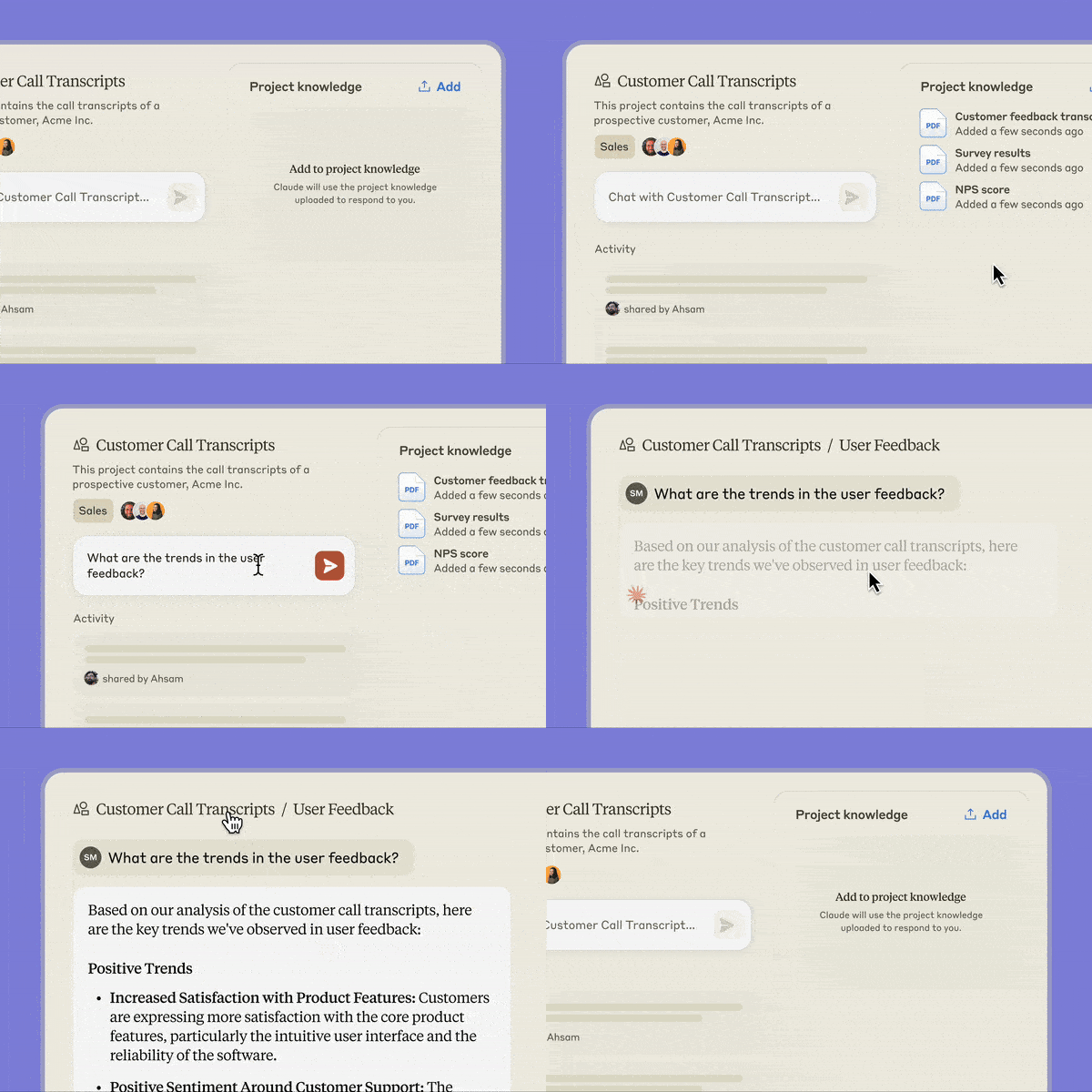
Claude's new AI superpowers 🚀
Claude has quietly become one of the most powerful AI tools. Its most surprising and useful feature launched this summer: Projects. I can now train Claude to assist me with anything I’m working on by uploading up to 500 pages of my relevant notes, files, and examples.Read the full published post on SubstackHow to use Claude ProjectsStep 1. Upload contextual materials. After initiating a new project I upload relevant materials. I can provide examples of my past work, outlines, notes, interview transcripts, past feedback, or whatever else might help ensure the relevance and usefulness of AI replies.Step 2. Set custom instructions. I provide Claude with custom instructions for supporting me on the project. I tell it about my project’s context and goals. I specify a role Claude should play. And I detail the desired tone, form, and style of responses Claude should provide in response to my prompts.Note: These overarching project instructions are not specific to any one prompt. They remain part of Claude’s instructions over the course of a long series of iterative queries. But they’re only for that project, so they won’t interfere with how Claude responds to my prompts related to other projects.Step 3: Begin prompting. I draft prompts for Claude to assist me as I work on the project. I provide these prompts to reduce the time I spend on menial or technical tasks Claude can take care of splendidly. That allows me to expand the range of creative ideas I can consider and ensures I have the bandwidth to do work I would otherwise have to give up on.Benefits of Claude ProjectsI can create as many projects as I need. It’s easy to create separate projects for each area of focus. For each project, I upload materials specifically relevant to that project.For example, for a teaching project, I can upload past teaching plans I’ve created, as well as transcripts of presentations I’ve given. For a new volunteering project I’m working on, I can upload my past notes, ideas, outlines, and drafts to help Claude assist me in developing a new multifaceted project plan.Why this is useful. Rather than tossing queries at ChatGPT with just a short prompt to give it context, Claude can tailor its answers based on extensive background materials, past examples, and detailed instructions. That transforms it into a hyper-personalized digital assistant.Note on privacy. Anthropic, which operates Claude, doesn’t train its model on the material I upload or the prompts I submit. Here’s the policy summarized simply. Exceptions to this arise if material you submit is flagged for safety or trust review, or if you give a response a thumbs up or down. That’s one reason I don’t use the thumbs up/down feature to rate Claude’s responses.Pricing: Claude’s basic AI is free for anyone to use. Projects, though, require Claude Pro, at $20/month. I justify spending that on Claude by observing that it’s performing the role of a valuable digital assistant for a month for less than what it might cost me to hire someone for an hour.The team plan costs $25/month/person and requires at least five members, who can then share and collaborate on projects.Ideas for using Claude’s Projects* Draft project or event plans. Provide Claude with notes, goals, deadlines, project context and any other relevant documents. Prompt it to assist you in creating detailed project plans, timelines, memos, step-by-step task lists and more.Tip: Remind Claude to ask questions whenever it needs additional information to provide targeted, useful responses. Give it feedback after its initial responses to push it in whatever direction you need.* Prepare for workshops or classes. Provide background on the class or workshop you’re teaching, your objectives, and your pedagogical style. Then task Claude with assisting you in generating examples to use in class, provocative discussion or quiz questions, outlines for slide presentations, analogies, anecdotes, jokes or whatever else might help you create engaging sessions.Tip: Ask it to generate multiple possible approaches and instruct it to be surprising, creative and to create intriguing, unexpected materials.* Get assistance on hobby projects. Whether you’re putting together an outline for fan fiction, a visitor’s guide to your plant collection, or an onboarding guide for a new volunteer or club member, you can save hours with Claude’s project assistance.30+ more ways to use Claude ProjectsI created a project with Claude so it could help me dream up a collection of ideas for surprising ways to use Claude Projects.Prompting TipsIn addition to uploading relevant documents, provide detailed instructions about the kinds of responses that will be useful for you. For example, if you set up a project to assist you with a class aimed at students at a particular grade or skill level, note that so that responses will take that level into account. Additional tips:* Define your target tone. Ask Claude to adopt a casual tone or to be concise and direct in its
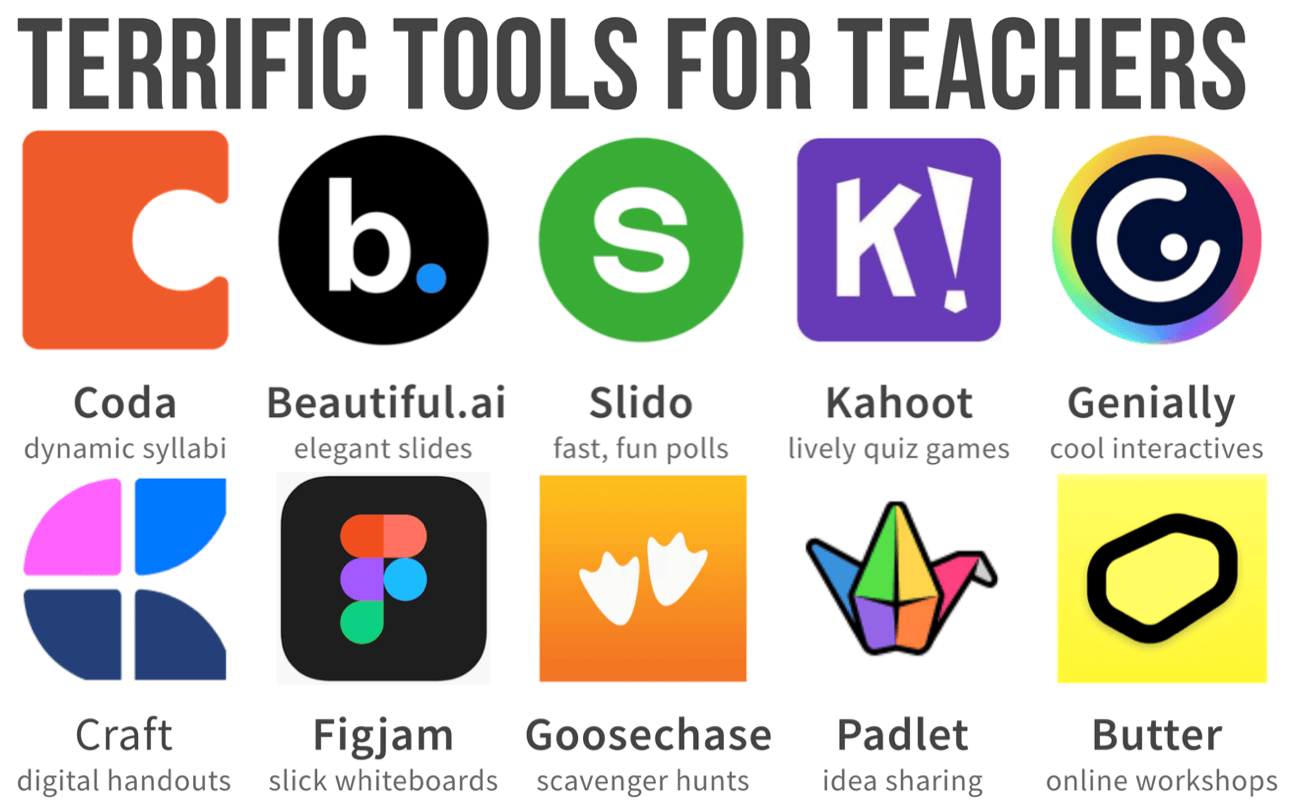
🤩 Terrific Tools for Teachers
In my teaching at the City University of New York Newmark Graduate School of Journalism, I benefit from tools that help make my teaching more enjoyable, efficient — and hopefully more effective and engaging. Read on for the toolkit I rely on to help create a vibrant learning environment. Read a full version of this post online, with all links, images & examples. Below is a summary of most of the content in the original post. Create a syllabus or lesson plan — Coda Bring docs to life. Coda makes it easy to create interactive, engaging learning documents. You can embed a video welcome into your syllabus or include a map, podcast episode, or live chart right in your lesson plan. You can also include live buttons to let students interact with discussion questions or polls right within a doc. Pricing: Coda is free for most usage, with $12 /month billed annually for pro features. More on Why Coda is underrated. Free template and resource: I made a free Digital Teaching Toolkit with templates you can use for a syllabus, lesson planning, teaching agenda and digital handouts. Good Alternative: Craft is great for creating elegant one-page resources made up of visual cards that can be opened to reveal subsections with your text, images, and links. That’s ideal for a syllabus — or any handout. Pricing: Craft is free for 10 docs and then 2 more each week, or $8/month billed annually for unlimited docs. Here’s my guide to Craft. (Note: I use Craft for the handouts I make for paid subscribers, like this). Avoid: Canva is a fantastic tool for creating graphics, but the syllabus templates strike me as amateurish and clipart-y. Here’s a screenshot to illustrate.Make engaging slides — Beautiful.ai Create elegant slides quickly: I use Beautiful.ai for text and graphics slides and to create other visuals I use for teaching and writing. Pricing: $12/month with a free trial. Free for students. Example: this post’s lead graphic featuring the logos of these 10 teaching apps. Here’s a gif of some of the nice slide designs preferable to duller PowerPoint bullet points. Good Alternative: Gamma allows you to include slides of various sizes along with live Web sites and videos. The AI makes it easy to redesign quickly. It’s one of the best new slide tools I’ve tested. Pricing: Free for initial usage, then $8 to $15 for plus or pro unlimited AI. Invite: Drop in next Wednesday, Sept 4 between 1-2pm ET for a live AMA text chat. Ask me anything about my teaching toolkit or other apps and tools! Join Jeremy Caplan’s subscriber chatAvailable in the Substack app and on webJoin chatCreate a scavenger hunt — Goosechase At CUNY I’ve hosted multiple online community games with Goosechase. I set up 30 little questions (screenshot), challenges and other “missions,” where students snap a picture of their breakfast or a favorite book, find a clue in the school, or otherwise share and engage with one another. It’s well-designed, easy to set up, fun to play, and great for community building. Caveat: case-by-case pricing has increased significantly in recent years for higher ed and companies, to hundreds or thousands of dollars a year. It’s now too expensive for our budget. K-12 educators, on the other hand, can pay $99/year to create unlimited experiences for up to 40 students. Alternative: Use a free Google Doc like this — see a poster summing this up. Design an interactive visual — GeniallyGenially is the best tool I’ve encountered for taking a flat image or graphic and layering in interactive elements. You can add hotspots to an image, timeline, or map. This let readers click to see an informational pop-up, link or audio file. More on why I like it and how to use it. Pricing: Free for teachers or $5/month billed annually for premium templates & other pro features. Example 1: showing prior student cohorts with an audio intro & clickable images. Example 2: a handout I created for teachers about making the most of the first day of class. Co-create an idea board — PadletI love inviting students to collaborate on a Padlet board. It’s like a structured bulletin board where students can add ideas, images, links — even voice recordings or short videos. Students can also comment or respond to one another’s posts. Pricing: Free for 3 boards or $100/year for unlimited boards. Here’s my guide to Padlet, and an example of a collaborative Padlet board you can contribute to about engaging teaching tactics. Open a whiteboard for collaboration — FigjamGoogle is sadly shutting down Jamboard, a bulletin board brainstorming tool I have long relied upon. Fortunately, Figjam offers an excellent alternative. It’s easy to use individually or in a group to add shapes, text, and images to a digital whiteboard. It’s free for educators, with lots of useful features like timers, commenting stamps, and templates for common icebreakers and brainstorming activities. You can even now use it for presentations. Good alternatives: Mural, Miro, and Lucid are also excellent free whiteboa
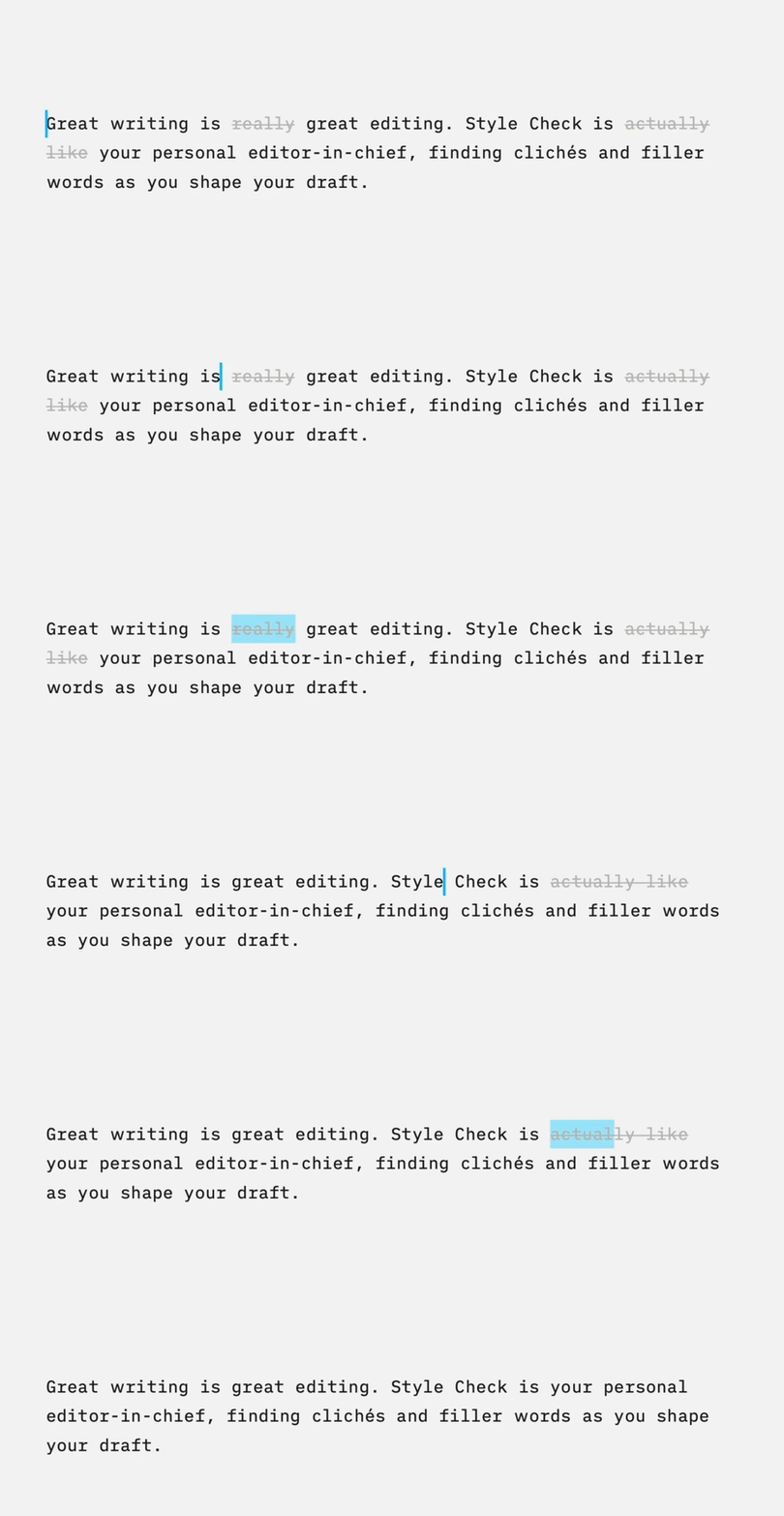
Writing tools for busy people
Pens. Pencils. Typewriters. Computers. Wordstar. Word. Google Docs. Writing tools continually evolve. That evolution has brought us hundreds of writing apps to choose from. Read on for recommended tools for various writing challenges.For the full written post online, visit https://wondertools.substack.com/p/writing-tools-for-busy-people 🤩 If you’re easily distracted — iA WriterThe simplest writing interface. Too many writing apps have cluttered, distracting interfaces. I know I’m procrastinating when I find myself exploring styling options. iA Writer is the purest app I’ve found for streamlined composition. All I see are the words I’m typing.Highlight writing issues: An optional setting points out cliches and filler words. The software can also spotlight your syntax by color — adjectives in brown, adverbs in purple, verbs in blue, etc. Mostly I appreciate the clean interface.Pricing: 2-week free trial, then $50 for Apple devices, $30 for Windows or Android.🧐 If you get stuck with writer’s block: LetterlyGet past the blank page problem by talking out loud about your ideas without worrying about precise wording. With Letterly and other AI dictation apps like Oasis ($50/year), it’s easy to convert spoken thoughts into drafts. Until late August you can get a lifetime license of Letterly for $59. Normally $10/month.Letterly and Oasis transcribe what you say then convert it into a variety of formats like an outline, summary, social post, or a draft blog or journal entry.Desktop Alternative: The Oasis team just launched a useful new Mac AI app called TalkTastic. It lets you dictate, transcribe and transform text into any writing app. You can use it with Google Docs, Word, or any other software.When I’m stuck looking at a word count of zero, I like opening up one of these apps and talking to myself about a few ideas. It’s a form of oral freewriting. Within a few minutes I have sentences to build on.If you’re working on a book project — ScrivenerWhen you’re working on a long writing project with multiple parts, try Scrivener. It gives you multiple ways to see and edit the sections of your work. I like the index card view, which allows for dragging cards around to reorder material.Pricing: After a monthlong free trial, it’s $60 for a one-time purchase for Mac or Windows ($51 for educators). Or $24 for iOS.💌 If you’d like to write with others — EtherpadEtherpad is an open source writing tool I like for collaborative live brainstorming, writing and editing. You can use it online for free at sites like Framapad and pad.education, or set up your own instance with a little coding. Here’s an example of a collaborative doc I started. Add to it to try out Etherpad.🤖 If you like experimenting with AI — LexThe AI in the Lex writing and editing app points out cliches, passive voice, hedging (I think, probably, etc), missing citations, and repetition. It also lets you customize a writing issue to watch out for. You can also select a phrase you’re struggling with and Lex will suggest a rewrite option.Pricing: It’s free for basic use. Pay $12/month billed annually for full features.Alternatives: For additional edit options, I like pasting a clunky sentence into DeepL Write for alternative phrasing ideas. It now works with English, French, Spanish, and German. I use the free version, but you can upgrade for $11/month.🧪 If you like to experiment…I’m continually trying out new apps. Here are a few I’m looking at these days.* Butter Docs is a Google Docs alternative that lets you see your research as you write, with built-in space for notes and outlines.* Leaflet is a super simple, early version of a new writing app from the team behind Hyperlink, a collaborative space I like for group work online. Here’s a rough early example of a simple doc made with Leaflet.* Blaze is an AI tool that aims to simplify the process of drafting social content. A new feature lets you upload a podcast or video you recorded and convert it easily into a draft for other formats/platforms.* Letterloop enables collaborative newsletters for a family or friend group. ($5/month). It’s a creative way to build — or re-energize— a writing habit by collaborating with a small group of people you care about. Create a limited-run newsletter for family members or friends.* Alternatively, use Substack to make a free, private newsletter. Theme it around a milestone, project (“cooking experiments”) or whatever else interests you. A tiny, friendly audience can lower the stakes for experimentation. You choose the subject matter, style, and collaborators.p.s. You’re invited to join me for a talk I’m giving this Saturday, August 17 at 2pm ET as part of Medium Day—a free online conference. My 20-minute talk, followed by a short Q&A, is on “5 Tiny Steps for Super Busy People To Build a Writing Habit.” Register free for Medium Day. This is a public episode. If you'd like to discuss this with other subscribers or get access to bonus episodes, visit wondertools.substack.com/su
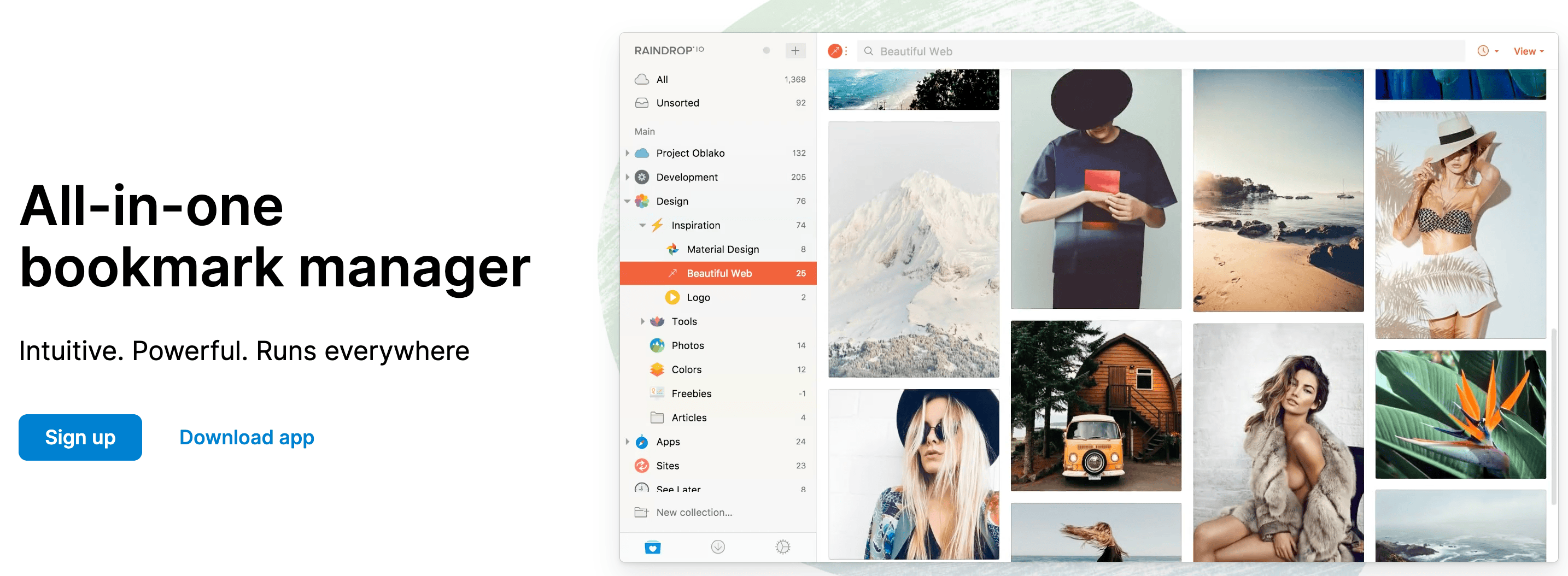
👨🏻💻The best way to save links
Raindrop is a terrific free tool for organizing bookmarks. I use it to save links for classes I’m teaching and topics I’m researching. I also save link collections to share with friends, colleagues and readers.Read the online version of this story for links to all the tools mentioned. In this audio version I'll share its best features, suggested uses, caveats, and alternatives.Raindrop’s best featuresEasy and free on any platformDownload the Raindrop app for Mac, Windows, Linux, iOS, Android, or any browser. Once you’ve installed the browser extension, it’s easy to save a link to any Web page and optionally add a note or tag for future reference. Bookmarks can have as many tags as you’d like for easy searching. Links you save can also be placed into a collection, which is basically a folder.Pricing: I recommend the free plan, which allows for unlimited links, collections, highlights, devices, public sharing, collaboration, and integrations. It has the primary features most people need and there’s no pressure to pay.Pro: The $3/month option ($28/annual) adds a few fancy features, including:* Find duplicate or broken links in your collection* Search the text of all sites you save* Preserve automatic copies of each Web page you save in case the original site goes offline* Upload 10GB of files each month to store your own files, images, PDFs, videos, etc.Share links and collaborate on collectionsAll your link collections are private, and you can share them at will. Display your links in a list, as cards in a gallery, or as a visual moodboard.* Add collaborators to a collection for a team or family project.* Publish collections of links that anyone can freely access without needing to use Raindrop or to sign up or register.* Embed link collections to host them on a website.Examples: Public link collections I’ve saved* Revenue streams for niche journalism ventures. A curated collection of ways to make money.* Pandemic-era online events platforms. A catalog of the flurry of apps that launched to help people gather online.Use AI to assist with organizing your linksA new AI organization tool helps with organizing your links. It will suggest a collection or tag for unsorted bookmarks, or a tag. That's especially helpful if, like me, you sometimes forget to tag or file what you save.Integrations: Automatically sync links across platformsYou can connect Raindrop to other services so you can access links you’ve saved later wherever and however you need them.* Raindrop can log links automatically to a Google spreadsheet or a Notion page. You don’t have to manually add them.* Sync links you save in Raindrop to Readwise, Instapaper or Pocket for reading later. You can also import links from those services to Raindrop.* Raindrop works well with IFTTT, Zapier, and Make, services that link together multiple apps. [Here’s my take on IFTTT’s usefulness]. Pairing one of those apps with Raindrop lets it automatically collect links to the songs you favorite on Spotify, Tweets you like, or videos you like on YouTube. There are more than 2600 total possible integrations. That makes Raindrop a useful hub for gathering and organizing all your favorite links from whatever services you use.Sponsored MessageToo many podcasts, too little time? Check out PodSnacks - The Blinkist for Podcasts!PodSnacks offers the most efficient way to keep up with your favorite podcasts.Select any podcast and receive an informative AI-generated summary of every new episode straight to your inbox. Never miss an update of the top tech, news, and business podcast again!Check Out PodSnacks!Export and importIt’s easy to import and export links with Raindrop.Export: Instead of dumping out your whole treasury of links, you can export just a relevant batch of links with a particular tag. Or export a link collection (folder). You can export the links as a CSV file for a spreadsheet, as an HTML file, or as text.Import: Import links you’ve saved easily from other services. Bring in links you’ve saved to browser, Evernote, or apps like Diigo, Dropmark, Goodlinks, etc.Sponsored MessageWordcab OneTranscription, speech intelligence, and summarization, all in your VPC. Wordcab One is the only voice stack built for private clouds. Automatic fine-tuning and unlimited custom dictionaries included. Find out more here💡 Suggested ways to use Raindrop📁 Organize project researchPark project materials in a Raindrop collection as you conduct research online. Save links into a neat Raindrop collection rather than printing out piles of paper or stuffing links into Word or GDocs. You can even annotate links as you go. It’s a simple, free, fast way to create a private or shared digital project file box.🧶 Gather and collaborate on hobbiesUse it to gather links with friends. If you're part of a club, team, hobby or fan group, you can collectively drop in your favorite links, with or without annotations.👩💻 Share resources for a presentation or workshopIf you teach or give talks, Rain
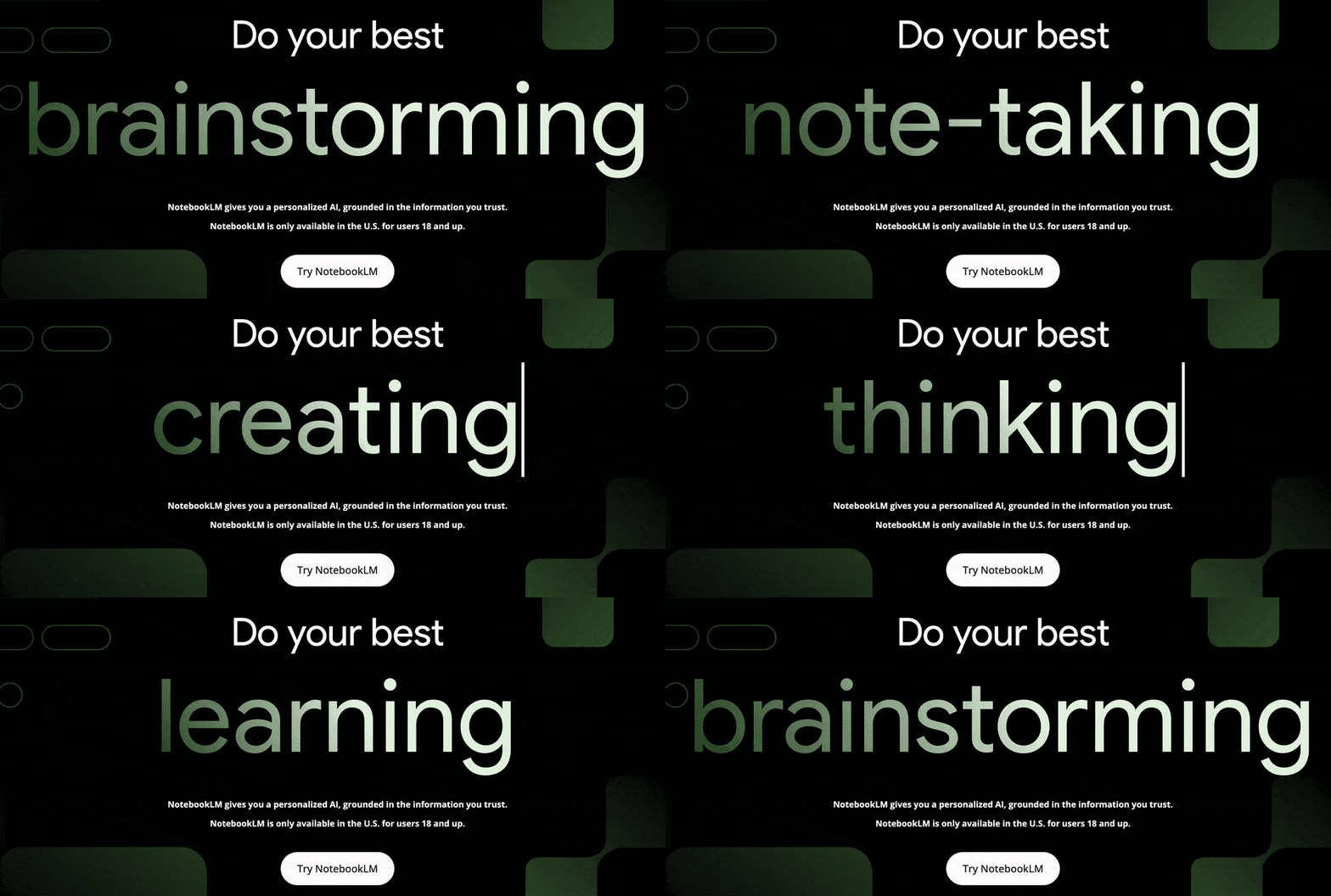
📓 Make an AI notebook
For the full, up-to-date post this audio connects to, visit https://wondertools.substack.com/p/notebooklm Google’s NotebookLM is a new free service that lets you apply AI to your own notes and documents. You can use it to find connections between your own ideas and see patterns you hadn’t noticed. Read on for how I’m using it, what I like most about it, its limitations, and interesting alternatives.How to start using NotebookLMSign up free at notebooklm.google.com Upload up to 20 documents into a collection of material you want to explore. You can add PDFs, Google Docs, or other materials you’ve either written yourself or gathered as part of your research. You can create multiple collections for different topics.Tip: I recommend creating separate collections for your own writings and for research that you’ve gathered from others. That way there will be clear demarcations between your own material and what comes from others.I have a collection about entrepreneurial journalism, for example, with a variety of notes and materials I’ve created over time. I’m building another one focused on the history of classical music, with articles, research and notes I’m gathering from others.What to use NotebookLM forAnalyze your own materialOnce you have a collection, NotebookLM creates asummary for each of the documents in it. It also add subject matter tags based on the content. Anytime you want to remember what’s in a particular document you’ve added to your collection, you can select it to see the AI-generated summary and the subject tags. You can then query a particular document, a subset of the documents in your collection, or the full collection. That’s helpful if you want to analyze material from a particular source that you’ve added, or just documents on a narrow subject.Suggested queriesNotebookLM will also suggest a few queries you can start with, based on its analysis of material you’ve uploaded. For example, in my collection of entrepreneurial journalism notes, it suggested queries about best practices for presenting startup projects.It suggested that because I had written extensively about presentation tactics in the documents I uploaded. When I clicked on that query, NotebookLM drew from various strands of materials in my notes and created a summary of some of my key points. To help me identify where it was sourcing the material in that summary, NotebookLM provided a a list of 10 citations from across the 9 documents I had uploaded thus far to that collection. I could click through to see those original sections it was drawing from to understand how the AI was sourcing its material. I could later add to the collection new materials.Ask your own questionsIn addition to using suggested queries that NotebookLM provides based on its analysis of your materials, you can pose any question you want. I could ask my own notes, for example, about the highest potential — and most challenging — revenue streams to pursue for those producing independent podcasts. Rather than searching across the Web, or digging into some an abstract AI predictive data model, as other AI tools do, NotebookLM scours its analysis of my own notes to pull together an answer and citations.While chat AI services like Claude, ChatGPT, and Gemini are useful for a wide range of queries, your responses may be hard to trace back to any particular source unless you’re using a custom AI trained on your own material. That’s what’s most special about NotebookLM: you benefit from the power of AI applied specifically and narrowly to analysis of your own notes.Building on your own notesAfter querying NotebookLM you can save its responses and build on them to make new notes. If you’re preparing a presentation, a report, or analyzing trends or patterns, you can use NotebookLM as a partner in exploring your materials. You can have a dialogue with your own notes in a way that goes beyond searching for keywords or simply re-reading individual documents.Limitations* It’s not available to everyone yet. I can’t use it with my work account, only with my personal Gmail. It’s not open to people in all countries yet.* There’s no mobile app, though the mobile Web version works well for simple queries.* The design still feels a bit clunky to me. The interface includes multiple panels — one for your source documents and another for your queries, alongside various notes you save or create. Given that this is a new kind of tool, it may take some time for the service to shed clutter and provide a more streamlined view.* Google doesn’t train its models on your material, which remains private to you, but if you are skeptical about the company, you may not want to upload private material.Alternatives* Mem.ai is a tool for digital notes that also brings AI to your own materials.Unlike NotebookLM, which is free, Mem has a TK cost and works on TK platforms and unlike NotebookLM, is available everywhere CheckTK. When you start typing a note, its AI can helpfully surface related note

🌶️ 7 ways to spice up Google Slides
Summary: Strengthen your Google Slides with new templates that make presentations look better, plug-ins that add interactivity, and AI to help draft decks quickly. For even more polished presentations, pick from six of the best alternatives to GSlides. 🪩To see the full post and all the links, visit: https://wondertools.substack.com/p/7-ways-to-spice-up-google-slides 1. Turn your notes or writing into slides with AI 🤖SlidesAI can turn text into a Google Slides presentation draft. Paste in text, select a template style, then edit the generated presentation. Pricing: free for 3 presentations/month or $10/month for 10 monthly presentations.Compare: I converted a draft of a Medium post I’m working on into a presentations with Gamma, Beautiful.ai and SlidesAI. Bottom line: For higher-quality AI generation, use Gamma or Beautiful.ai.2. Add cool visuals with AI images 🌠Join Google's Workspace Labs to generate free images with Gemini AI inside Google Slides. Write a prompt and get four image options. Then pick your preferred style, such as photograph or sketch. See a gif of this.3. Make your slides interactive with polls + activities ❤️🔥Slido for Google Slides lets you insert live questions into a presentation. (See a video demo). Respondents can use a QR code to answer on their phone, or they can visit slido.com and use a code you show on your slide. When I present or teach online, I paste the poll link into the chat. My favorite poll type: word clouds for ice-breakers. (e.g. “What’s one word that describes your view on X”). Poll results update live on your slides. Here’s why Slido is my pick for polling.Poll Everywhere for Google Slides is another good interaction option. One of its cool features: people can respond to questions on your slides via SMS. Poll Everywhere also has a wider range of poll questions. You can ask people to annotate an image, for example.Nearpod for Google Slides is also useful for live interaction, and has a useful variety of activities for classes and workshops. It was designed for K-12 educators, but can work well in other settings as well.Pear Deck is a free add-on that’s great for teaching or leading workshops or meetings. People watching your presentation can answer questions on your slides or add annotations on their own screens. Here’s how and why to use it.4. Explore new designs with template galleries 👩💻Google Slides’s biggest limitations: a clunky editing interface and weak templates. Many feature small fonts and overemphasize bullet points. These lead novices to draft death-by-Powerpoint presentations overflowing with bullets and tiny text. Fortunately, there’s a vibrant ecosystem for well-designed free templates.Slides Carnival Try this timeline template or a good yellow-and-black explanatory theme, or this customizable Jeopardy game.* Slidesgo Use a dark, minimalist marketing template* Slidecore has a nice game show template, ala Who Wants to Be a Millionaire.* Slidesmania Start with a colorful, clean template or make a simple resume5. Jazz up your slides with apps 🎺Slides add-on apps in the Google Workspace Marketplace. Try these:* Creator Studio Export a gif or a video of your slide deck. Simple and free.* Unsplash Search for pro photos you can add free to your slides.* Noun Project Find icons that accentuate your message.* Slides Toolbox Add new features to Google Slides. e.g. Turn a collection of photos into slides, or convert a Google Doc into a slide deck.6. Try these advanced tricks ♠️🎛️ Blend your slide decks While working on a slide deck, you can import slides from any deck you’ve ever created in Google Slides. Copy over an entire deck or individual slides. Mix and match as you would playlist songs. 🎶🔗 Link slides Create master slides for oft-used company stats, quotes, team members or metrics. Insert those master slides as linked slides into other presentations. Then, whenever you update one of these linked master slides, it’s updated everywhere. So you don’t have to update the same information in every single slide deck separately. Here’s how. Most other slide tools don't enable this.🤳 Present from your phone. Android & iOS versions of Google Slides let you present online or with a projector via AirPlay or Chromecast. Alternatively share a link to your slides or download a PDF.↕️ Go vertical Change the slide canvas dimensions to make a handout or poster.7. Check out these public Google Slides presentations 👀Heystack curates notable public Google Slides decks, including:* Mr. Beast, a Creator Breakdown — Not a pretty deck, but informative* Remote Work Starter Kit — Well-designed, with useful frameworks* Data & Narratives — 101 slides with insights about data visualization* The ChatGPT Prompt Book — A guide with examples for mastering ChatGPT* Out of Office — Explaining the origins and impacts of Internet memes* Jason’s Machine Learning 101 — a now-classic explanatory resourceGot a Google Slides trick, tip or tool? Leave a comment 👇The 6 best alternativ

Surprising ways to prompt AI 😳
Summary: AI outputs can be disappointingly conventional. To avoid predictable responses, I like instructing AI engines to be strange. Unexpected, radical ideas can be useful for creative inspiration. Odd perspectives stretch my thinking. Read on for specific ways to prompt AI to break beyond its bland boundaries. For the full post online, with visuals, visit: https://wondertools.substack.com/p/surprising-ways-to-prompt-ai Give me strange and surprising feedbackWhen I’m in a creative rut, I paste in a section of writing and prompt AI to be bold and unconventional:* “Offer five surprising, unexpected suggestions for specific ways to improve the following piece of writing. Along with each suggestion, include a detailed, creative explanation with the rationale for the observation.”* “Act as an unpredictable, brilliant writing coach who offers strange, bold, creative suggestions. Provide specific, granular input.”* “Detail novel topic ideas or peculiarly provocative questions I could answer to help me disrupt the conventionality or predictability of the following outline I've begun.”* “Point out blindspots that others with radically different perspectives from mine on this subject might identify if they were to read this work with a critical eye. Include examples of ways in which these could be remedied.”Create a bold, unexpected image for meTo create distinctive illustrations I rely on DALL-E 3, an image generator included with my $20 monthly ChatGPT plus subscription. It understands natural language, so I don’t have to master prompting lingo to get results that surprise me.* Tip: Prompt for wide images. Those tend to look better than square images when laid out in newsletters, blog posts and other wide-format pages.Good free alternatives for creative imagery* Microsoft’s Designer lets you generate distinctive images for free, with the same DALL-E 3 engine a ChatGPT subscription offers. You get four images to choose from each time you write a prompt, increasing the likelihood at least one will suit you.* Adobe Firefly is also useful for envisioning wild images. You can alternatively use it to edit existing images. You can select part of an image you want to change and explain what you’d like instead.10 odd AI prompts to get radically new results * Propose 5 questions a reader would be surprised to find answered on [your topic X] * What are 3 quirky, unusual analogies to explain [your phenomenon of interest]. Here’s an example prompt and result.* Who are 7 surprising, odd historical figures to cite as examples of [X]. For each individual include a detailed explanation. Here’s an example.* What rarely discussed, counterintuitive insights on the subject of [X] might startle readers accustomed to bland observations? * Give me 5 lively, colorful, unusual words to use in a description of [X]? * Provide 3 extreme, surprising examples of [X] or silly, ridiculous instances.* Share 5 counterintuitive ways to address situation [X] * Imagine I shocked people with a one sentence answer to the following question: [X]. Give me 10 versions of that one-sentence reply. * I have [X challenge] in [Y situation]. Assume I want to surprise people with a wildly creative solution. Describe three solutions that would stun people while addressing the root of the issue. * For a syllabus I’m creating on [X], imagine seven radically different people teaching the same course. Provide three bullet points representing each teacher, explaining the surprising and distinct learning outcomes each would aim for in their version of the class. How to make the most of these provocative promptsStep 1: Pick an AI chat tool to experiment with: ChatGPT, Claude, Gemini or Microsoft Copilot.Step 2: Initiate a new chat by typing in a role for the AI to adopt for the prompt you’re going to give it. For example: “Act as a bold, experienced, expert who provides distinctive, unusual perspectives to push my thinking in creative new directions.”Step 3: Pick one of the unusual AI prompt templates above and adapt it to fit the specifics of your own work.Step 4: After you get an initial response, write a follow-up prompt to build on the first result. That iteration allows you to tailor subsequent answers. Consider asking for even more radical suggestions, or for more depth on a particular detail. This is a public episode. If you'd like to discuss this with other subscribers or get access to bonus episodes, visit wondertools.substack.com/subscribe
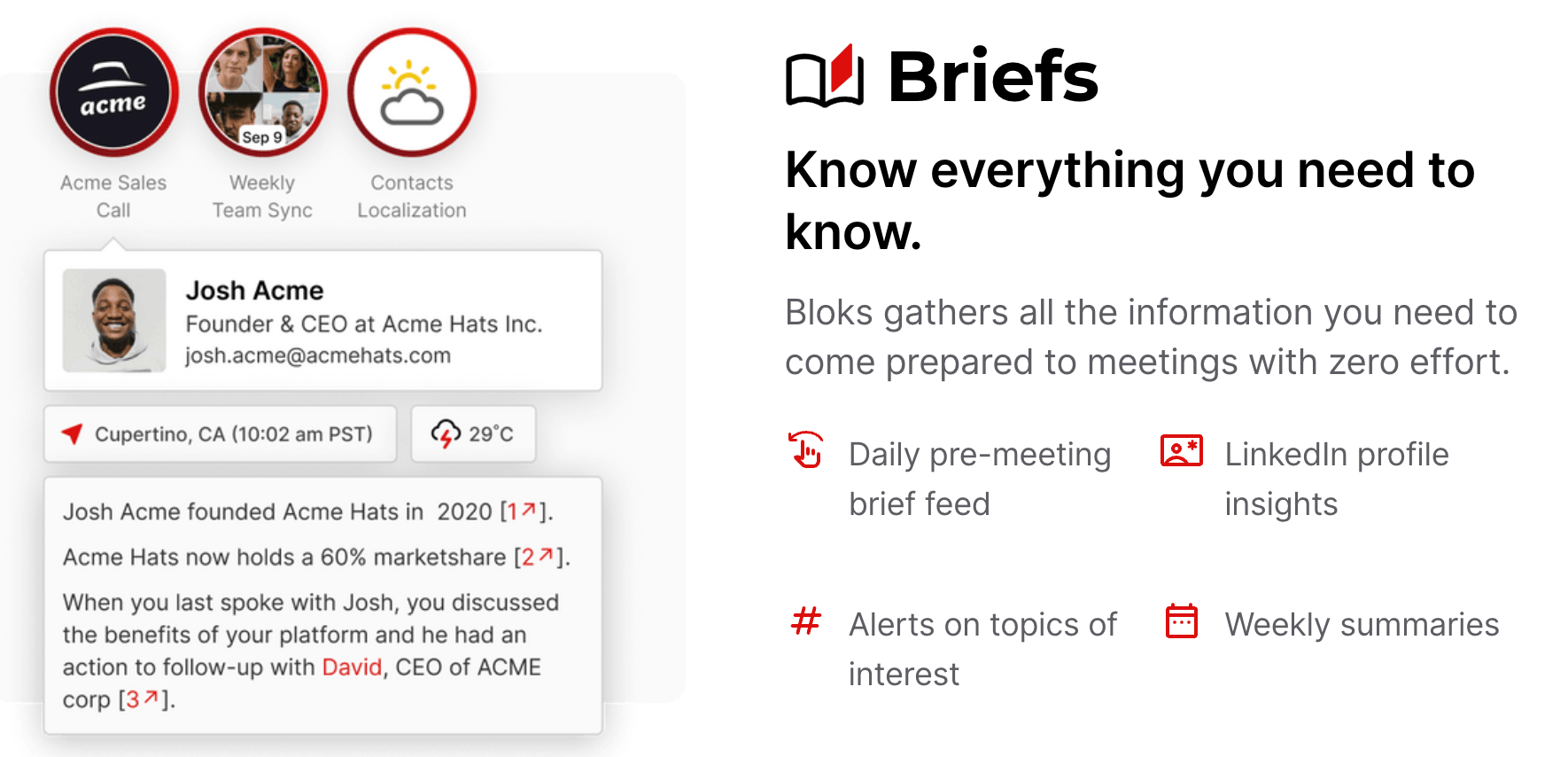
✍️ Try this AI tool to summarize your meetings
Summary: Bloks is simple AI-powered software I use and recommend to record and summarize meetings. Read on for how it works, how to make the most of Bloks, and a few limitations and alternatives. If you’re a visual person, watch my 4-minute video summary above or on YouTube. How Bloks worksBloks runs on your computer, transcribing and summarizing online or in-person meetings. Unlike other meeting recorders or summary tools, it’s not a bot that joins your meetings. Bloks acts like a small recorder on your computer, so it doesn’t have to be invited or admitted by a meeting host.Wonder Tools is a reader-supported publication. Join 35k tech-curious readers & become a free or paid subscriber.Prepare for your dayIn advance of your meetings, Bloks can brief you on those with whom you’re meeting. After you link Bloks to your calendar, it looks up public info on people you’re meeting with. You then get a summary of the person’s background and focus areas, drawn from LinkedIn. (This functions a bit like another tool I wrote about, Clay). Bloks also suggests potentially relevant questions to ask. For people you’ve already met with, Bloks will draw on previous conversations to give you relevant recent context.Upcoming improvements to briefs: * The Bloks team says they plan to strengthen briefs by drawing on additional sources of info you have access to, like your organization’s customer relationship management software.* Bloks also plans to tailor briefs to show relevant recent action items for colleagues you meet with regularly, rather than repeatedly showing their background info.Streamline your dayDuring meetings: Bloks auto-transcribes and summarizes any online meeting you join. You can add manual notes, or just rely on the AI summary. Alternatively, you can manually turn Bloks on or off.After meetings: Bloks gives you a bulleted summary you can share with meeting participants. It also gives you suggested action items to follow-up on. It even shows you relevant email threads if you give Bloks access to your email. As you work: You can use Bloks’ AI chat function to query individual meetings or your whole notebook. You can review a topic or query an ongoing series of meetings you’ve had with colleagues. How I use AI queries: I’m forgetful, so I like asking Bloks to refresh my memory about various decisions and discussions. For example, I recently prompted it to “summarize my recent discussions about Reddit for research” and “summarize the video repository discussion and decision.” Both responses were instantaneous, detailed and useful. You can also record your own thoughts with Bloks and ask it to draft an email or LinkedIn post, along the lines of how I use Oasis. Why I delegate meeting notes to BloksI used to take detailed meeting notes, but I now try to focus on closer listening. With Bloks, I can delegate summary notes to AI. Knowing I’ll have a good summary and a full transcript allows me to be more present and engaged.How to use Bloks to summarize a meeting Step 1. After downloading the software, set Bloks to launch automatically anytime you join an online meeting. If you prefer, set it to require that you manually hit record. Step 2. The next time you join an online meeting, Bloks will automatically launch and start transcribing. If you’ve opted for a manual start, just hit record whenever you want. Tip: Because Bloks isn’t visible to other meeting participants, ask if it’s OK for you to create an AI transcript of the meeting. Also ask if others would like a summary afterwards. Almost no one refuses, and it’s often appreciated. Step 3. A transcript of the full meeting is available immediately afterwards. A summary follows moments later. It usually features five to 10 sections summarizing the primary meeting topics. Each section has a few bullet points to remind you of key points. The bottom of the summary includes follow-up actions. Note: Bloks doesn’t save audio or video, it just uses the meeting audio to generate a transcript that the AI summarizes. If you need audio or video recordings, consider one of the alternative tools below. Step 4. You can copy and paste the summary into an email or any other notes tool you use. Or use the AI chat for a follow-up prompt, such as “what were the three reasons she had for recommending the new vendor?”Why I like sharing and reviewing meeting summariesIf you have 15 or more meetings a week, it’s easy to lose track of a secondary point noted in one of them. Because Bloks lets you easily share summary notes, everyone can have a simple shared record of what was discussed. I’ve found this helps prevent later confusion about what was agreed upon. It also helps me prep for follow-up meetings, particularly when there’s a long gap between them. A magical way to engage with all your meeting notesOnce you’ve recorded some meetings or made manual notes in Bloks, you can benefit from its intelligence. You can use AI to search through your repository of notes for themes, topics, or s

📺 How to create video clips with AI
Kapwing is an excellent Web-based video editing tool. Its useful new AI features make it easy to convert a long video — like a Zoom recording, an interview, or a presentation— into short, shareable clips. Watch the video above — or on YouTube — to see Kapwing’s co-founder and CEO show me how to do that. Read on for how and why to easily create video clips with Kapwing’s AI, and some limitations and alternatives. Make social video clips with AIThe Kapwing feature I find most useful is Repurpose Studio. Video editing with Adobe Premiere or Final Cut Pro can be time consuming. If you’re creating short video clips for YouTube, Instagram, TikTok or LinkedIn, Kapwing and other new tools like Veed are easier and more efficient. Video demo: Watch an excerpt from my interview with Kapwing’s CEO for her 1-minute overview of how to use AI to create social video clips from a long video. How to create video clips with KapwingStep 1. Go to Kapwing’s Repurpose Studio. It’s a simplified special section of Kapwing’s Web-based video editor. Upload a video recording, like a 20-minute presentation or a 60-minute Zoom recording. Step 2. Wait a few minutes for processing. Kapwing uses AI to analyze the transcript for engaging material. It then suggests several clips, usually about a minute each. Preview the clips and pick one(s) you like. Step 3. Pick your preferred aspect ratio (wide or tall) depending on whether you’re planning to publish clips on YouTube, Instagram, or TikTok. Optionally tweak the visual style of the captions. Step 4. Export a clip you like, then upload it to a social platform like YouTube. Step 5. Optional: Open Kapwing’s full video editor to make additional changes to a clip before exporting it. You can adjust a clip’s start or end point to alter its length. You can also trim the video by deleting words, sentences or even whole sections from the AI-generated transcript. Step 6: Optional: Remove background noise. This step is crucial if you don’t have a dedicated microphone or if you’re uploading a noisy Zoom or conference recording. Descript is best for noise removal (see my fuller take), but Kapwing’s audio cleanup is also good.What to use Repurpose Studio for: Recordings people are unlikely to rewatch in full, like long panels or conference presentations. Clips can convey highlights efficiently. Normally, the editing would take hours. Now it can take minutes. What not to use it for: This won’t work well for silent videos or music videos. Caveats* Kapwing doesn’t yet upload directly to social or video platforms, so you have to export your video to your computer and then upload it to share.* For pro video editing features like keyframes, which let you add an effect to a video frame by frame, Kapwing isn’t as powerful as Final Cut Pro from Apple or Adobe Premiere.* AI transcription isn’t perfect. You’ll have to edit misunderstood words. In this post’s video, for example, “Kapwing” was transcribed occasionally as “Kipping” or “Kapling.” * Kapwing doesn’t yet generate video descriptions or chapter timecodes like Veed (see below), and it doesn’t yet suggest or create thumbnails. Hopefully in the future. Create a video in multiple languagesIf you’ve ever dreamed of being able to speak a new language, you might appreciate Kapwing’s AI dubbing. Record yourself in your native tongue. Then pick a language to dub yourself into. Video excerpt: Kapwing’s CEO on how AI enables translating your voice Kapwing lets you clone your own voice or use an AI-generated voice to narrate your video. The tech is from ElevenLabs, which has the leading voice AI models. You can then dub your video so it sounds like you (or an AI model) speaking any of 76 languages. You can also include translated captions. More on dubbing: Kapwing’s overview page and 3-minute how-to video. Caveats: Kapwing’s AI requires a paid subscription. It doesn’t yet work for group conversations. The advanced video editing interface can be overwhelming for novices at first. Expect translation glitches, as with any AI translation tool. Other AI features in KapwingYou can use AI in Kapwing to generate a video script, turn a script into a video, generate a meme, create a slideshow, generate an image, or turn an article or document into a video like this one, which I created by pasting in the text of this post into Kapwing’s AI video generator. PricingKapwing is free to test out to edit videos up to four minutes long, but they’ll have a watermark and be limited to 720p quality. And AI features are restricted, notably voice translation. It costs $192/year for full features, including AI capabilities. Educators and students can apply to use Kapwing for free.Partner MessageVolv is an app for high-performing individuals. It curates interesting content across the internet and delivers it in 9-second articles using AI so you can be updated without doom scrolling on social media. It's been featured on the Apple App Store and read by 60k+ users globally. Check it out for free
How to make the most of ChatGPT in 2024 ⚡️
ChatGPT is the most powerful AI tool. It’s useful for dozens of daily tasks — from idea generation to editing suggestions. To get the most out of ChatGPT, today’s post offers the following guidance: * How to get ChatGPT to do what you want* What ChatGPT is most useful for* How to make the most of its multimedia capabilities* When to use alternatives like Claude, Bing and BardThere’s also a short video overview, above — or watch it on YouTube.1️⃣ First, catch up on the basics of ChatGPT2️⃣ How to Prompt EffectivelyTo get ChatGPT to do what you want, you have to give it clear, detailed instructions. Use a framework I call POP to consistently get useful responses.PersonaTell ChatGPT what role you want it to play. That helps ensure it brings a useful perspective to whatever you want it to do. Examples: “Act as an expert podcast interviewer adept at developing thoughtful, engaging questions.” Or “Act as an experienced college educator skilled at providing simple, scaffolded instructions to students who face executive functioning challenges.” Why this matters: When it knows the perspective you’re seeking, the AI can provide you with a more relevant response. ObjectiveGive ChatGPT a clear summary of what you’re seeking. Be as specific as possible and include as much context as you can. Examples: * “Suggest 7 key questions helpful to consider when making a decision about X in the context of Y.” * Useful for avoiding blindspots and opening your mind to aspects of a decision you may otherwise neglect. * “Provide potentially engaging alternative headlines/subject lines/descriptions for a story/email/video that addresses X, Y, and Z and makes the following key points: A, B and C.” * Useful for sharpening the way you market your social media posts or other published work. * “Give me three simple ways to explain the concept of X to people in XYZ context.” * Useful for explaining things to people outside your field, whether a technical concept like regression to the mean or any specialized jargon.ParametersProvide guidelines that ensure ChatGPT’s response is useful. Examples: If you want headlines that are four words or less, say so. If you want a response worded to be understood by an 11-year-old who speaks only Italian, explain that. If you are brainstorming for learning activities that take only 20 minutes and are suitable for a particular age group or subject matter, specify those constraints. Provide models: Share examples of what you’re looking for to help the AI generate a great response. How? Toward the end of your prompt add an example of what you consider to be a good headline, clear explanation, or whatever else you’re focusing on so the AI has a clearer sense of your preferences. Bottom line: If you tell ChatGPT what success looks like, you’re more likely to get a relevant, valuable response. 3️⃣ What ChatGPT is most useful for LanguageChatGPT is a language engine, not a knowledge engine. That means it’s at its best when you ask for words, phrases, analogies, explanations or examples. Here’s a few other elements it’s especially good at: * Descriptions, Headlines, and Subject Lines. Given a prompt it will instantly provide you with a strong set of words or phrases in your language or nearly any other. Direct it to be playful or professional, concise or creative to get the kind of wording you want. * Explanations. It can break down a concept in many different ways, at any level of complexity, to help you understand it or communicate it to others. * Analogies, riddles, jokes. Coming up with games, puzzles, ice-breakers, quiz questions and other playful language can be time-consuming and challenging. AI can help with these, framing concepts in inventive ways.* Editing. Try using AI on a clunky writing passage. Ask for help rewording a phrase or sentence to be more concise or clear, or to sound more confident, casual or professional. Alternative: DeepL Write can also help with this. IdeasTrained on millions of examples of documents, books, and resources of all shapes and sizes, ChatGPT can act as a helpful assistant in generating starting ideas or sample material to stimulate your thinking. * Questions to ask in an interview or a decision-making process. * Topics to cover in a presentation or discussion. * Ways to organize a project or presentation for clarity, consistency or to meet standard expectations in a particular professional context. * Pitfalls to avoid in whatever you’re focusing on. Perspectives One of the most useful ways to use ChatGPT is to seek out blindspots. Share an idea, an outline or paragraph, or anything else you’re working on. Prompt the AI to note what you might accidentally have left out or what perspective you may have unintentionally ignored.* Critic. What would a critic say is missing from this? What is the weakest element? * Accessibility. Who might find this confusing or incomprehensible? Which aspect of this might not be accessible to some portion of my colleagues or community? Who mi
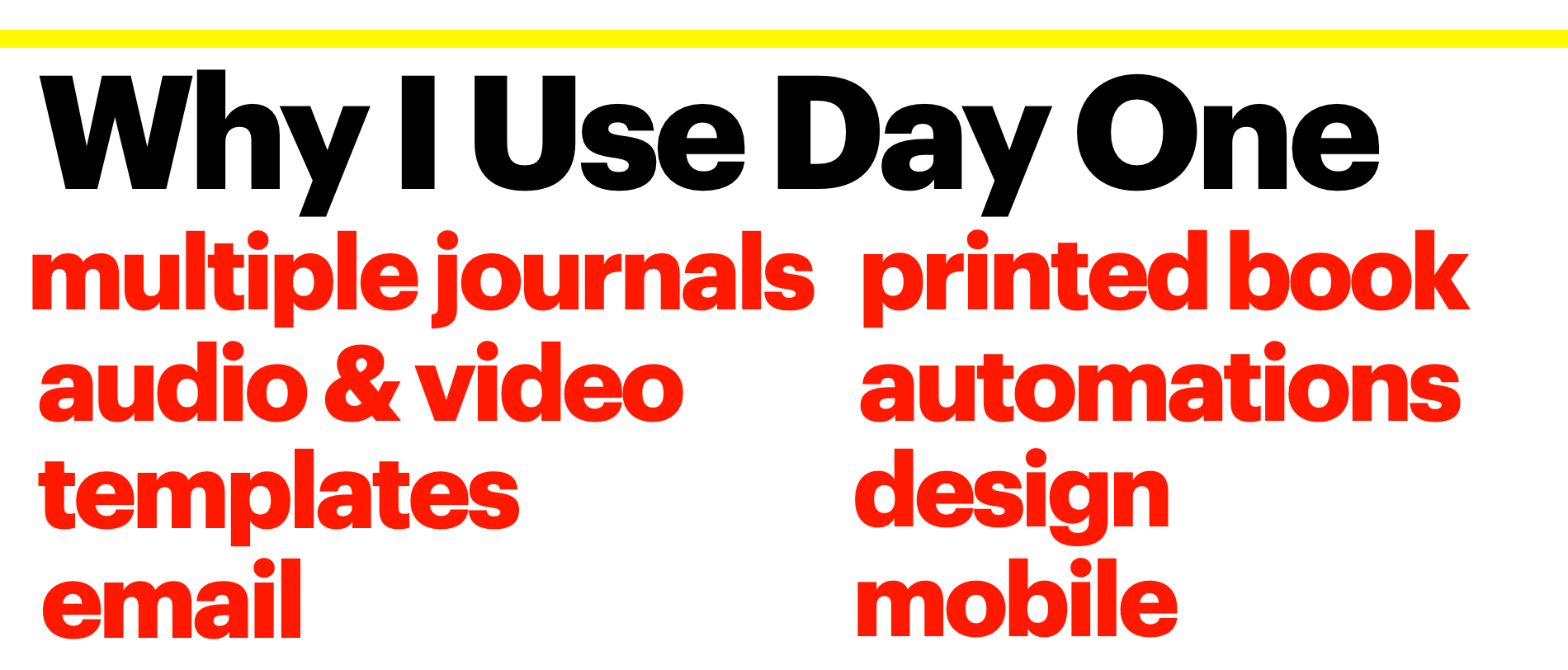
🤩 My favorite ways to do ____ online
Finding reliable services online can be time-consuming. So to help you strengthen your digital toolkit for 2024, I’m sharing a six-minute take on 7 of my favorites. (Watch on YouTube or above in this post). My aim is to save you hours spent weeding out clunkers. Read on for my preferred tools for journaling, creative interactive documents, exploring the Web, making lists and more. Create interactive documentsCoda is useful for creating simple documents as well as complex project plans. It works just like Google Docs but with additional capabilities. You can embed videos, maps, social media posts, tables, diagrams and buttons. You can link Coda docs to Slack or other services you use to streamline your work. I use Coda to manage projects, organize meeting notes, and sometimes for handouts. The paid plans add helpful AI capabilities — you can chat with your documents.Coda Doc Examples: a revenue database and my free digital teaching toolkit. Read more on how I use Coda.Keep a simple journal Day One is the best simple, easy-to-use, free app for digital journaling. My favorite features: keeping separate personal, reading and work journals; adding audio, video and photos; emailing-in entries or adding them on my phone; getting a printed journal mailed every other year. Alternatives: Other good options include Grid Diary and Apple’s own new Journal app. Read more on why Day One is my favorite + my Medium post: 9 ways to journalExplore the web enjoyablyArc is my favorite browser. It’s clean, simple, and free. You can create separate spaces for distinct projects. I have one for each class I teach, and for my primary research interests. I also like its annotation features for screenshots. Here’s an example. I prefer its appearance and functionality to Chrome, Firefox or Safari with no tabs up top. Just a clean view of the site you're visiting. New AI features allow you to get a quick summary of any article or site you visit. Read more about the 9 most useful Arc features Share lists of your favoritesListy is a simple mobile app for making lists. Type in your picks and the app automatically pulls in related images, like book or album covers. You can share a link to your visual lists. Examples: Bill Gates’s favorite books, Rolling Stones’s best 100 albums. Read what I like about the simplicity of Listy. Listium is more powerful free service online for compiling lists you share and publish — favorite books, games, or whatever else. Examples: Things to do in Sydney and the 100 highest-rated comedies on Netflix. Alternative: Glide also works well for making and sharing lists as little apps, like my favorite podcasts or journalists and publishers on TikTok. Build a timeline for a presentationThe Knight Lab’s TimelineJS makes it easy to create a compelling, interactive timeline you can share online. Include text, photos, and embedded YouTube videos or Wikipedia entries. Examples: The history of wine and The life of Whitney Houston. The service isn’t new, but still works well. Great alternatives: BeeDocs 3D (Mac), Genially and Venngage all have stellar timeline templates. More on why I recommend TimelineJS and when to use each alternativeBrainstorm with your voice Oasis is a useful AI-powered app that records, transcribes and cleans up your short voice memos. It’s one of the most fruitful $5 a month subscriptions I pay for. I use it to get raw ideas out of my head to avoid the blank paper problem. I just ramble on into my Airpods for a few minutes as I walk around the park. Oasis magically transforms my verbage into a neat summary, a helpful outline, and drafts of a newsletter post, a video script, or whatever else I’m working on.Read why I rely on Oasis and six ways to use it Backup, organize and share photosGoogle Photos is a classic and remains my tool of choice for photo backup, search, sharing and printing. It’s faster and more flexible than Apple’s photo service, which I also use. I like being able to find any of my photos by typing in a name, place, or even a detail like “NYC,” “skiing,” or “pizza.” I use GPhotos to edit and share photos. I’ve even used it while teaching, having students create shared albums for a live photo sharing project. My wife orders printed family photo books twice a year and the quality is good.What are your go-to apps at the start of 2024? Leave a comment 👇p.s. Make something new this spring! You’re invited to apply to join the 2024 cohort of the Entrepreneurial Journalism Creators Program. This is the 100-day fully-online program I direct at the City Univ. of NY’s Newmark Grad School of Journalism. Participants join from all over the world at all career stages. RSVP to join a live open-house Jan 10. Read more and apply by Feb 2. This is a public episode. If you'd like to discuss this with other subscribers or get access to bonus episodes, visit wondertools.substack.com/subscribe

How I Use AI for Productivity ✍️
In this week’s Wonder Tools I’m experimenting with an audio post.Nikita Roy recently interviewed me for her Newsroom Robots podcast. I’m sharing the conversation with you to give you a window into the AI tools I find most useful with explanations of how and why I use them.During the conversation I share my AI experiments and thoughts on:* How Claude offers a powerful alternative to ChatGPT for long documents (~5:55 in the audio)* Why I tried Woebot & Personal.ai to stretch my thinking (~3:54)* My four Fs checklist for testing new AI tools (~20:45)Interview excerpt audiogram made with Hypernatural, an impressive new AI tool I’ll write about in a future post. https://youtu.be/FehWNSvpq2g?si=07l6U7kbE5LDn1hWTools used in making this audio post* Squadcast for recording the interview. (I also like Riverside.fm for recording)* Shure MV7 microphone* Adobe podcast for recording the opening supplemental audio clip* Audacity for merging audio clips* Hypernatural for generating the audiograms* Claude for identifying potentially interesting moments in the transcript* Substack for newsletter and audio delivery10 Takeaways on AI* Alternatives to ChatGPT are worth exploring. Personal.ai and Woebot are in a growing category of new AI assistants that can serve as conversational partners. They aim to provide comfort or companionship and to get to know you over time. Update: Woebot recently announced that its app will no longer be available after November 30, 2023. (~3:54 in the audio)* Claude’s superpower is ingesting giant texts I find Claude's ability to analyze large uploaded documents (up to 75,000 words) useful. I can have Claude summarize key points from a research paper to help me learn from it more efficiently. (~6:01)Below is the post I wrote about this: https://wondertools.substack.com/p/claude* I made a little French bot... I created a simple FrenchGuru language bot with Poe to explain French grammar and phrases. (~8:02)Other Poe bots I created you can use for free: - 6WordSummary sums up anything in six words- MemoryAid gives you a mnemonic device for whatever you want to recall.- BotanyBlair gives you interesting info about any plant + a two-line poem. - EthicalJourno responds to queries based on the ethical principles of the Society of Professional Journalists.Here’s the post I wrote about this: https://wondertools.substack.com/p/poe * AI can be useful as an experimental email assistant. The AI reviews my past writing to understand my style. When I lack time for a from-scratch response to every cold email, I can provide phrases and have Superhuman AI stitch together a draft, allowing me to spend time editing rather than composing all email from scratch. (~14:52)RSVP to join me on November 28 at 3pm ET for a live demo of Shortwave, another email tool incorporating AI creatively: https://lu.ma/novshortwave * Multimedia AI tools are worth exploring. Tools like Runway ML, Kapwing, and Descript use AI to streamline video editing and creation. Why I find Descript so useful: (~23:12)* AI tools should provide clearer guidance to users. Until recently, services like ChatGPT and Claude basically gave you a blank box and invited you to figure out what to do. (~25:20)* New AI tools like 4149.ai have creative features that can summarize classes and allow students to 'query' the AI with questions about session content. It's like having an assistant who memorized every word. (~31:40)* I use an AI app called Bloks to generate meeting summaries and notes on conference sessions. This allows me to focus on listening and thinking rather than manual note-taking. (~34:12) p.s. I also use and recommend Fathom (as a reader/friend you can skip the waitlist) for time-coded meeting summaries: https://fathom.video/invite/tq29sg * AI can eventually help provide more customized journalism education. I see AI as helpful for creating adaptive learning materials tailored to each student's language, culture, interests, and project work. (~36:16)* AI can reduce some of the sting of menial tasks. AI can help with manual tasks in the journalism workflow — like analyzing datasets, scanning notes to find mentions of a topic, and more. (~37:37)Join Nikita and me in an upcoming AI masterclass🔔 Introducing the Generative AI for Media Pros Masterclass A Wonder Tools + Newsroom Robots collaborationFind out more and sign up for one of the limited spots. It’s hands-on, small-cohort with one-on-one guidance: https://maven.com/nikita-roy/generative-ai-for-media-professionals I’ll co-lead this live cohort-based course alongside Nikita Roy, the journalist, data scientist, media entrepreneur and host of the Newsroom Robots podcast, who interviewed me for this audio post.Check out recent Wonder Tools posts on AI: https://wondertools.substack.com/t/ai … And check out the Newsroom Robots podcast for more from Nikita Roy: https://www.newsroomrobots.com/ I’d love your feedback on this audio post. Hit reply to reach me or email jeremy at jeremycaplan dot com. This i

Save time with 15-minute book summaries
Shortform gives you concise summaries of books you haven’t had time yet to read. In 15 minutes you’ll grasp a book’s core ideas. You can then decide to read the full book if it resonates. Shortform covers 30+ genres but focuses on business, tech, self-improvement, spirituality, history, and politics. My summary take: I appreciate the thorough, smart summaries weaving in ideas from related books, but given the alternatives, I wish more books were covered and that the app and site were more robust.Smart summariesThankfully the write-ups aren’t automated. Shortform hires smart people to read and reflect on these books. I find the summaries to be clear and well-written. Start with a one-minute quick guide for a book you’re curious about. Then optionally dig deeper with a 15-minute full summary.See how a book is connected to othersOne of the things I like best about Shortform is that the summaries tie together related books. I recently read the summary of Decisive, by Chip and Dan Heath, a book I read several years ago. I wanted a reminder about the key ideas. I appreciated the summary’s references to several other books on decision-making, from The Art of Choosing and The Paradox of Choice to Thinking in Bets and Thinking Fast and Slow. Other summary services focus on the book itself but don’t bring in parallel helpful references that show how a book fits into the broader field of thinking.Short activities to apply books’ ideasAnswer short questions the platform supplies within its summaries to apply the ideas in a book to your own life. In the Decisive summary, for example, I was prompted to consider an upcoming decision and to analyze various aspects through the lens of the book’s frameworks. As a teacher, I appreciate this extra step to help me retain the information and ideas.Mobile, Web and exportable highlightsI like reading the book summaries on my phone, but you can also read them on the Web. You can make highlights within a summary and sync these to Notion or Readwise. Here’s why I love Readwise for my book and online reading highlights.Articles, not just booksIn addition to book summaries Shortform publishes short explainers on diverse topics — from cryptocurrency to psychedelics. The summary pieces are smart, authoritative and reference numerous academic and media sources. But I don’t consider these to be comprehensive — they’re usually primers to help you get started on a topic.📖 2 brief excerpts from Shortform summariesSprint by Jake Knapp, John Zeratsky, and Braden KowitzElement #3: Building Your Team — “According to Knapp, Zeratksy, and Kowitz, your sprint team should have no more than seven members. Having more than seven hinders the decision-making process and makes it difficult to maintain the group's attention. Start by picking two essential roles, which they call the Decider and the Facilitator. For clarity, we'll call them the team leader and the sprint coordinator…“A World Without Email by Cal NewportOur Current Approach to Work: The Hyperactive Hive Mind Workflow — Newport argues that most knowledge workers structure their work days around responding to unscheduled emails and instant messages rather than around the knowledge work they were hired to do. A 2019 study showed that the average employee sent and received 126 emails a day, and another study showed that employees check their instant messenger app once a minute on average and their inboxes 77 times a day. A third study indicated that many knowledge workers can only perform about an hour of uninterrupted knowledge work a day. The rest of their day is spent responding to a barrage of incoming emails and messages…”Limitations and ConsiderationsLimited book selectionThe service is still young, so the library of summaries isn’t yet robust. Because they cover a wide range of subjects, no topic is comprehensively covered. And because they work methodically to create thoughtful summaries, the production process is slow. A handful of new books are added weekly. There are many books I’d love to have summaries of that aren’t available, both contemporary and classic. Shortform works best if you enjoy discovering new books, not just searching for specific book summaries.Opinionated writeupsThe summarizers aim to position each book among others. That results, sometimes, in summaries that are a blend of summary and analysis. In summarizing A World Without Email, the team omitted a section of the book about the history of email because they decided it wasn’t crucial to the book’s primary message. I generally don’t object to these excisions, because anyone summarizing has to make such decisions. But if you prefer a straightforward section-by-section textual summary with less independent analysis and fewer external references, you might prefer one of the alternatives below, like Headway or Uptime.Minimalist app and siteThe app and site are functional but simple. You can search for books and read summaries, but don’t expect much more. A neat audio